62
Shared media
My playlist
Repeat play: Off
Shuffle play: Off
Clear My playlist
Prune servers
Music player
Prune servers
Your sound system stores details of UPnP servers that it has seen via its network
connection in its internal memory. If you use the sound system at different
locations you may fi nd that there are servers listed by the sound system that
you are no longer interested in. The prune servers functions allows the list
to be updated so that only active UPnP severs on the currently connected
network are shown when selecting 'Shared Media' from the Music Player menu.
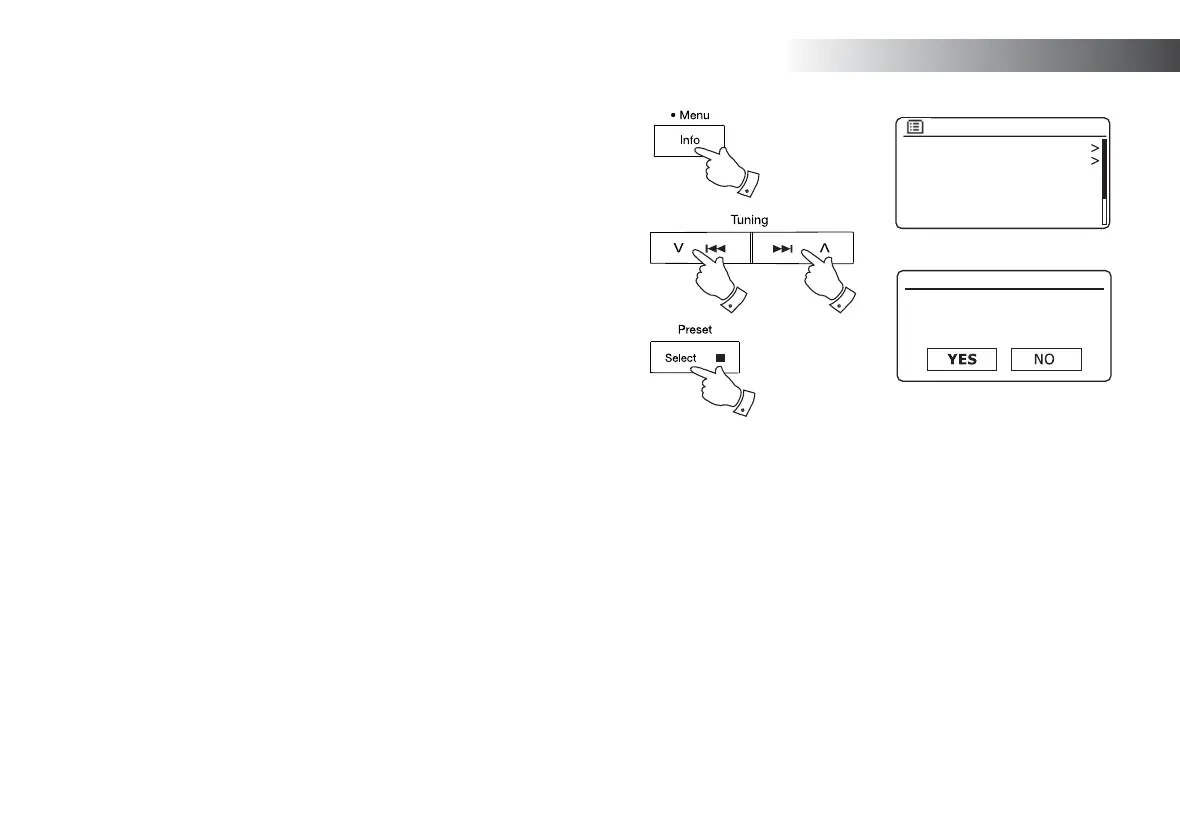
1. Press and hold the Menu button to enter the main Music Player menu.
2. Press the Menu Up or Down buttons until 'Prune servers' is highlighted
on the display. Press and release the Select button.
3. To remove servers that are no longer required press the Menu Up or
Down buttons until 'YES' is highlighted on the display. Press and release
the Select button to cause the servers to be removed
.
4. If you do not wish to prune servers press the Menu Up or Down buttons
to highlight 'NO' and press and release the Select button to confi rm.
1
2-4
2-4 2-4
Prune servers
Prune shared media
wake on LAN servers?
Music Player


 To Next Page