17
Connecting to your computer network - cont.
If you have followed the steps on the preceding pages successfully, your sound system will have connected
to your router, and then made a connection to the Internet and set its clock. If this is the case, then you can
try listening to radio stations via the Internet as described on page 22 onwards.
Changing the network connection
In the sections above, you chose how your sound system would be connected to your network, either using
a WiFi connection or using a wired Ethernet cable. From time to time, you may fi nd that you need to connect
to different computer networks. The Network Settings menu allows you to change your sound system’s
network settings, scan for an alternative wireless network, or to manually confi gure the network parameters.
The steps outlined below describe how you can do this - see also the section 'Network profi les' on page 118.
If you have no need to do this, however, please skip to page 22.
Confi guring the sound system to use an alternative WiFi connection
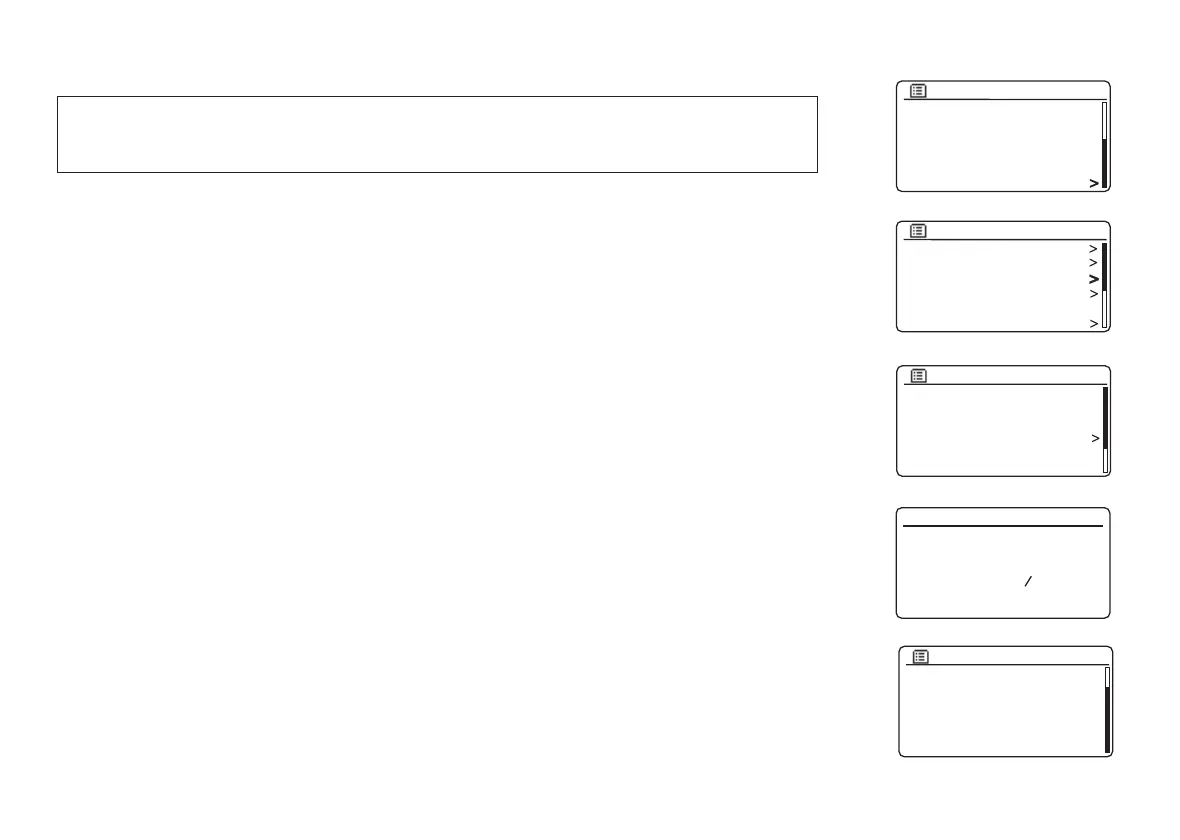
1. From the Network Settings menu select 'Network wizard'. This will present you with details of any
WiFi networks that are found. Scroll down the list using the Menu Up or Down buttons to the desired
network name. Press the Select button to select this network.
The sound system will then use its WiFi system to communicate with the network. Depending on the
settings for the new network you may need to enter an encryption key (see pages 15-16). By default
the sound system will then acquire an IP address and other network settings from the network's router
using DHCP (Dynamic Host Confi guration Protocol).
Confi guring the sound system to use the wired Ethernet connection
2. Connect your sound system to your router using an Ethernet cable plugged into the RJ-45 socket at
the back of the unit. From the Network Settings menu select 'Network wizard'. This will display a list of
any WiFi networks that are found. Scroll down the list and select the '[Wired]' option.
The sound system will then use its Ethernet connection to communicate with the network. By default
the unit will then acquire an IP address and other network settings from the network's router using
DHCP (Dynamic Host Confi guration Protocol).
SD
Bluetooth
Aux in
Sleep
Alarms
System settings
Main menu
Backlight
Equaliser
Network
Time/Date
Inactive Standby
Language
System settings
Network wizard
PBC Wlan setup
View settings
Wlan region
Manual settings
NetRemote PIN Setup
Network settings
[WPS]Smith
Jones
Paul’s network
[Rescan]
[Wired]
[Manual config]
SSID
Network settings
Network wizard
Scanning...


 To Next Page