23
Video Operations
Fading-In/Out the Final Output Video
Here’s how to perform a fade-out from the nal output video to a
black/white screen, or a fade-in from a black/white screen to the nal
output video.
A scene that you don’t want to output as video can be changed to a
black/white screen.
* The nal output video and audio fades in/out together when using
the factory default settings.
* The fade-in/out eect is applied only to the nal output.
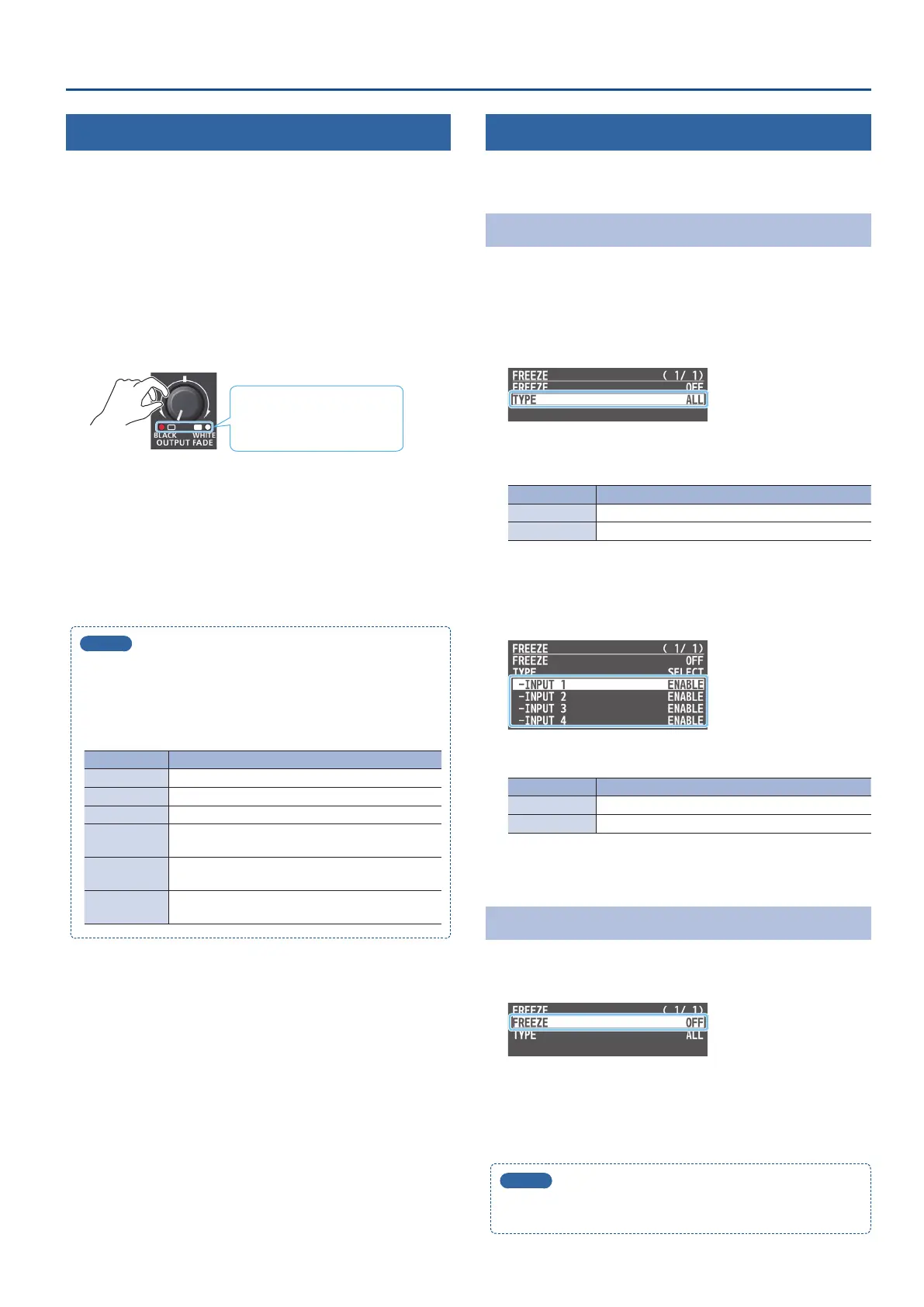
1. Turn the [OUTPUT FADE] knob all the way clockwise or
counterclockwise.
Lit: Faded out
Blinking: Now fading-in/out
Unlit: Normal output
Turning the [OUTPUT FADE] knob clockwise performs a fade-out
to white, and turning the knob counterclockwise performs a
fadeout to black.
2. To fade-in, return the [OUTPUT FADE] knob to the center.
MEMO
[OUTPUT FADE] knob functions
You can assign a dierent function to control with the [OUTPUT
FADE] knob.
To make this setting, use the [MENU] button
0
“SYSTEM”
0
and
set OUTPUT FADE ASSIGN “TURN LEFT” or “TURN RIGHT.”
Value Explanation
BLACK The nal output video is faded-in/out to a black screen.
WHITE The nal output video is faded-in/out to a white screen.
AUDIO Adjusts the output volume.
BLACK&AUDIO
Fades-in/out the nal output video and audio
simultaneously. The video fades to a black screen.
WHITE&AUDIO
Fades-in/out the nal output video and audio
simultaneously. The video fades to a white screen.
STILL 1–4
OUTPUT
The specied still image is output as a cut to nal/
preview output.
Freezing the Input Video (Freeze)
Here’s how to temporarily freeze the input video (freeze function).
You can apply transition eects during a video freeze.
Setting the Operation mode
There are two freeze modes: the “ALL mode” for freezing all input
video, and the “SELECT mode” that freezes only the input video you
specify. Set the mode that matches your needs.
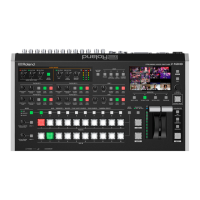
1. [MENU] button
0
“FREEZE”
0
select “TYPE,” and press the
[VALUE] knob.
2. Turn the [VALUE] knob to select “ALL” or “SELECT,” and
press the [VALUE] knob.
Value Explanation
ALL Freezes all video that is being input.
SELECT Freezes only the specied input video.
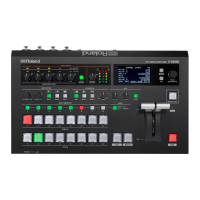
If “SELECT” is selected
3. Use the [VALUE] knob to select “INPUT 1”–“INPUT 4,” and
press the [VALUE] knob.
4. Use the [VALUE] knob to select “ENABLE” or“DISABLE.”
Value Explanation
ENABLE The input video freezes.
DISABLE The input video does not freeze.
5. Press the [MENU] button several times to close the menu.
Freezing the Input Video
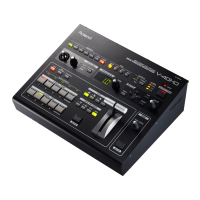
1. [MENU] button
0
“FREEZE”
0
select “FREEZE,” and press
the [VALUE] knob.
2. User the [VALUE] knob to select “ON.”
The freeze function turns on, and the input video freezes.
3. Press the [MENU] button several times to close the menu.
MEMO
You can assign the freeze function to the [DSK PVW] or [DSK ON]
button and turn it on/o (p. 41).


 To Next Page