47
Menu List
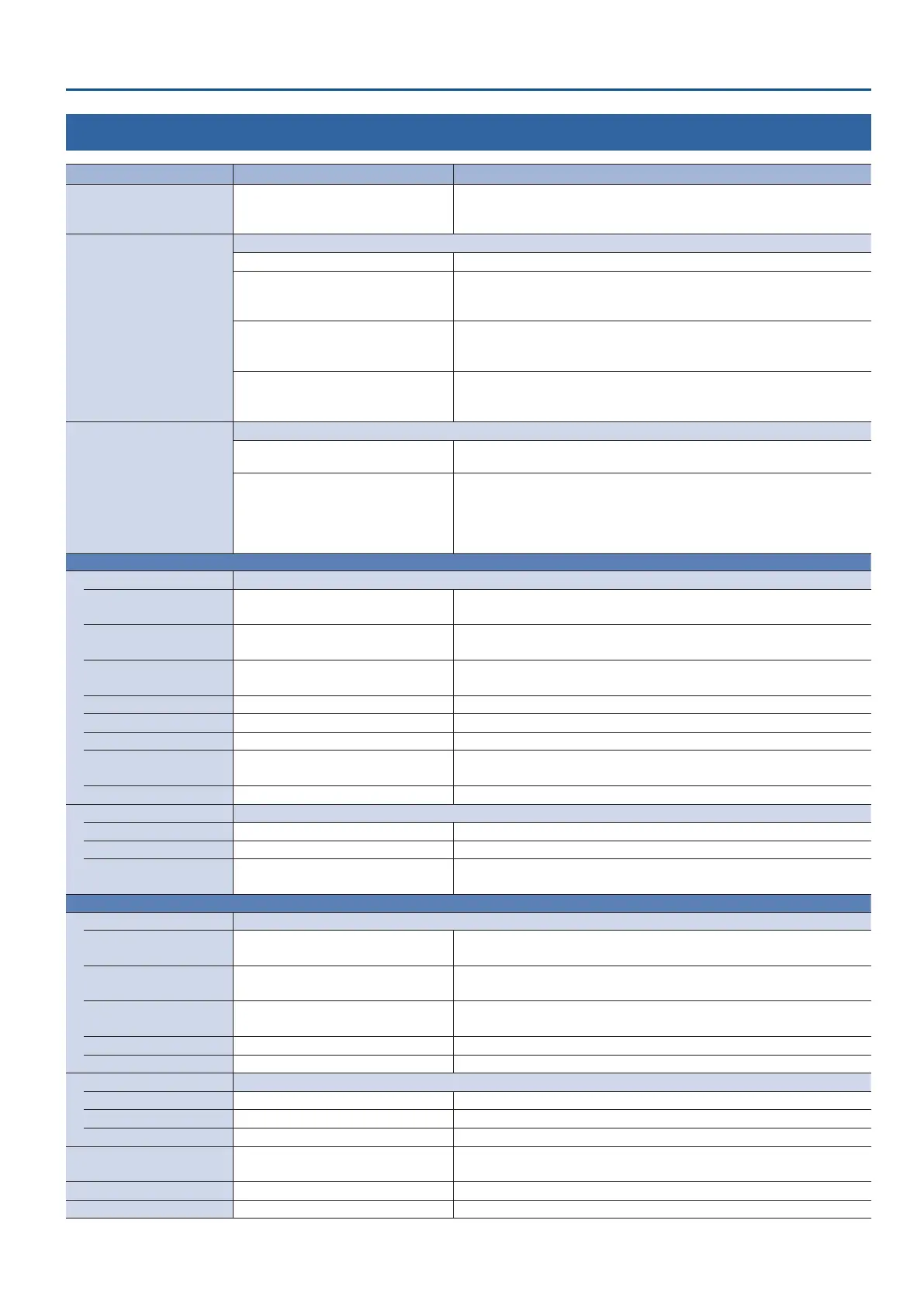
6: PinP
Menu item Value (bold text: default value) Explanation
PinP SOURCE HDMI 1–4, STILL 1–4
Species the video source of the inset screen.
When the [MODE] button is lit up yellow, you can select HDMI 1–4 with the
[1/5]–[4/8] buttons.
PinP TYPE
Species the type of PinP compositing.
PinP Composites the inset screen on top of the background video.
LUMINANCE-WHITE KEY
A combination of PinP and luminance key (white).
Makes the white portions of the inset screen transparent, and composites the
image with the background.
LUMINANCE-BLACK KEY
A combination of PinP and luminance key (black).
Makes the black portions of the inset screen transparent, and composites the
image with the background.
CHROMA KEY
A combination of PinP and chroma key.
Makes the specied key color portions of the inset screen transparent, and
composites the image with the background.
PinP TARGET
Species how the unit operates when you press the [PinP] button.
PVW.PGM
Turns PinP composition on/o. When turns on, displays the inset screen on both
the preview output and the nal output.
PVW
Turns the inset screen preview output on/o. When turns on, displays the inset
screen in only the preview output. Use this to check the composited result before
nal output.
Switching the video with the [AUTO] and [CUT] buttons or the video fader turns
PinP compositing on, and the composited result is sent to nal output.
When PinP TYPE = PinP
WINDOW Adjusts the inset screen.
POSITION H -50.0– -40.0–50.0%
Adjusts the horizontal position of the inset screen.
You can also adjust this by turning the [CONTROL 1] knob. (*6)
POSITION V -50.0– -40.0–50.0%
Adjusts the vertical position of the inset screen.
You can also adjust this by turning the [CONTROL 2] knob. (*6)
SIZE 10.0–35.0–100.0%
Adjusts the size (zoom) of the inset screen.
You can adjust this by turning the [CONTROL 1] knob while pressing it. (*6)
CROPPING H 0.0–100.0% Adjusts the horizontal size of the inset screen.
CROPPING V 0.0–100.0% Adjusts the vertical size of the inset screen.
SHAPE RECTANGLE, CIRCLE, DIAMOND Species the shape of the inset screen.
BORDER COLOR
WHITE, YELLOW, CYAN, GREEN,
MAGENTA, RED, BLUE, BLACK, SOFTEDGE
Species the color of the border for the inset screen.
If this is set to “SOFTEDGE,” the edge of the inset screen is blurred.
BORDER WIDTH 0–1–14 Adjusts the width of the border for the inset screen.
VIEW Adjusts the video that is shown in the inset screen.
POSITION H -50.0–0.0–50.0% Adjusts the horizontal position at which the inset screen is shown.
POSITION V -50.0–0.0–50.0% Adjusts the vertical position at which the inset screen is shown.
ZOOM 100–400%
Adjusts the zoom of the video shown in the inset screen.
You can adjust this by turning the [CONTROL 2] knob while pressing it. (*6)
When PinP TYPE = LUMINANCE-WHITE KEY or LUMINANCE-BLACK KEY
WINDOW Adjusts the inset screen.
POSITION H -50.0– -40.0–50.0%
Adjusts the horizontal position of the inset screen.
You can also adjust this by turning the [CONTROL 1] knob. (*6)
POSITION V -50.0– -40.0–50.0%
Adjusts the vertical position of the inset screen.
You can also adjust this by turning the [CONTROL 2] knob. (*6)
SIZE 10.0–35.0–100.0%
Adjusts the size (zoom) of the inset screen.
You can adjust this by turning the [CONTROL 1] knob while pressing it. (*6)
CROPPING H 0.0–100.0% Adjusts the horizontal size of the inset screen.
CROPPING V 0.0–100.0% Adjusts the vertical size of the inset screen.
VIEW Adjusts the video that is shown in the inset screen.
POSITION H -50.0–0.0–50.0% Adjusts the horizontal position at which the inset screen is shown.
POSITION V -50.0–0.0–50.0% Adjusts the vertical position at which the inset screen is shown.
ZOOM 100–400% Adjusts the zoom of the video shown in the inset screen.
KEY LEVEL 0–64–255
Adjusts the degree of extraction (transparency) for the key.
You can adjust this by turning the [CONTROL 2] knob while pressing it. (*6)
KEY GAIN 0–255 Adjusts the degree of edge blur (semi-transmissive region) for the key.
MIX LEVEL 0–255 Adjusts the key’s overall density (output level).
(*6) When both split and PinP compositing are on, you can operate the eect selected in the SYSTEM menu item “CONTROL KNOB PRIORITY.”


 To Next Page