36
Audio Operations
Interlinking Audio Output to Video
Switching (Audio Follow)
Here’s how the audio output can be automatically switched in
tandem with video switching (the audio follow function).
1. [MENU] button
0
select “AUDIO FOLLOW,” and press the
[VALUE] knob.
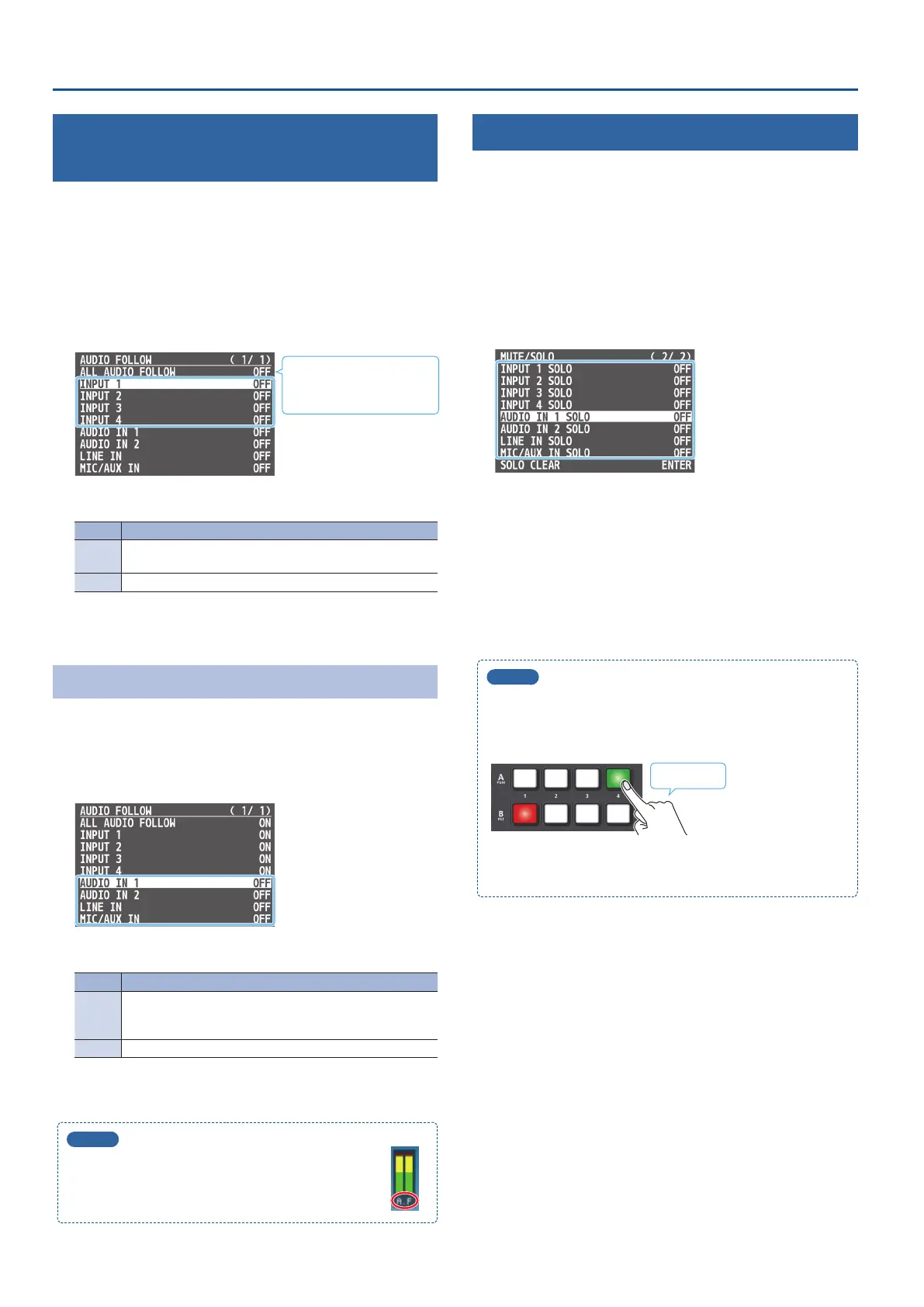
2. Use the [VALUE] knob to select the input video (INPUT
1–4) that you want to use with Audio Follow, and press
the [VALUE] knob.
Select “ALL AUDIO FOLLOW”
to edit the settings for
INPUT 1–4 all at once.
3. Use the [VALUE] knob to select “ON.”
Value Explanation
ON
The audio is output only when the video is selected. The
audio is automatically muted if another video is selected.
OFF The audio is always output regardless of the video selection.
4. Press the [MENU] button several times to close the menu.
Adding an Object for Audio Follow
Here’s how an audio input source other than INPUT 1–4 can be
specied as an object for the audio follow function.
1. [MENU] button
0
“AUDIO FOLLOW”
0
and select the
audio input that will be the object of Audio Follow.
2. Use the [VALUE] knob to select one of “INPUT 1”–“INPUT 4.”
Value Explanation
INPUT
1–4
For each audio source, these settings specify the input video
(INPUT 1–4) that will use the audio follow function. Audio is
output only when the specied input video is selected.
OFF The audio is always output regardless of the video selection.
3. Press the [MENU] button several times to close the menu.
MEMO
The level meter shown of the multi-view indicates the
audio follow setting.
The “A.F” symbol is shown to indicate audio for which
audio follow is on.
Checking a Specic Audio Input (Solo)
Here’s how you can temporarily monitor a specic audio input via the
headphones (solo function).
* The solo function applies to the headphone output. It does not
aect output other than the headphones.
1. [SETUP] button
0
select “MUTE/SOLO,” and press the
[VALUE] knob.
2. Use the [VALUE] knob to select the audio that you want
to monitor, and press the [VALUE] knob.
3. Use the [VALUE] knob to select “ON.”
In the headphones, you hear only the audio for which this is on.
* Select “SOLO CLEAR” and press the [VALUE] knob to turn all solo
settings o at once.
4. Press the [MENU] button several times to close the menu.
MEMO
You can turn on the solo function for the HDMI audio while
holding down the cross-point button.
Use the [MENU] button
0
“AUDIO OUTPUT”
0
“PHONES”
0
and set “HDMI SOLO” to “USE CROSS-POINT SW.”
Long-press
You’ll be able to monitor the audio of the nal output video or
the preview output video while the button is pressed.


 To Next Page