29
Video Composition Operations
Compositing Video with Downstream Keyer (DSK)
This process performs key compositing on text or video downstream (DSK compositing) of a video that was already composited upstream. You can
switch between background video while still displaying the text or video.
With DSK composition, you can use luminance key with either a black or a white background, or a chroma key with either a blue or green background.
Compositing a Logo or Image (Luminance Key)
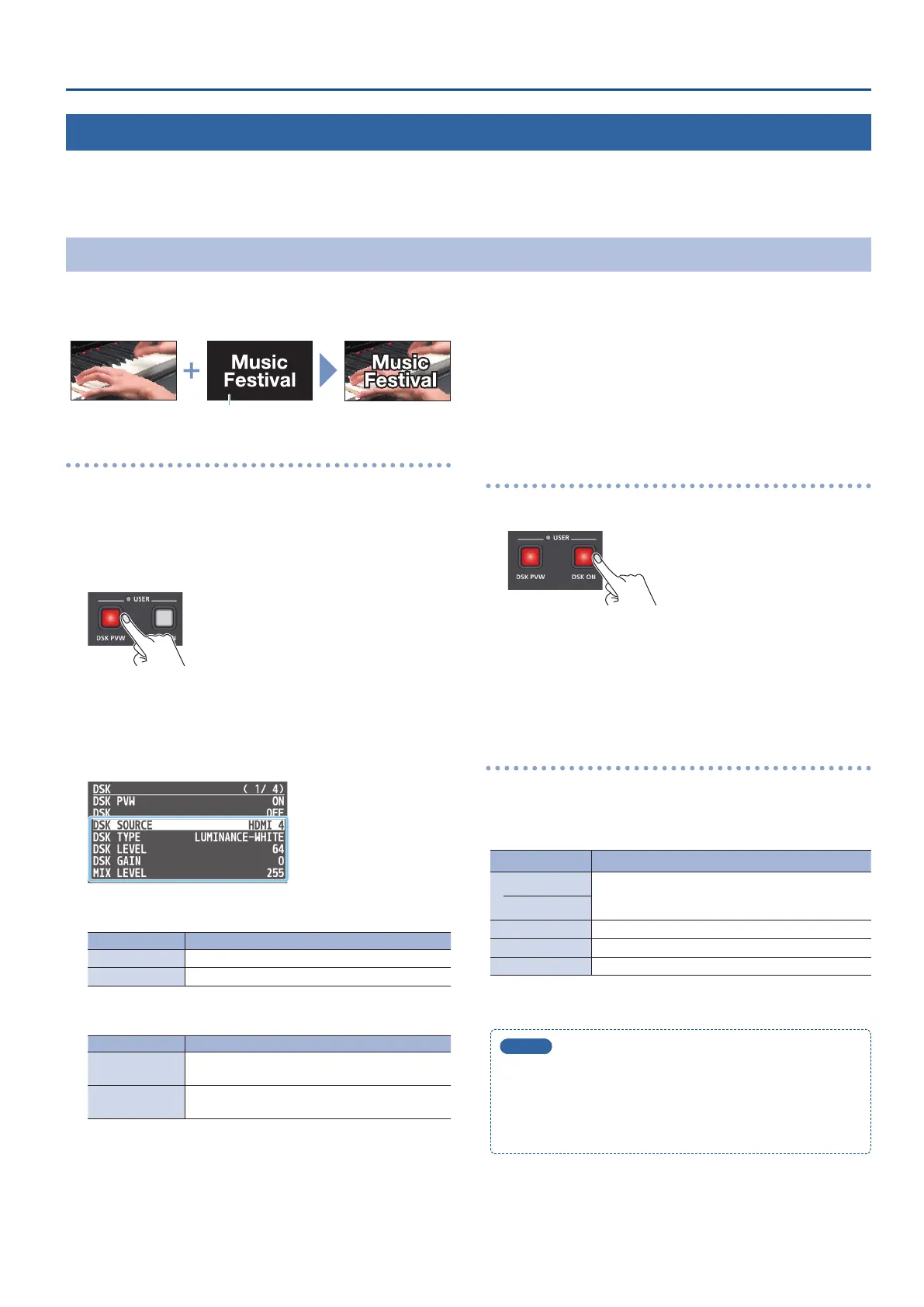
Here’s how you can cut out a logo or image by turning its black or white portion transparent, and then superimpose it on the background video.
Black or white
Background video
Logo or image to
be overlaid
Adjusting the depth of compositing
1. Preview output the background video.
At the PVW section of the multi-view, check the video to be made
the background.
2. Press the [DSK PVW] button to turn on the preview
output (lit).
A preview of the composition results is displayed in the PVW
section of the multi-view.
At this stage, the nal output has not yet been changed.
3. [MENU] button
0
“DSK”
0
select the menu item shown
below, and press the [VALUE] knob.
7 DSK SOURCE
Select the source of the logo or image that you want to superimpose.
Value Explanation
HDMI 1–4 Input video from the INPUT 1–4 connectors
STILL 1–4 A still image loaded into the unit (p. 20)
7 DSK TYPE
Choose “LUMINANCE-WHITE” or “LUMINANCE-BLACK.”
Value Explanation
LUMINANCE-
WHITE
Makes white portions transparent according to
brightness.
LUMINANCE-
BLACK
Makes black portions transparent according to
brightness.
7 DSK LEVEL
Adjusts the degree of extraction for the key.
7 DSK GAIN
Adjusts the degree of edge blur for the key.
7 MIX LEVEL
Adjusts the key’s overall density (output level).
4. Use the [VALUE] knob to change the value.
Congure the settings for each menu item while checking the
composited result.
5. Press the [MENU] button several times to close the menu.
Compositing using DSK
1. Press the [DSK ON] button to turn on DSK compositing (lit).
The composition results is sent to nal output.
2. To turn o DSK compositing, press the [DSK ON] button
once again.
Modifying the logo or image
You can ll-in the superimposed logo or image, or add an edge to it.
Make these settings.
Use the [MENU] button
0
“DSK” to make the settings for the following
menu items.
Menu item Explanation
FILL TYPE
If this is “MATTE,” the superimposed logo or video is
lled-in with the specied color. The ll-in color is
specied by “MATTE COLOR.”
MATTE COLOR
EDGE TYPE Species the type of edge.
EDGE COLOR Species the color of the edge.
EDGE WIDTH Species the width of the edge.
MEMO
5
Set the fade-in/out time for logos and images from the [MENU]
button
0
“TRANSITION”
0
“DSK TIME.”
5
You can assign dierent functions to control with the [DSK
PVW] and [DSK ON] buttons (p. 41). If the USER indicator is not
lit, the buttons function as [DSK PVW] and [DSK ON] buttons.



 To Next Page