46
Menu List
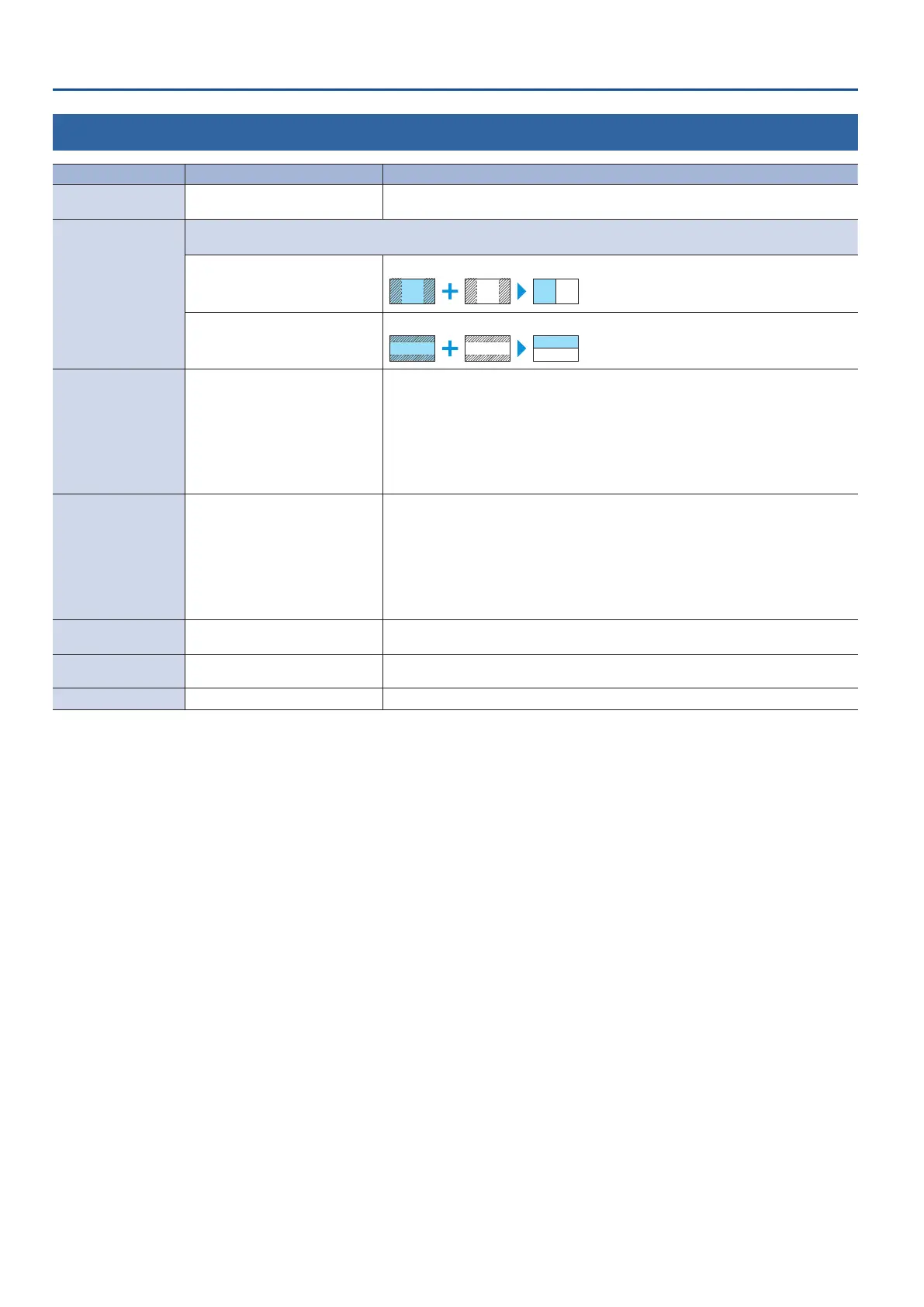
5: SPLIT
Menu item Value (bold text: default value) Explanation
SPLIT OFF, ON
Turns the split composition on/o.
You can also use the [
SPLIT] button to turn this on/o.
SPLIT TYPE
Selects the split composition types.
Press and turn the [CONTROL 2] knob to switch between compositing types. (*5)
SPLIT V
This vertically crops the center section of the video.
A B
A B
SPLIT H
This horizontally crops the center section of the video.
A
B
A-CENTER
-50.0–0.0–50.0%
5 When at SPLIT V
Adjusts the horizontal position of the video placed on the left.
You can also adjust this by turning the [CONTROL 1] knob. (*5)
5 When at SPLIT H
Adjusts the horizontal position of the video placed above.
You can also adjust this by turning the [CONTROL 2] knob. (*5)
* This positions the A/PGM bus video to the left or upper side.
B-CENTER
-50.0–0.0–50.0%
5 When at SPLIT V
Adjusts the horizontal position of the video placed on the right.
You can also adjust this by turning the [CONTROL 1] knob. (*5)
5 When at SPLIT H
Adjusts the horizontal position of the video placed below.
You can also adjust this by turning the [CONTROL 2] knob. (*5)
* This positions the B/PST bus video to the right or lower side.
CENTER POSITION
-50.0–0.0–50.0%
Adjusts the position of the boundary.
You can adjust this by turning the [CONTROL 1] knob while pressing it.
BORDER COLOR
WHITE, YELLOW, CYAN, GREEN,
MAGENTA, RED, BLUE, BLACK
Species the color of the border.
BORDER WIDTH
0–3–14 Adjusts the width of the border.
(*5) When both split and PinP compositing are on, you can operate the eect selected in the SYSTEM menu item “CONTROL KNOB PRIORITY.”


 To Next Page