42
Other Features
Preventing Unintended Operation
(Panel Lock)
You can disable operation of the panel’s buttons and knobs to
prevent unintended operations (Panel Lock function).
1. [MENU] button
0
“SYSTEM”
0
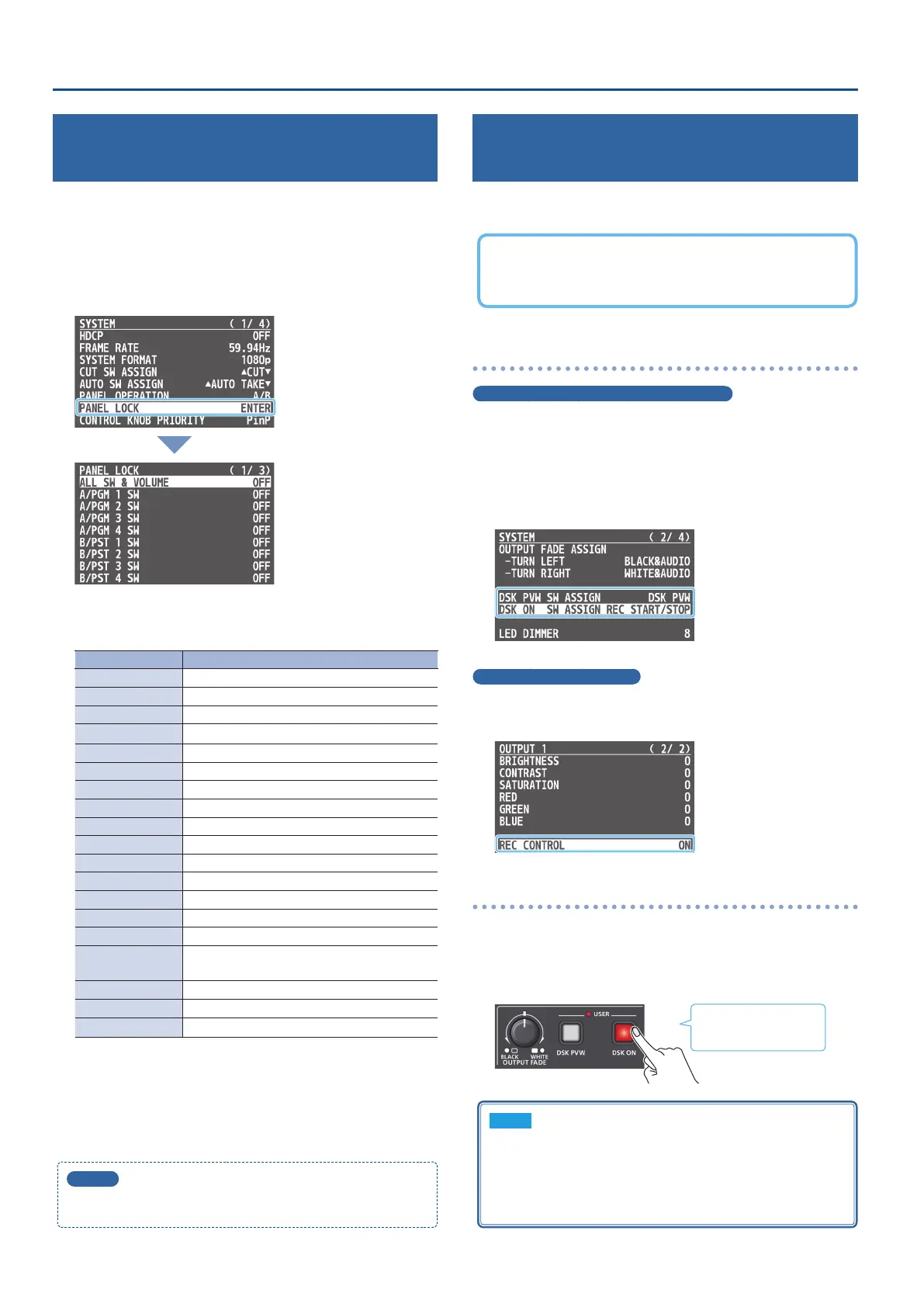
select “PANEL LOCK,” and
press the [VALUE] knob.
The PANEL LOCK menu appears.
2. Use the [VALUE] knob to select a target for panel lock,
and press the [VALUE] knob.
Menu item Explanation
ALL SW & VOLUME The following settings are turned on/o together.
A/PGM 1–4 SW A/PGM cross-point [1]–[4] buttons
B/PST 1–4 SW B/PST cross-point [1]–[4] buttons
CUT SW [CUT] button
AUTO SW [AUTO] button
1/5–4/8 SW [1/5]–[4/8] buttons
MODE SW [MODE] button
TRANSITION SW [TRANSITION] button
VIDEO FADER Video fader
PinP SW [PinP] button
SPLIT SW [SPLIT] knob
CONTROL KNOB [CONTROL 1] [CONTROL 2] knobs
DSK PVW SW [DSK PVW] button
DSK ON SW [DSK ON] button
OUTPUT FADE [OUTPUT FADE] knob
AUDIO LEVEL
[AUDIO IN 1] [AUDIO IN 2] knobs
[LINE IN] [MAIN] knobs
AUDIO GAIN [AUDIO GAIN 1] [AUDIO GAIN 2] knobs
SETUP (LINK) SW [SETUP] button
LIMITER SW
[LIMITER] button
3. Turn the [VALUE] knob to specify whether panel lock is
enable (ON) or disable (OFF).
4. Press the [MENU] button several times to close the menu.
MEMO
The [MENU] button blinks when you try to operate a locked
button, knob or other control.
Controlling an External Recorder’s Video
Record Start/Stop from the Unit
Connect a recorder that supports REC control functionality via HDMI
to control REC START/STOP on the recorder from this unit.
For more about recorders that support the REC control function,
refer to the Roland website.
https://proav.roland.com/
Settings
[DSK PVW] and [DSK ON] button functions
To use the REC control function, the REC START/STOP functions must
be assigned to the [DSK PVW] or the [DSK ON] button.
&
“Assigning Dierent Functions to Control with the [DSK PVW] and
[DSK ON] Buttons” (p. 41)
1. Set the function for the [DSK PVW] or the [DSK ON]
button to “REC START/STOP.”
Turning REC control on/o
1. [MENU] button
0
“VIDEO OUTPUT”
0
“OUTPUT 1” or
“OUTPUT 2”
0
and set “REC CONTROL” to “ON.”
Operation
1. Press either the [DSK PVW] or the [DSK ON] button to
which REC START/STOP is assigned.
Each time you press the button, the recorder switches between
video record start/stop.
Lit: Now recording
Unlit: Stopped
NOTE
The lights of the [DSK PVW] and [DSK ON] buttons show the
status of this unit, and are not linked with the recorder’s status.
For instance, if the recorder stops recording for some reason
while the [DSK PVW] or [DSK ON] buttons is lit, these buttons do
not automatically go dark in response.


 To Next Page