48
Menu List
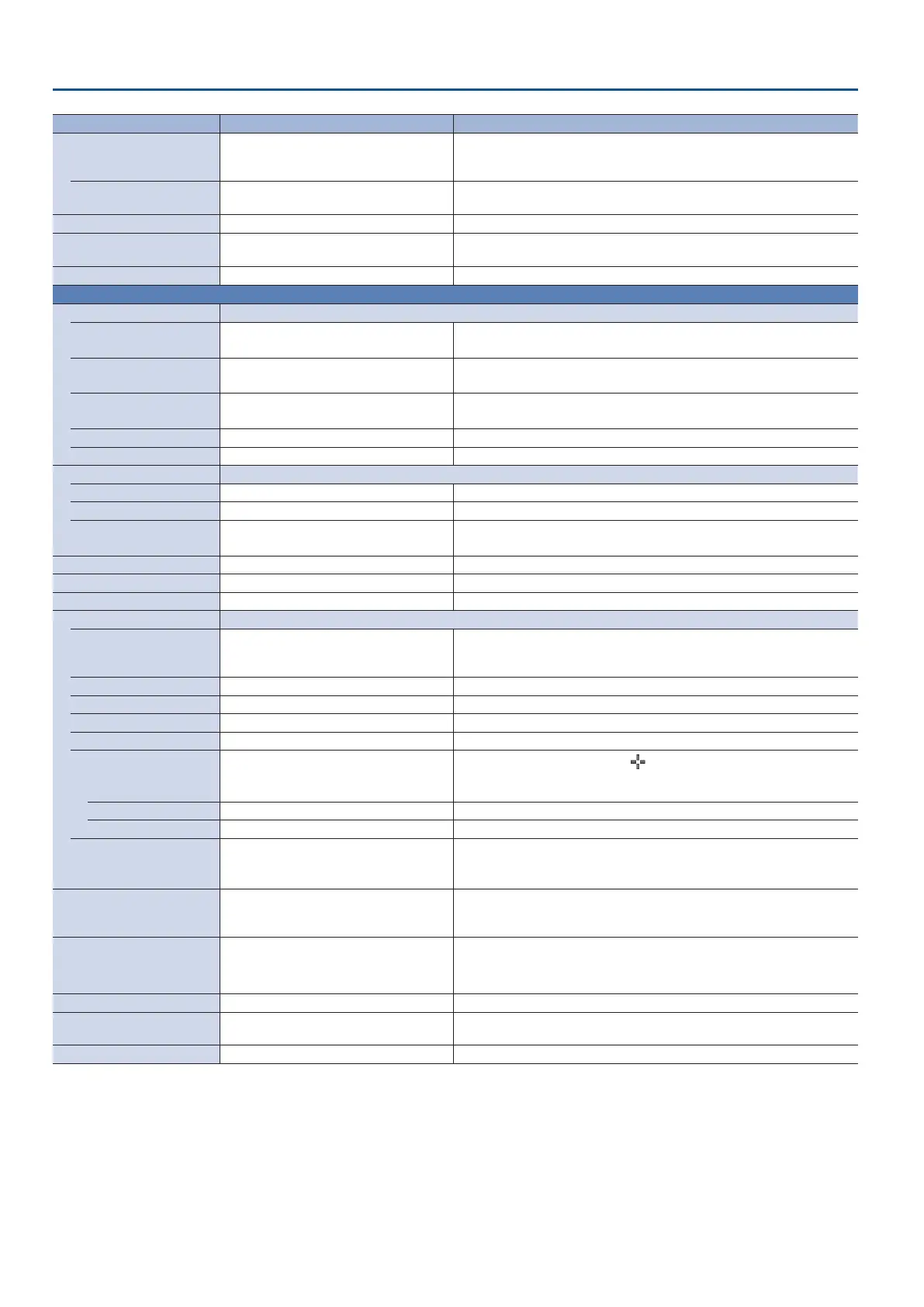
Menu item Value (bold text: default value) Explanation
FILL TYPE BUS, MATTE
If this is “MATTE,” the superimposed logo or video is lled-in with the
specied color when using key compositing. The ll-in color is specied by
“MATTE COLOR” below.
MATTE COLOR (*7)
WHITE, YELLOW, CYAN, GREEN, MAGENTA,
RED, BLUE, BLACK
Species the color used when lling-in the superimposed logo or video.
EDGE TYPE OFF, BORDER, DROP, SHADOW, OUTLINE Species the type of edge applied to the superimposed logo or video.
EDGE COLOR
WHITE, YELLOW, CYAN, GREEN, MAGENTA,
RED, BLUE, BLACK
Species the color of the edge applied to the superimposed logo or video.
EDGE WIDTH 0–3–14 Species the width of the edge applied to the superimposed logo or video.
When PinP TYPE = CHROMA KEY
WINDOW Adjusts the inset screen.
POSITION H -50.0– -40.0–50.0%
Adjusts the horizontal position of the inset screen.
You can also adjust this by turning the [CONTROL 1] knob. (*8)
POSITION V -50.0– -40.0–50.0%
Adjusts the vertical position of the inset screen.
You can also adjust this by turning the [CONTROL 2] knob. (*8)
SIZE 10.0–35.0–100.0%
Adjusts the size (zoom) of the inset screen.
You can adjust this by turning the [CONTROL 1] knob while pressing it. (*8)
CROPPING H 0.0–100.0% Adjusts the horizontal size of the inset screen.
CROPPING V 0.0–100.0% Adjusts the vertical size of the inset screen.
VIEW Adjusts the video that is shown in the inset screen.
POSITION H -50.0–0.0–50.0% Adjusts the horizontal position at which the inset screen is shown.
POSITION V -50.0–0.0–50.0% Adjusts the vertical position at which the inset screen is shown.
ZOOM 100–400%
Adjusts the zoom of the inset screen.
You can adjust this by turning the [CONTROL 2] knob while pressing it. (*8)
KEY LEVEL 0–64–255 Adjusts the degree of extraction (transparency) for the key.
KEY GAIN 0–255 Adjusts the degree of edge blur (semi-transmissive region) for the key.
MIX LEVEL 0–255 Adjusts the key’s overall density (output level).
CHROMA Make detailed settings for chroma key.
COLOR GREEN, BLUE
Species green or blue as the key color (the color to be removed). If you
want a color other than green or blue to turn transparent, use “SAMPLING
MARKER” to specify the key color.
HUE WIDTH -30–0–30 Adjusts the hue width for the key color.
HUE FINE 0–240–360 Adjusts the center position of the hue for the key color.
SATURATION WIDTH -128–0–127 Adjusts the saturation width for the key color.
SATURATION FINE 0–255 Adjusts the center position of saturation for the key color.
SAMPLING MARKER OFF, ON
If this is “ON,” a sampling marker (
) is shown on the preview output video
for you to sample (detect) the key color.
When you execute sampling, the setting automatically turns “OFF.”
POSITION H (*9) -50–0–50% Adjusts the horizontal position of the sampling marker.
POSITION V (*9) -50–0–50% Adjusts the vertical position of the sampling marker.
SAMPLING EXECUTE (*9) EXEC
Executes key color sampling.
The “HUE WIDTH,” “HUE FINE,” “SATURATION WIDTH,” and “SATURATION FINE”
settings are adjusted automatically.
FILL TYPE BUS, MATTE
If this is “MATTE,” the superimposed logo or video is lled-in with the
specied color when using key compositing. The ll-in color is specied by
“MATTE COLOR” below.
MATTE COLOR (*7)
WHITE, YELLOW, CYAN, GREEN, MAGENTA,
RED, BLUE, BLACK
Species the color used when lling-in the superimposed logo or video.
EDGE TYPE OFF, BORDER, DROP, SHADOW, OUTLINE Species the type of edge applied to the superimposed logo or video.
EDGE COLOR
WHITE, YELLOW, CYAN, GREEN, MAGENTA,
RED, BLUE, BLACK
Species the color of the edge applied to the superimposed logo or video.
EDGE WIDTH 0–3–14 Species the width of the edge applied to the superimposed logo or video.
(*7) This can be set if “FILL TYPE” is “MATTE.”
(*8) When both split and PinP compositing are on, you can operate the eect selected in the SYSTEM menu item “CONTROL KNOB PRIORITY.”
(*9) This can be set if “SAMPLING MARKER” is “ON.”


 To Next Page