8
Reference Manual
00809-0100-4803, Rev GA
Configuration
September 2017
Configuration
Online and offline mode
The Engineering Assistant software can be used in two modes: online and offline. In online mode, the
user can receive the configuration from the transmitter, edit the configuration, send the changed
configuration to the transmitter, or save the configuration to a file. In offline mode, the user may create a
new flow configuration and save the configuration to a file or open and modify an existing file.
2.4.2 Basic navigation overview
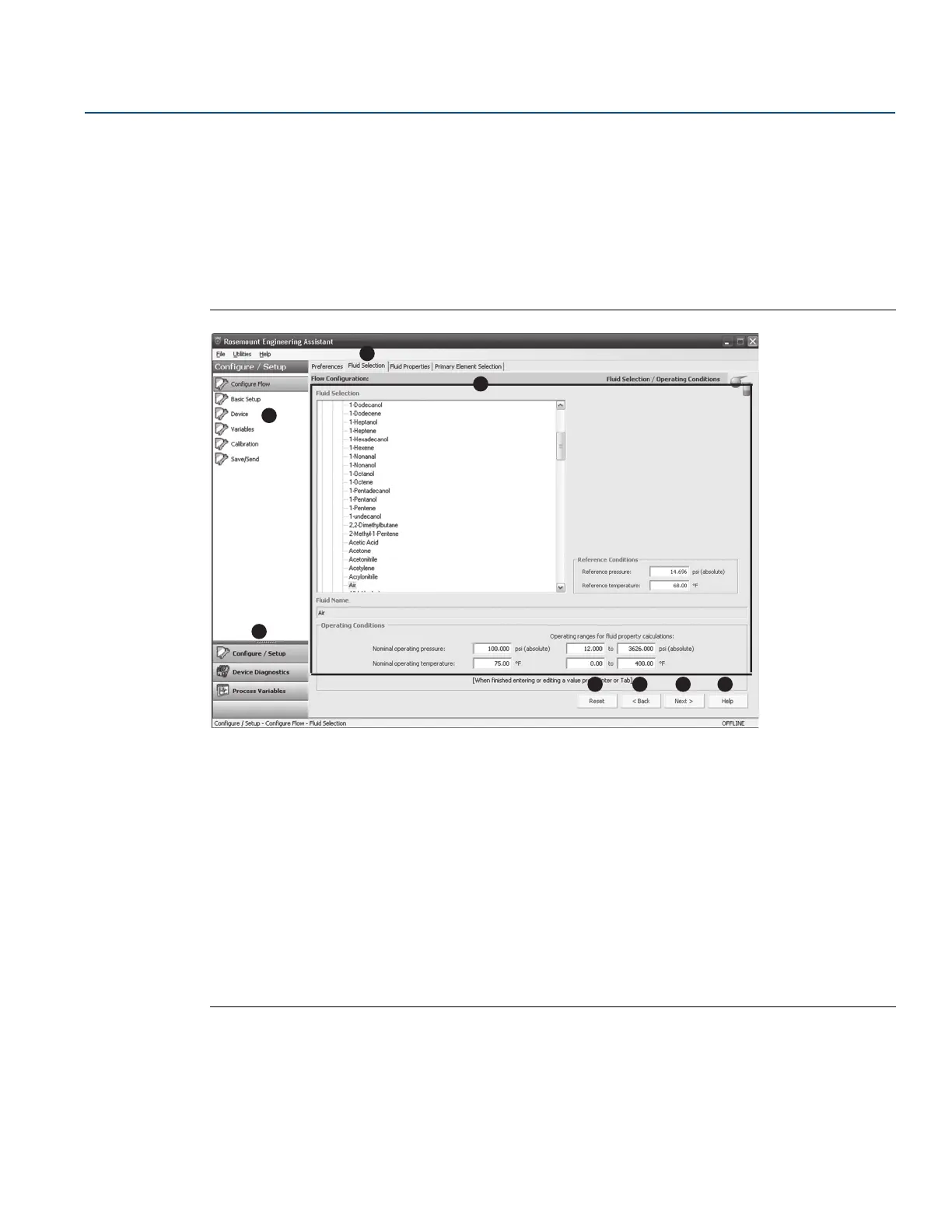
Figure 2-3. Engineering Assistant Basic Navigation Overview
The Engineering Assistant software can be navigated in a variety of ways. The numbers below correspond to the numbers shown in
Figure 2-3.
A. The navigation tabs contain the flow configuration information. In offline mode, each tab will not become active until the
required fields on the previous tab are completed. In online mode, these tabs will be functional unless a change on a preceding
tab is made.
B. The Reset button will return each field within all of the flow configuration tabs (Fluid Selection, Fluid Properties, and Primary
Element Selection) to the values initially displayed at the start of the configuration.
a. If editing a previously saved flow configuration, the values will return to those that were last saved.
b. If starting a new flow configuration, all entered values will be erased.
C. The Back button is used to step backward through the flow configuration tabs.
D. The Next button is used to step forward through the flow configuration tabs. The Next button will not become active until all
required fields on the current page are completed.
E. The Help button may be selected at any time to get a detailed explanation of the information required on the current
configuration tab.
F. Any configuration information that needs to be entered or reviewed will appear in this portion of the screen.
G. These menus navigate to the Configure Flow, Basic Setup, Device, Variables, Calibration, and Save/Send tabs.
H. These buttons navigate to Config/Setup, Device Diagnostics, or Process Variables sections.
A
BCDE
G
H
F




 To Next Page