Sam4s SPS-300 OP Manual v1.35 Service Mode Programming • 137
Saving Reports to an SD Card
The SD card can also be used to save reports. Reports saved are the current X1 readings.
SD Report Notes
• When backing up and restoring data, the store name must be programmed on page 18
of system options. The default store name is “STORE_A”.
• The SPS-300 will write the program files to different folders depending whether REP
or CSV format is selected. For example:
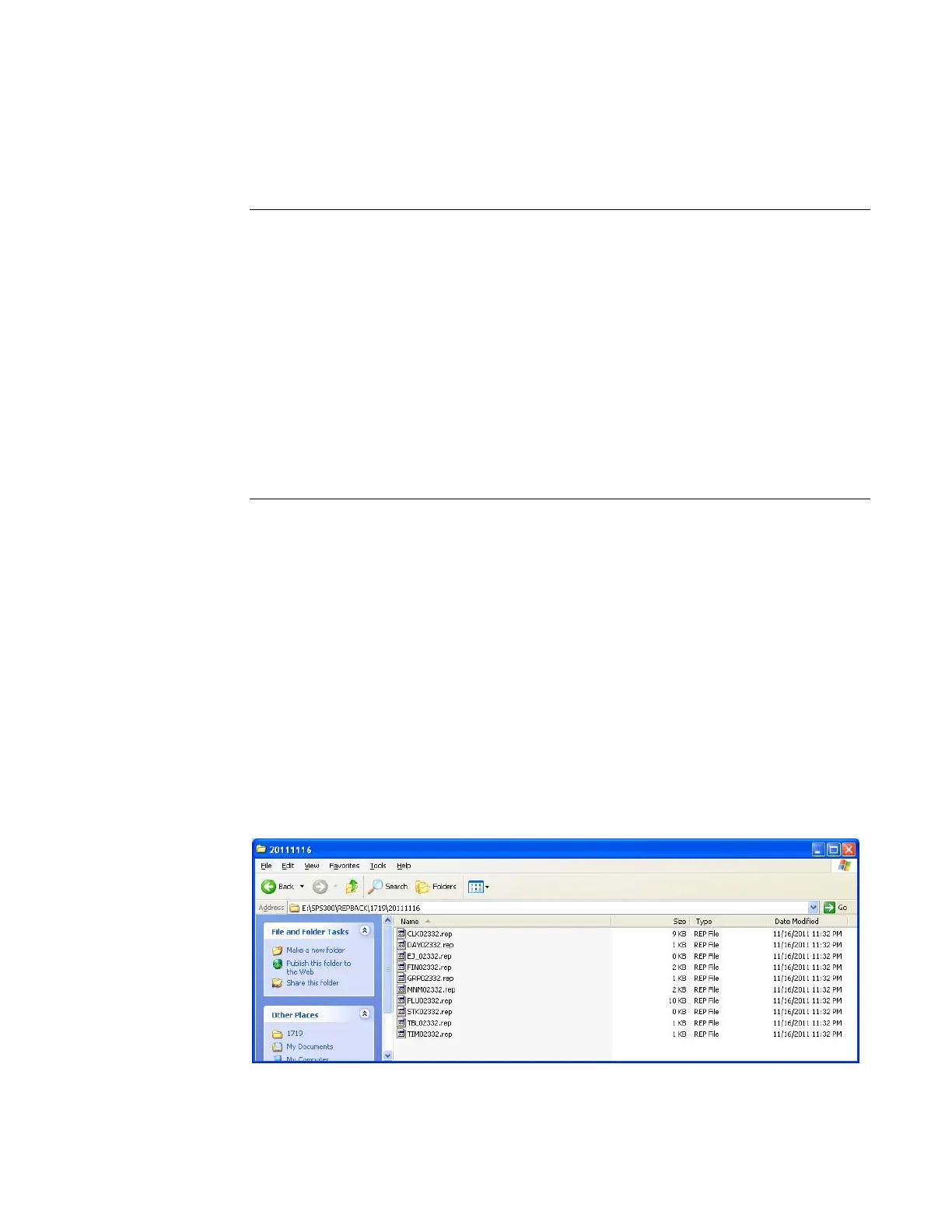
o SPS300/REPBACK/STORENAME/DATE (for REP format)
o SPS300/CSVBACK/STORENAME/DATE (for CSV format)
• The date folder is in YYYYMMDD format (for example 20111116 is November 16,
2011.)
• Each individual report is named with the time of the report. For example,
“CLK2332” represents a Clerk report taken at 23:32 (in a 24-hour time format.) In
this manner, multiple reports backed up at different times in the same day will collect
in the same “date” folder.
To Save Reports
1. Turn the control lock to the S position.
2. From the second page of the Service Mode menu, select “9 SD Card
Operation”.
4. From the SD Card Operation menu select “3 Report Backup”. The display
offers two format choices:
• Press 0 to save in REP format. REP format is proprietary and can be viewed
using the SAM4s PC Utility
• Press 1 to save in CSV format. This format can be read without conversion
by many PC applications, including Microsoft Excel™.
4. The register will print confirmation of the successful report upload with the name
of the report “UPLOAD” for each report. If the save is unsuccessful, the register
will print an error message.



 To Next Page