78 • Operations Sam4s SPS-300 OP Manual v1.35
Adding to a Soft Check
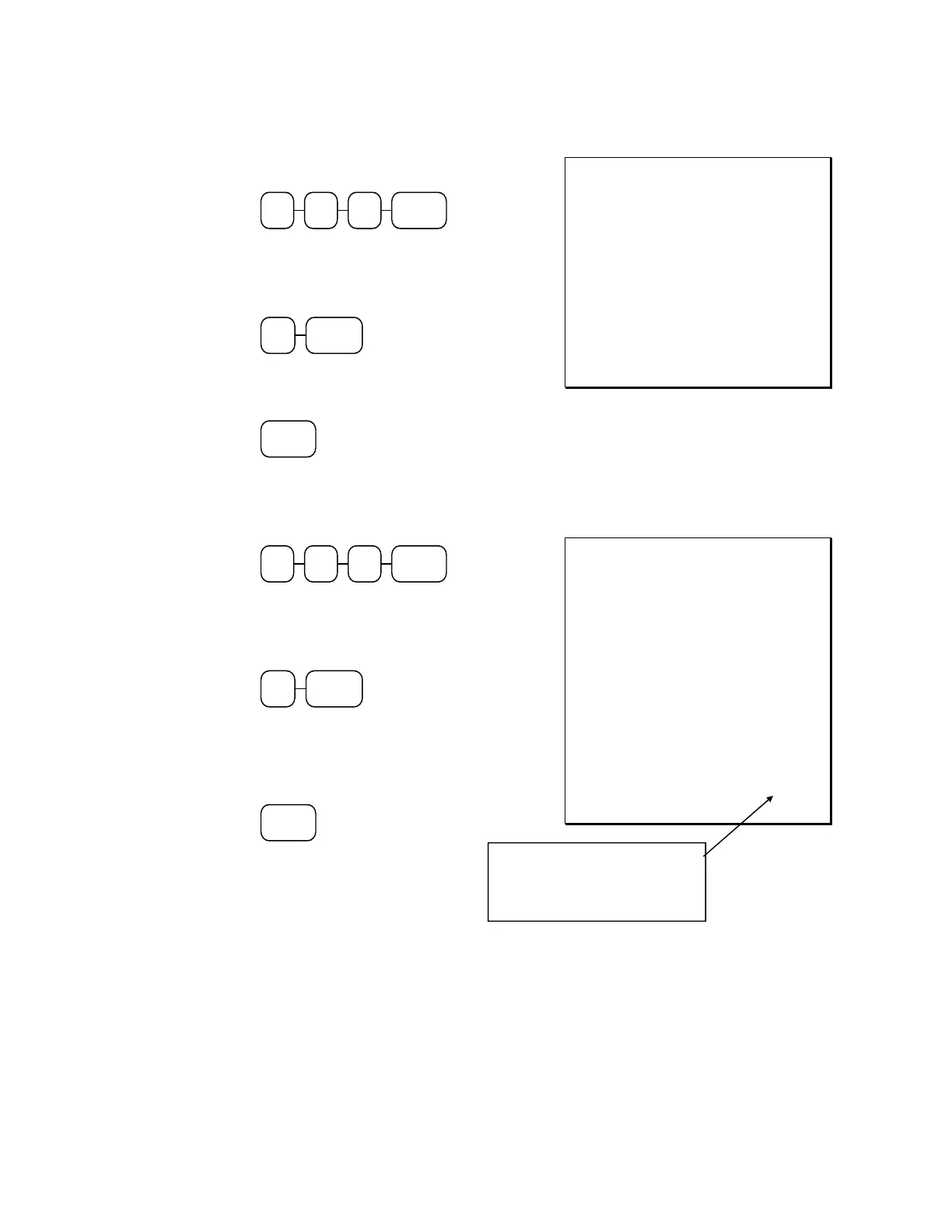
1. Enter the number of the guest check,
press the CHECK # key:
CHECK
31 2
or, if you entered a table number, enter
the table number and press the TABLE
key:
TABLE3
2. Register the next items you wish to sell.
3. To total the posting, press SERVICE:
SERVICE
Receipt Example:
THANK-YOU
CALL AGAIN
DATE 06/05/2011 SUN TIME 08:33
CHECK # #123
PBAL $17.00
TABLE #3
GARLIC BREAD $2.00
SERVICE $2.00
BFWD $19.00
CLERK 1 No.000012 00001
Printing a Soft Check
1. Enter the number of the guest check,
press the CHECK # key:
CHECK
31 2
or, if you entered a table number, enter
the table number and press the TABLE
key:
TABLE3
2. Press PRINT CHECK to print the
complete check. If programmed to do so,
the PRINT CHECK key will
automatically service the check:
PRINT
CHECK
Sample of soft check printed on the
receipt:
THANK-YOU
CALL AGAIN
DATE 06/05/2011 SUN TIME 08:33
CHECK # #123
PBAL $19.00
TABLE #3
CHICKEN $7.00
STEAK $10.00
GARLIC BREAD $2.00
SERVICE $0.00
BFWD $19.00
CHK # : 1
CLERK 1 No.000012 00001
The number of times this check
has been printed is counted and
printed on the check.



 To Next Page