Chapter 3. Installing the Product 3 - 39
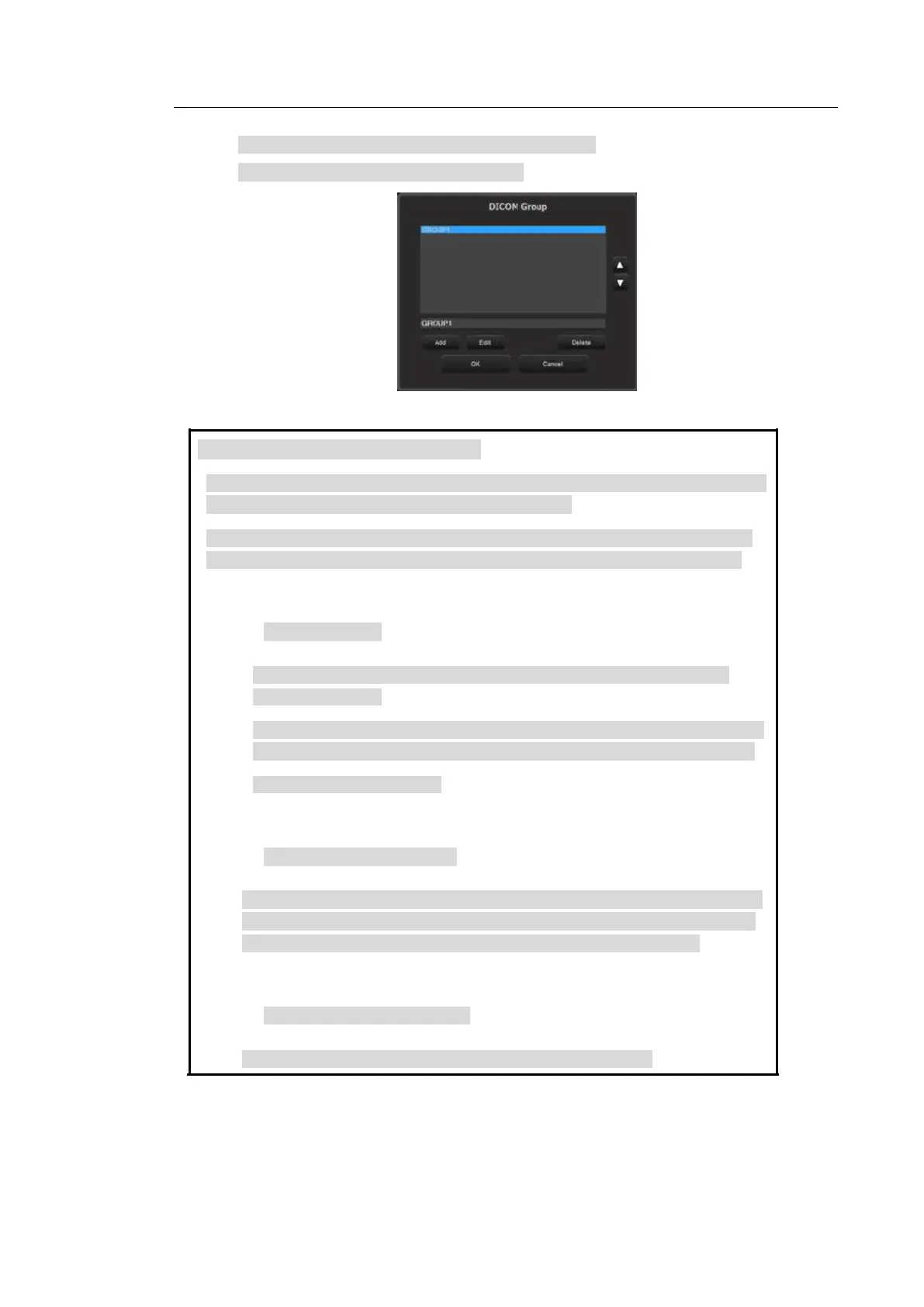
Delete: Delete a Destination Group added by a user.
Press OK to finish. Tap Cancel to cancel.
Automatic DICOM Transfer Settings
The system supports automatically transfer images to DICOM servers (storage or
print service) using the Peripheral Keys (P1-P4 keys).
The function can be set in the following steps: DICOM Settings User Defined
Key Settings DICOM Destination Settings under Patient Information screen.
DICOM Settings
1. Navigate to Setup > DICOM and set the Storage (or Print) server and
Destination Group.
2. Connect a Storage (or Print) service to the group. Select Storage (or Print)
service on the screen and Destination Group on the screen and press >>.
3. Set DICOM Transfer Mode.
User Defined Key Settings
Navigate to Setup > User Defined Key > Display, and set the functions for
P1- P4 key. Select Save on the list, and press Add to set it as the function
for the subject key. Repeat the same steps to add Send to DICOM.
DICOM Destination Settings
Select DICOM Destination in the Patient Information screen.



 To Next Page