Connectivity
Activation of Full Link
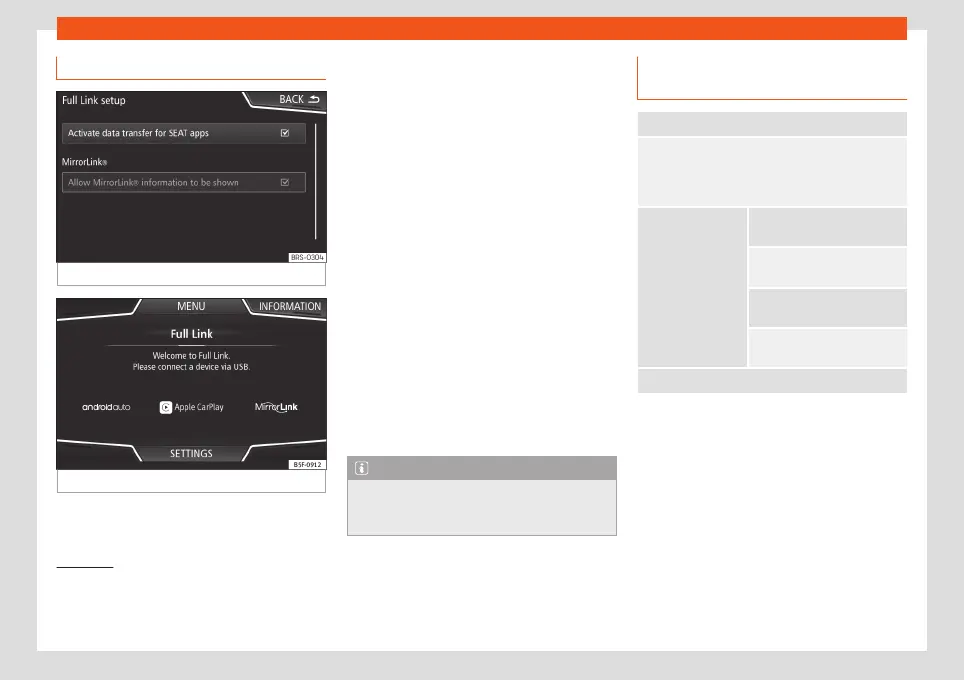
Fig. 15
Full Link Setup
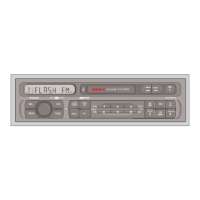
Fig. 16
Full Link menu
Data connection via Wi-Fi or SIM is not
necessary to establish the connection be-
tween the smartphone and Full Link.
Data connection via Wi-Fi or SIM is neces-
sary to enable all of the app features
1)
.
Proceed as follows to use Full Link:
●
Switch on the Infotainment system
●
Connect the smartphone to the vehicle's
USB port using a USB cable
›››
Booklet In-
struction Manual.
●
In the main menu for the Full Link setup, se-
lect Activate data transfer for SEAT apps
›››
Fig. 15:
Finally, a message will appear stating that
data transfer will commence when the device
is connected. Please note that data is trans-
ferred over connections between your vehi-
cle and mobile device. Press OK. Once selec-
ted, the technology compatible with your de-
vice can be used.
Note
Depending on your smartphone, it may
have to be unlocked for the connection to
occur.
What should I do if it does not con-
nect?
Restart the mobile device
Check the USB cable visually.
Make sure that the USB cable is not damaged. Check
that both connections (USB/micro USB) are not dam-
aged or worn.
Visually check
that the USB ports
are properly con-
nected.
Check that the ve-
hicle and device
USB connections
are not damaged
and/or worn.
Clean the USB ports (device
and vehicle).
Try another compatible mo-
bile device.
Have the USB port replaced at
a SEAT Authorised Service.
Have the mobile device re-
paired or replace it.
Try another compatible mobile device.
1)
Using the data connection to transfer the
smartphone apps to Full Link may involve addi-
tional charges. Please check the charges with
your operator.
21



 To Next Page