Navigation
Dynamic route guidance
In order for dynamic route guidance to func-
tion,
Dynamic route
must be activated in the
route options
›››
page 69.
If during route guidance a traffic report is re-
ceived that affects the route being travelled,
an alternative route will be searched for if the
Infotainment system calculates that time can
be saved.
If it calculates that time will not be saved us-
ing the alternative route, it will continue on the
route with the traffic congestion. An an-
nouncement will be made in each case.
Shortly before arriving at the announced
congested traffic, it will be announced once
again.
Avoiding congestion by following the instruc-
tions of a traffic report does not always save
time as the alternate roads may be at a
standstill. The quality of the dynamic route
guidance depends on the information con-
tained in the traffic reports.
The remainder of the route to be travelled
may be manually excluded to cause a new
route calculation
›››
page 62.
Traffic reports on map (selection)
Symbol: Meaning
: Slow traffic
Symbol: Meaning
: Traffic jam
: Accident
: Slippery road surface (ice or snow)
: Slippery road surface
: Danger
: Road works
: Strong wind
: Road closed to traffic
During route guidance, traffic congestion that
does not affect the route calculated is dis-
played in grey.
The extent of the traffic congestion along the
route calculated is shown by a red line.
Any incidents that affect the route calculated
and have caused the route to be recalcula-
ted are displayed in orange.
The position of a symbol indicates the start of
the traffic congestion if it is clearly defined in
the traffic report.
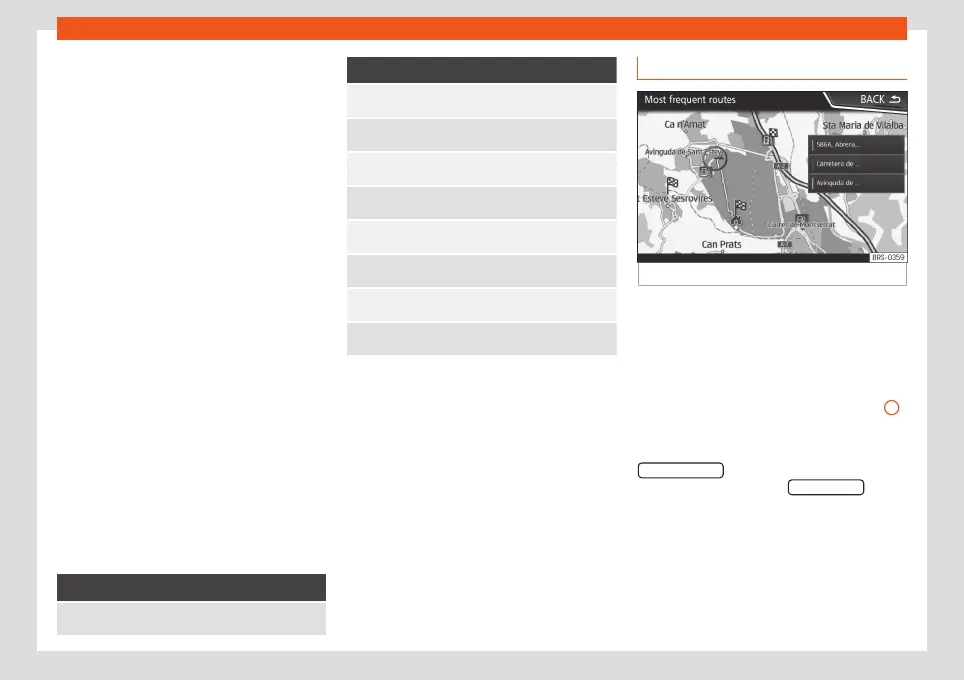
Predictive navigation
Fig. 52
Predictive navigation
When you activate Predictive navigation, the
system detects and stores in the background
routes that are frequently followed, without
them being active destination routes. This
function has no navigation announcements
unless the user requires them, getting them
by pressing the adjustment knob
›››
Fig. 2
12
.
●
On the main screen of the Navigation menu,
in the pop-up window, press the
Frequent routes button. To display frequently
followed routes press the Show on map button
›››
Fig. 52.
67



 To Next Page