Car menu
Car menu
Introduction to using the Ve-
hicle menu
Vehicle
Menu
By pressing button
of the infotainment
system you will access its main menu with the
following options:
●
VIEW
●
MINIPLAYER, in the top right corner (Radio
or Media function if the HDC descent con-
trol* is not active).
●
PREVIOUS-NEXT (to change screen)
●
SETTINGS
›››
Booklet Instruction Manual,
chapter System setup (Vehicle)
With the function button VIEW you can ac-
cess the following information:
●
DASHBOARD
›››
page 74
●
SPORT*
›››
page 75
●
OFFROAD*
›››
page 75
●
CONSUMERS
›››
page 76
●
DRIVING DATA
›››
page 76
●
ECOTRAINER*
›››
page 77
●
VEHICLE STATUS
›››
page 78
Instrument panel*
3 Valid for vehicles with SEAT Digital Cockpit
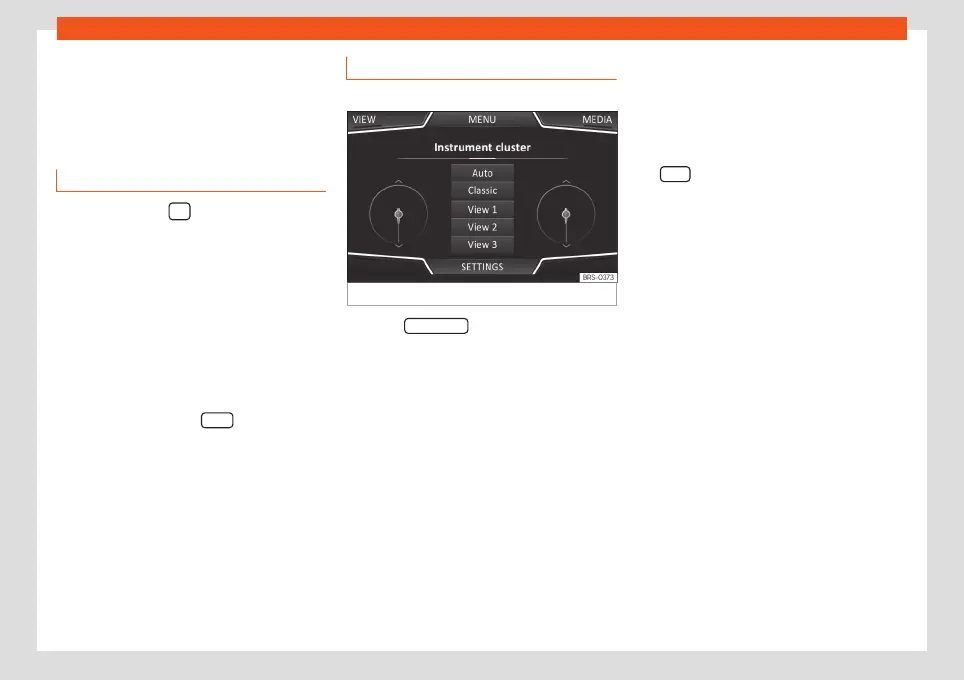
Fig. 58
Instrument panel
Press the Dashboard button to choose be-
tween different display options and custom-
ise the information displayed on the Digital
Cockpit (SEAT Digital Cockpit)
›››
Booklet
Operating Manual, chapter Dashboard.
Automatic View
Pre-set information depending on the “Driv-
ing mode” selected.
Classic View
The revolutions per minute and speedometer
needles appear along the entire length.
Views 1, 2, 3
Customises the information displayed on the
Digital Cockpit. Only 2 of these items of infor-
mation can be displayed at the same time,
but the user chooses which to display, and in
what order, by moving the finger vertically
over the dials.
Depending on the version, the Views can be
memorised by existing the menu or keeping
the View button pressed.
74



 To Next Page