Navigation
Function button: function
Demo mode start (only when demo mode is active)
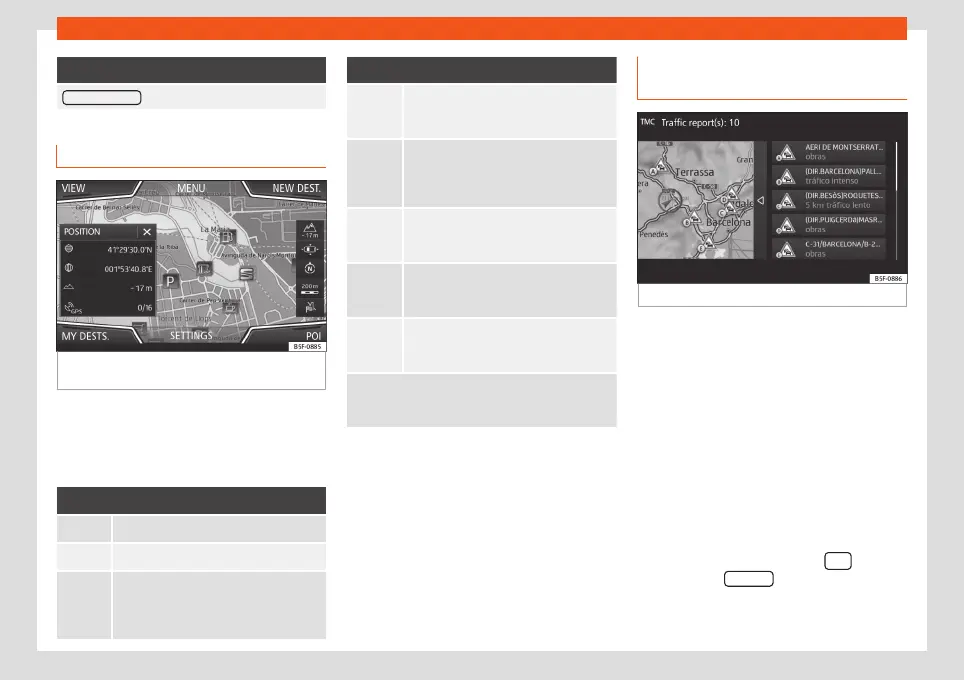
Map display
Fig. 50
Messages and function buttons on the
map display.
Function buttons and messages on the
map display.
To activate function buttons
and
, press
function button
.
Function button: function
Current altitude indicator.
To centre the vehicle position on the map.
To centre the destination on the map. This
function button is only displayed if either
Display destination on map or Display
route on the map is selected
›››
page 65.
Function button: function
To change the orientation of the map
(north-facing or direction of travel). This
function is only available in 2D mode.
View map scale. Turn the setup button or
move your fingers together/apart on the
touchscreen to change the scale of the
map.
To select automatic scaling. If the func-
tion is active, the symbol is displayed in
blue.
Briefly zooms in on the map. After a few
seconds, it automatically returns to the
last selected scale.
It can mute or repeat the last announce-
ment, or can change the announcement
volume.
Road signs: Depending on the vehicle's equip-
ment, the road signs stored in the navigation data are
displayed
›››
page 69.
Traffic reports and dynamic route
guidance (TRAFFIC)
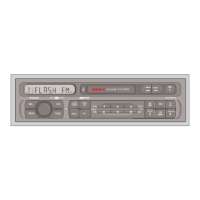
Fig. 51
Traffic reports
The Infotainment system constantly receives
traffic reports (TMC/TMCpro) in the back-
ground, provided a TMC traffic news station
can be received at the current location. The
station being listened to does not have to be
the traffic news station.
TMC traffic reports are displayed on the map
with symbols
›››
page 67, Traffic reports
on map (selection) and are required for dy-
namic route guidance
›››
page 67, Dynam-
ic route guidance.
List of available traffic reports
●
Press the Infotainment button
and
then press the TRAFFIC function button.
66



 To Next Page