Audio and Media Mode
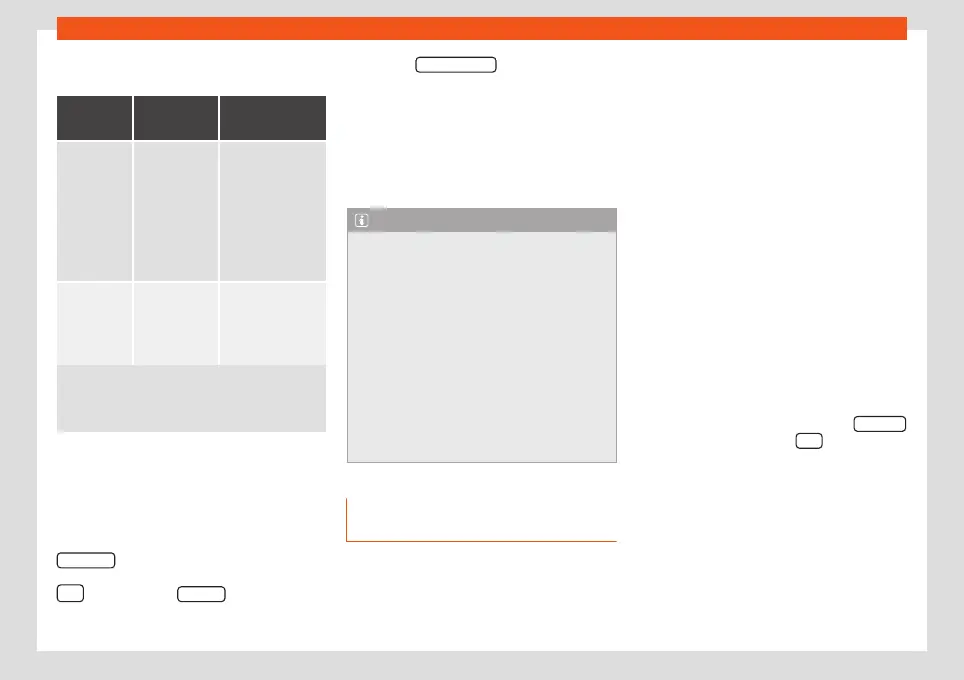
Possible error messages after connecting
an external data storage device
Error mes-
sage
Cause Procedure
The de-
vice is
not com-
patible
The external
data carrier
cannot be
played or
communica-
tion is not pos-
sible with the
adapter cable
being used.
Check the connec-
tion and make sure
the external data
storage device is
working correctly.
If possible, update
the external data
storage device
software.
The de-
vice does
not work
Communica-
tion fault.
Check the connec-
tion and make sure
the external data
medium is working
correctly.
Due to the large number of different data storage de-
vices and various iPod™, iPad™ and iPhone™ genera-
tions available, it is not possible to guarantee fault-
free operation of all functions described here.
Disconnecting
Any connected data storage devices must
be prepared before their disconnection in or-
der to remove them.
●
From the main Media menu, press the
SETTINGS
button to open the
Media Set-
tings
menu or press the infotainment button
and then press Settings to open menu
System settings
.
●
Press the Remove safely function button. A
dropdown menu appears with the following
options: SD1 Card, SD2 Card*, USB1 and
USB2*. After correctly ejecting the data stor-
age device from the system, the function but-
ton becomes inactive (grey colour).
●
Now the data storage device can be dis-
connected.
Note
●
Do not connect an external media player
at the same time to play music via Blue-
tooth
®
and via the USB port with the In-
fotainment system, as this could cause
playback limitations.
●
If the external player is an Apple™ device,
it cannot be simultaneously connected by
USB and by Bluetooth
®
.
●
If a connected device is not recognised,
disconnect all the connected devices and
try connecting the device again.
●
Do not use memory card adaptors, USB
extension cords or USB hubs!
External audio source connected to
the AUX-IN multimedia socket
Depending on the equipment and country
there may be an AUX-IN multimedia socket
›››
Booklet Instruction Manual.
In order to connect the external audio source
to the AUX-IN socket, a suitable cable is re-
quired with a 3.5 mm jack that is inserted into
the AUX-IN socket of the vehicle.
The connected external audio source is
played over the vehicle speakers and cannot
be controlled via the Infotainment system
controls.
The connection of an external audio source is
indicated by
AUX
on the screen.
Connecting an external audio source to
the AUX-IN multimedia socket
●
Lower the base volume on the Infotainment
system.
●
Connect the external audio source to the
AUX-IN multimedia socket.
●
Start playback on the external audio
source.
●
In the MEDIA main menu, press the SOURCE
function button and select
AUX
.
The output volume of the connected exter-
nal audio source should be adjusted to the
volume of the other audio sources
›››
page 93.
50



 To Next Page