Navigation
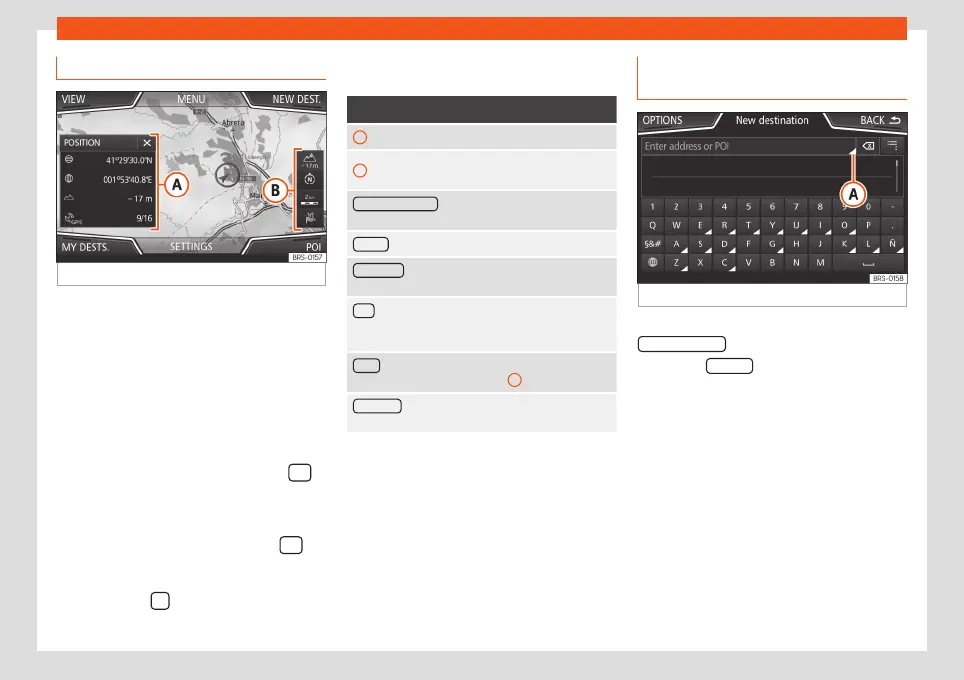
Navigation main menu
Fig. 44
Navigation main menu
The navigation functions are only enabled
when navigation data for the current area are
available on the Infotainment system.
The Navigation main menu allows you to se-
lect a new destination, call up a previously
used or stored destination and search for
points of interest.
Opening the main Navigation menu
●
Press the Infotainment system button
to open the last menu that was open in navi-
gation.
●
If the main Navigation menu is not dis-
played, press the Infotainment button
again until the main Navigation menu ap-
pears.
●
OR: Press the
function button to return,
menu by menu, to the main Navigation menu.
Function buttons and messages on the
main Navigation menu
Function button: function
A
The split screen is displayed
›››
page 65.
B
Messages and function buttons on the map
display
›››
page 66.
NEW DESTINATION : To enter a new destination
›››
page 60.
ROUTE : During route guidance
›››
page 62.
MY DESTS. : To activate or manage stored destina-
tions
›››
page 62.
POI : Search for points of interest (car parks, fuel sta-
tions and restaurants) within a particular search area
›››
page 64.
VIEW To modify or activate or deactivate the split
screen and show POI
›››
Fig. 44
A
›››
page 65.
SETTINGS Open the Navigation Settings
menu
›››
page 69.
New destination (enter destina-
tion)
Fig. 45
Search screen.
●
In the Navigation main menu, press the
New destination function button.
●
Press the Options function button and se-
lect the required type of destination (
Search
,
Address
,
POI on the route
or
On map
).
●
Using voice control*, if you say Town, street
and number, without pauses, and then the in-
struction “Start Route Guidance” a route to
the given destination will start.
Search
Search for addresses and Points of Interest
using the keypad to enter them
›››
Fig. 45.
For cities, post codes and points of interest,
the full details must be entered. You can also
60



 To Next Page