Audio and Media Mode
Audio and Media Mode
Radio Mode
Related video
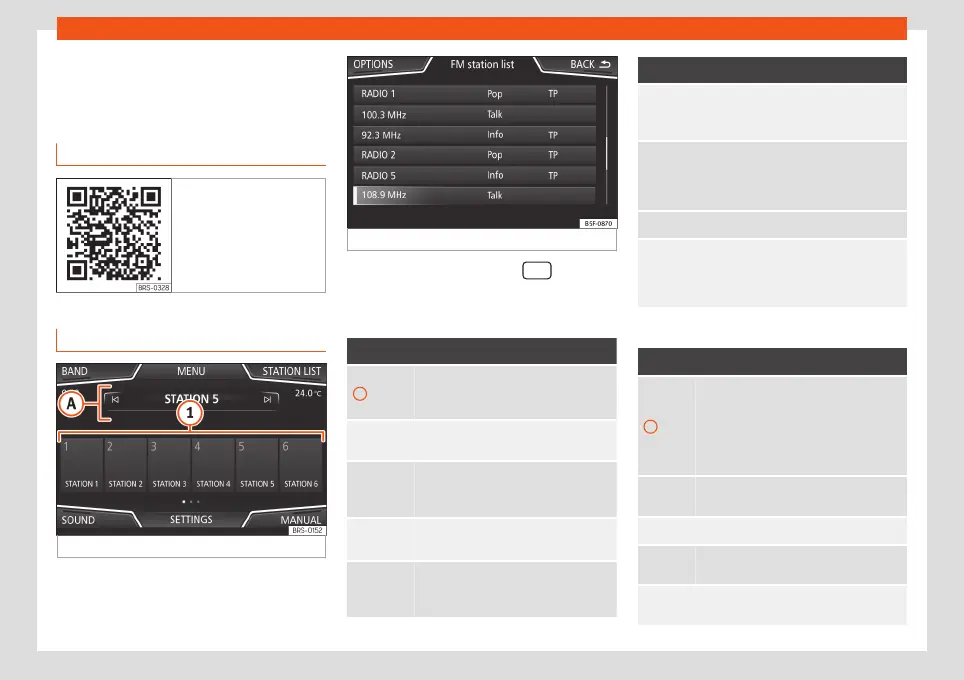
Fig. 22 Radio mode
RADIO main menu
Fig. 23
RADIO main menu.
Fig. 24
Radio mode: station list (FM).
Press the infotainment button
to open
the RADIO main menu
›››
Fig. 23.
RADIO main menu function buttons
Function button: function
1
To change the group of memory but-
tons slide a finger over the memory
buttons from left to right or vice-versa
BAND
Allows you to select the frequency
band.
STATION
LIST
Opens the list of currently receivable
radio from the active frequency band
›››
page 34.
MANUAL
Allows you to select the frequency
manually
›››
page 35.
VIEW
Allows you to select the information
shown on the screen
›››
page 33. On-
ly available in DAB mode.
Function button: function
SETTINGS
Opens the setup menu of the active
frequency band (FM, AM or DAB)
›››
page 36.
/
Selects the previous or next stored sta-
tion or of the station list. This setting
can be changed in the Radio settings
menu (FM, AM, DAB).
1 to 18 Memory buttons
›››
page 34.
SCAN
Stops the scan function (only visible
when the function is under way). It can
be activated in the settings menu (FM,
AM and DAB).
Information and possible icons
Display: Meaning
A
View the frequency or the name of the
station and, where applicable, the radio
text. The name of the radio station and
the radio text will only be displayed if
equipped with RDS and if it is active
›››
page 31.
RDS
Off
The RDS radio data service is deactiva-
ted.
TP
Traffic news is available
›››
page 36.
No stations with traffic news are availa-
ble.
The radio station is stored on a memory
button.
30



 To Next Page