Navigation
To move a stopover or a destination to
another position on the list. Press and
drag to move the destination.
a)
This function button is only displayed with route
guidance activated and when a destination has been
added to the tour.
b)
This function button is only displayed with route
guidance activated.
Last destinations
View of destinations for which a route has al-
ready been started.
My destinations
●
Press the Options function button and se-
lect the desired function button.
Function button: function
Destination memory : View of destinations stored man-
ually and from imported vCards
›››
page 68, Im-
porting vCards (electronic business cards).
Favourites : View of destinations stored as favourites.
Contacts : View of entries in the phonebook that have
a stored address (postal address).
Home address
Only one address or position can be stored
as the home address at any one time. The
stored home address can be edited or over-
written.
If a home address has already been stored,
route guidance will be started to the stored
home address.
If a home address has not yet been stored, an
address can be assigned as the home ad-
dress.
Assigning the home address for the first time:
Position : Press to store the vehicle's current position
as the home address.
Address : Press to enter the home address manually.
Editing the home address:
The home address can be edited in the Naviga-
tion settings
menu
›››
page 69.
Points of interest (POI)
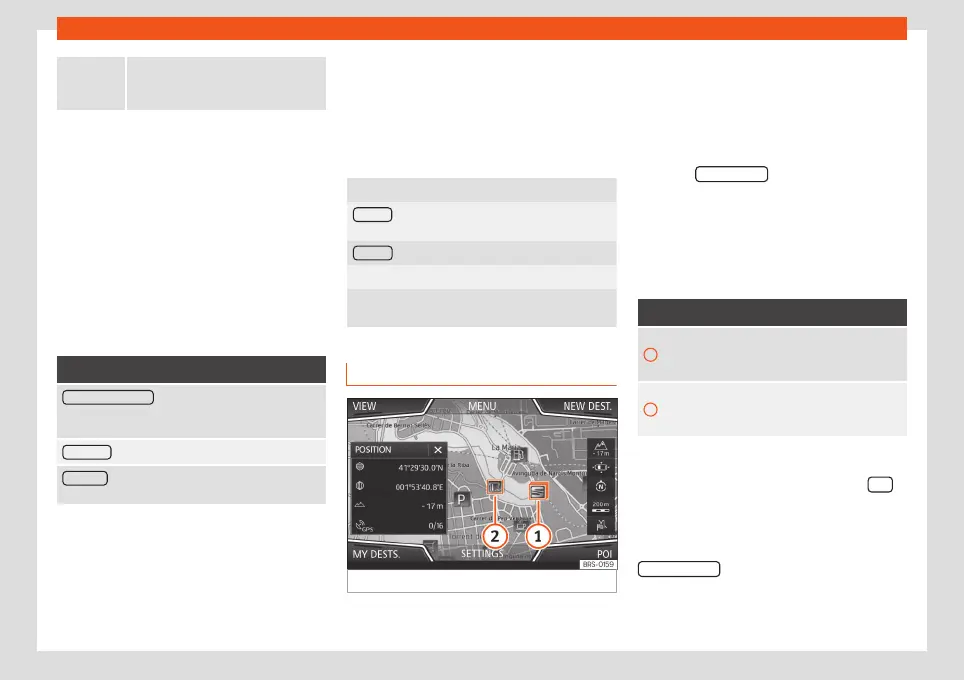
Fig. 48
Points of interest on the map.
The points of interest saved in the navigation
data memory are divided into different point
of interest categories. Each point of interest
category is assigned a symbol for display on
the map.
If a database of points of interest has been
imported into the Infotainment system,
›››
page 68, Importing Personal POI the
category Personal POI is also shown.
In the
Map settings
menu, the categories of
points of interest to display on the map can
be configured
›››
page 69. Up to 10 catego-
ries of points of interest can be selected.
Selecting a point of interest on the map
Function button: function
1
There are several points of interest in the area.
Press this symbol to open a list of points of in-
terest.
2
The only point of interest in this zone. Press the
symbol to open the detailed view of the point of
interest.
Fast search for a POI
In the Navigation main menu, press the POI
function button and the three main catego-
ries will appear. Alternatively, enter the name
of the point of interest to be searched using
the new destination keypad, or press
Search nearby
on the map.
›››
table on
page 65.
64



 To Next Page