Navigation
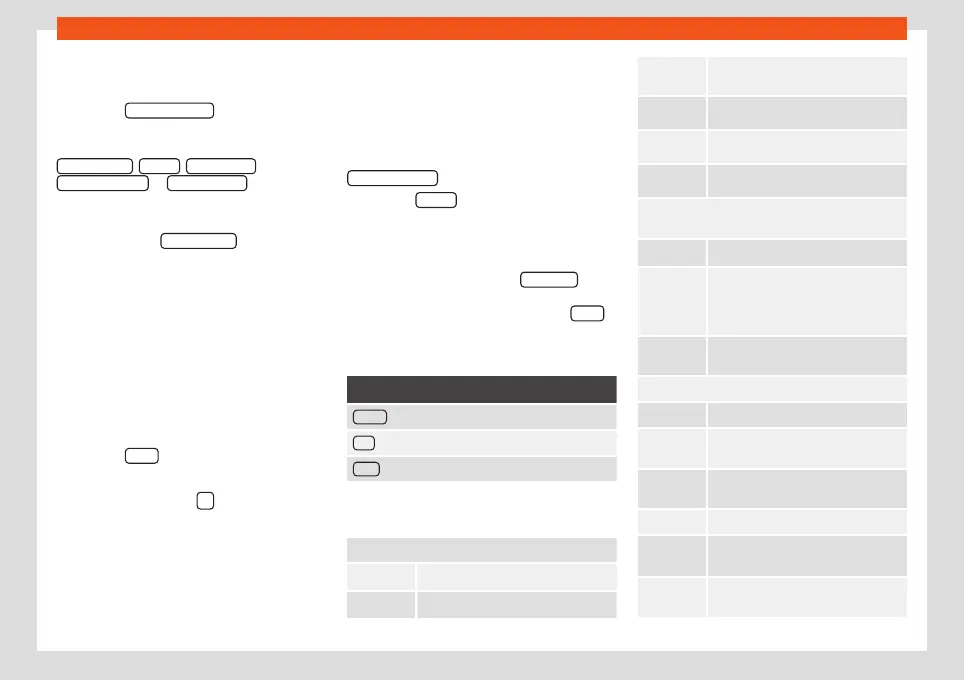
The stored destinations can be selected from
the My destinations menu.
●
Press the My destinations. function button in
the main Navigation menu.
●
Select the desired function button.
Store position , Routes , Destinations ,
Last destinations or Home address .
Store position
●
By pressing the Store position function but-
ton, the vehicle's current position is stored as
a
Flagged destination
in the destination
memory.
To permanently store the saved position as a
Flagged destination
, it must be renamed
in the destination memory. Otherwise the
stored position will be overwritten the next
time a flagged destination is stored.
●
Mark the
Flagged destination
in the
destination memory.
●
Press the
Store
function button.
The name can be changed in the following
input window. Press the
function button to
store the destination.
Routes
In the
Route
mode, you can define various
destinations (final destination and stopovers).
The
starting point of a route is always the
current vehicle position determined by the In-
fotainment system. The destination is the
end point of a route. Stopover destinations
are driven to before the destination.
●
In the Navigation main menu, press the
My Destinations. function button.
●
Press the Routes function button. The
routes stored previously will appear
›››
Fig. 47.
If you have not stored any routes or want to
create a new route, press the New route func-
tion button and then follow the instructions as
for a new destination, before pressing Store
.
Pressing on a stored route brings up the fol-
lowing function buttons:
Function button: function
Delete : To delete a stored route.
Edit : To edit and store a route.
Start : To start route guidance.
Function buttons and indications in the
New
route
or
Edit route
menu
Function button or message: function or meaning
Stopover.
Destination.
...
Estimated time of arrival at destina-
tion.
...
Calculated distance to destination.
...
Travelling time.
...
Distance to the next stopover.
Press on the destination to display the function
buttons.
Delete destination.
To start guidance direct to the selec-
ted destination. Destinations that
come before the selected destination
are ignored.
To open the detailed view of the desti-
nation in question.
Available function buttons.
New dest. To add a new destination to the tour.
Destina-
tions
To add a new destination from My
destinations
to the tour.
Storing To store the created tour in the tour
memory.
Start To start route guidance.
Calculate To update calculated distance and es-
timated arrival time.
a)
Stop To stop route guidance to the active
destination.
b)
»
63



 To Next Page