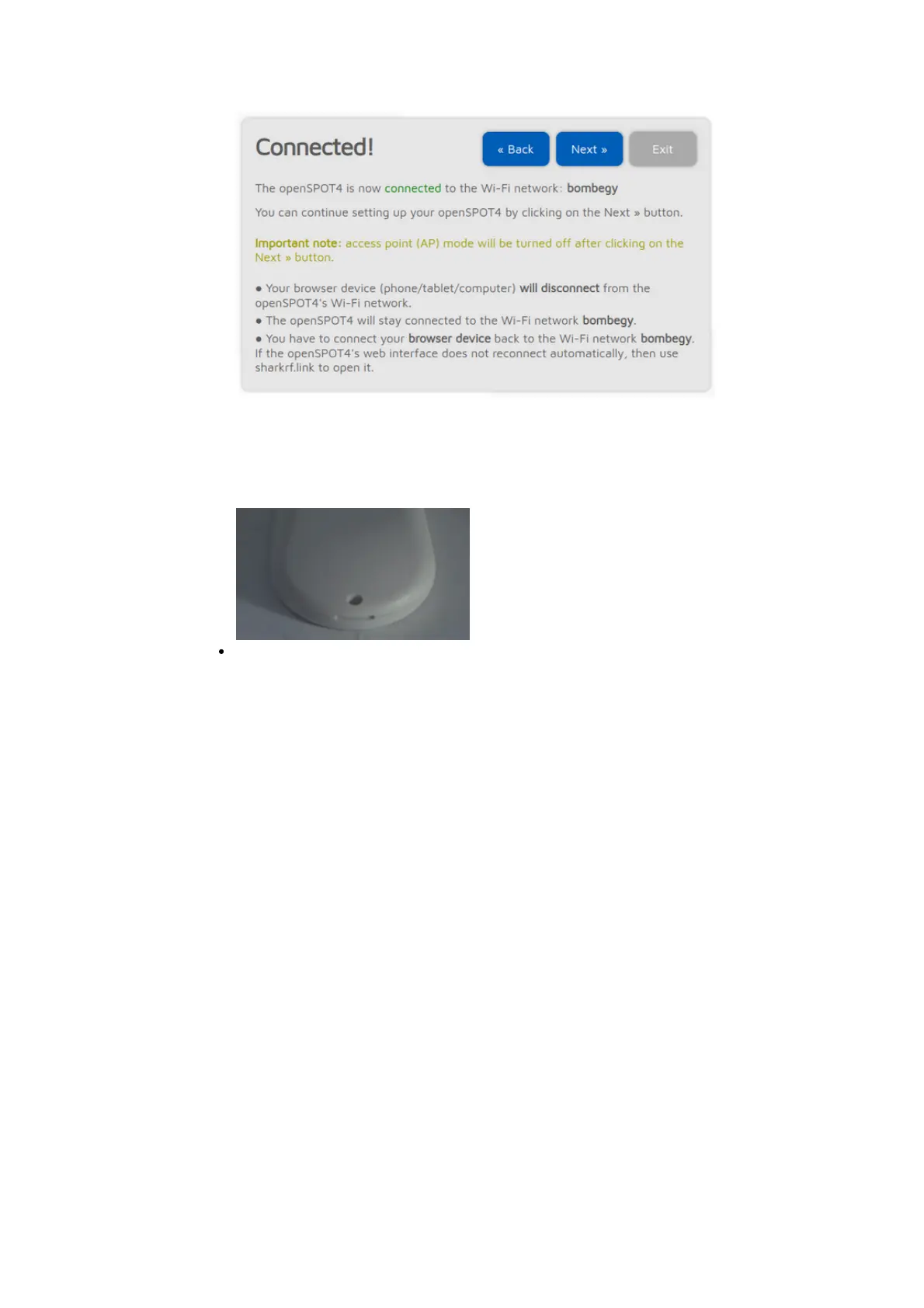
Click on the Next button. The openSPOT4 will turn off it's Wi-Fi network
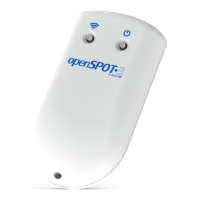
"openSPOT4 AP", and its status LED will become green or alternating green
and orange which means the Null connector is active and the device is
connected to the selected Wi-Fi network.
Your browser device (phone/tablet/computer) detects that the openSPOT4
AP Wi-Fi network is no longer available, and drops the connection. It
should automatically connect back to the previously used Wi-Fi network. If
it does not, connect it to the same Wi-Fi network as you've selected for
the openSPOT4.
If the openSPOT4 can't connect to the configured Wi-Fi network (the status
LED stays flashing blue), then it will automatically switch back to AP mode
(indicated by flashing white LED) after 1 minute. If this happens, then re-do the
steps above and verify that the Wi-Fi password is entered correctly.
Quick Setup initialization
If the openSPOT4 is connected to the Wi-Fi network (indicated by green or
green/orange) flashing LED, then open SharkRF Link in your web browser. Enter
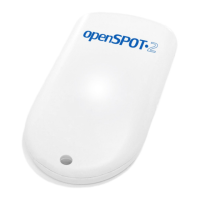
the openSPOT4's device UID (you can find this ID on the sticker at the bottom
of the openSPOT4), then click on the Connect button.
The openSPOT4's web interface will open in your web browser. If not, then
make sure your browser device (phone/tablet/computer) is connected to the
exact same Wi-Fi network as the openSPOT4, and that the openSPOT4 is
connected to the Wi-Fi network indicated be green/orange or green LED.
Fill in your callsign and IDs at the Quick setup's Owner Information section, then
click on the Save button.


 To Next Page