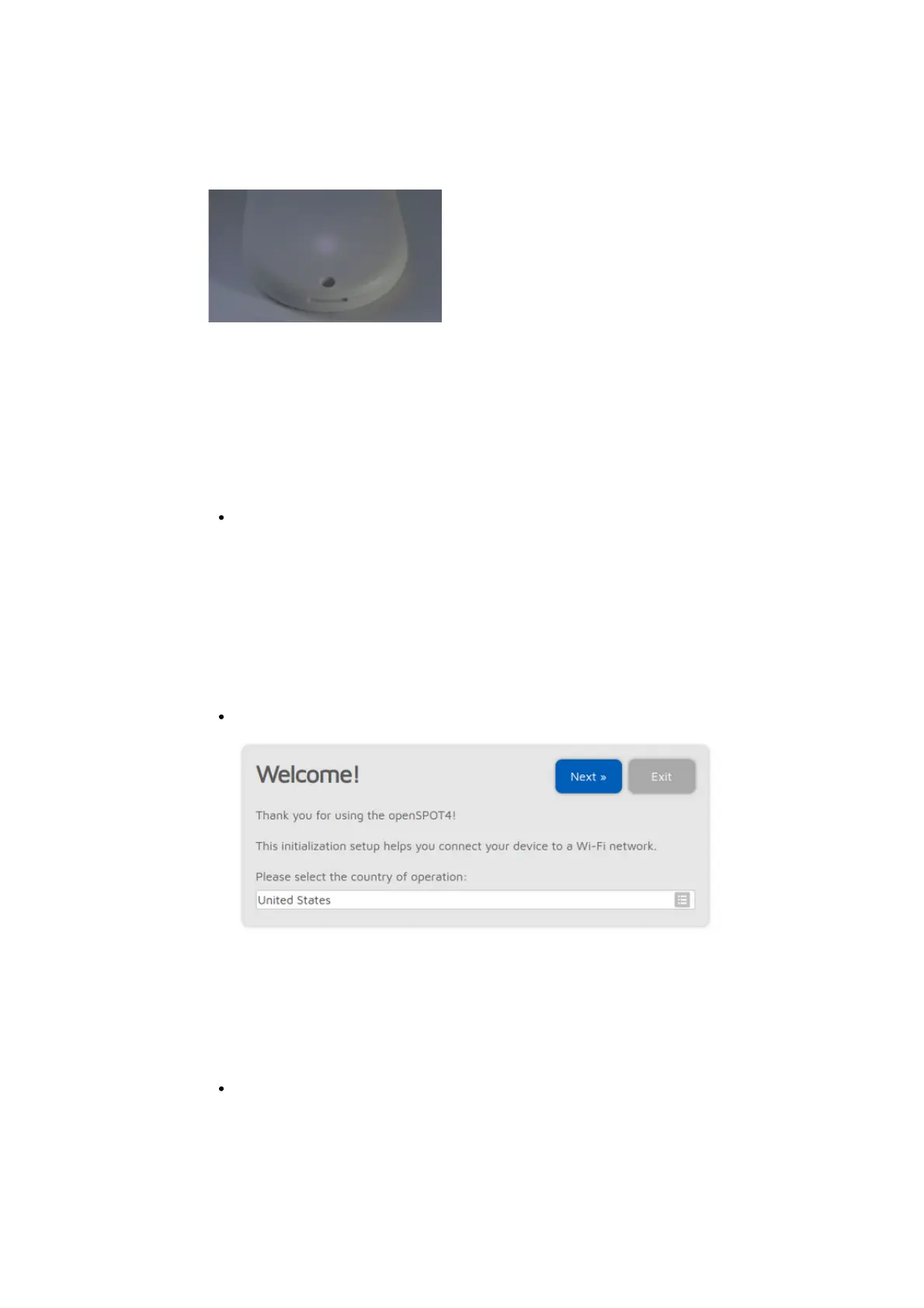
After this, the LED will be slowly flashing white indicating that the device has
entered access point (AP) mode and it's broadcasting its own Wi-Fi network
called openSPOT4 AP:
The AP mode is the openSPOT4's default mode of operation if no Wi-Fi
networks are configured. AP mode lets you configure a Wi-Fi network which the
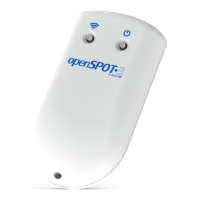
openSPOT4 will connect to. You can enable AP mode later anytime by pressing
the Wi-Fi button for about 3 seconds - until the status LED turns white,
indicating that AP mode has started.
Connecting the openSPOT4 to a Wi-Fi network
Connect your web browser device (phone/tablet/computer) to the Wi-Fi
network called openSPOT4 AP.
If there is no Wi-Fi network called openSPOT4 AP, then make sure the
openSPOT4 is in AP mode (status LED is flashing white). You can switch
between AP and normal mode anytime by pressing the Wi-Fi button for 3
seconds.
Also make sure the openSPOT4 is placed close to your
phone/tablet/computer.
The initialization setup opens automatically:
If the initialization setup won't open automatically, then you can open it by
entering http://192.168.99.1/ into the web browser while your browser
device is connected to the Wi-Fi network openSPOT4 AP. Note that this IP
address only works while the openSPOT4 is in AP mode (indicated by white
status LED), and your browser device is connected to the openSPOT4 AP
Wi-Fi network.
Select the country of operation, then click on the Next button. The Wi-Fi
network select screen will be displayed:


 To Next Page