EasyManua.ls Logo

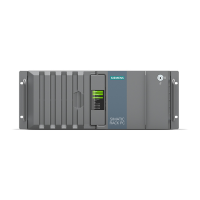
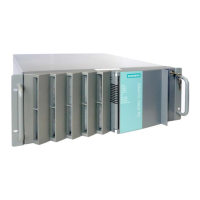
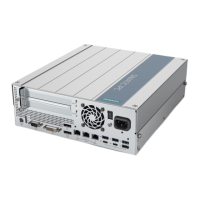
Siemens SIMATIC IPC827D - User Manual

Siemens SIMATIC IPC827D
186 pages
Print Icon
To Next Page IconTo Next Page
Loading...
SIMATIC IPC627D/827D
___________________
___________________
___________________
___________________
___________________
___________________
___________________
___________________
___________________
___________________
___________________
SIMATIC
Industrial PC
SIMATIC IPC627D/827D
Operating Instructions
09/2014
A5E32990859
-AB
Preface
Overview
1
Safety Instructions
2
Installing and connecting the
device
3
Commissioning the device
4
Extended device functions
5
Expanding and assigning
parameters to the device
6
Device maintenance and
repair
7
Technical specifications
8
Technical support
A
Abbreviations
B

Table of Contents

Other manuals for Siemens SIMATIC IPC827D

Questions and Answers

  • M
    Malik BauerAug 7, 2025
    What to do if the Siemens Desktop external monitor remains dark?
    • S
      Sharon GarzaAug 7, 2025
      If your Siemens Desktop external monitor remains dark, first, ensure the monitor is switched on. If it's in power save mode, press any key on the keyboard. Also, check the screen brightness and increase it if it has been set too low. Finally, verify that the power cord and monitor cable are properly connected to both the monitor and the system unit, as well as to the grounded shockproof outlet.
  • C
    Christine LivingstonAug 12, 2025
    How to troubleshoot a Siemens Desktop that is not operational?
    • C
      Christine NewmanAug 12, 2025
      If your Siemens Desktop is not operational, start by checking the power supply, the network cable, and the power plug to ensure they are properly connected. Also, verify that the On/Off switch is in the correct position. If the device has been transported in cold weather, wait approximately 12 hours before switching it on. Check the ambient conditions.
  • R
    Ryan LynchAug 16, 2025
    What to do if the mouse pointer does not appear on the Siemens Desktop screen?
    • J
      Jonathan WilliamsAug 16, 2025
      If the mouse pointer does not appear on the Siemens Desktop screen, check if the mouse driver is correctly installed. Also, verify that the mouse is properly connected to the system unit. If you are using an adapter or extension for the mouse lead, check the connectors.
  • C
    Christopher EstradaAug 22, 2025
    Why won't my Siemens Desktop boot Windows?
    • W
      William BrownAug 22, 2025
      If your Siemens Desktop won't boot Windows, the settings in the BIOS Setup might be incorrect. Check the settings in the BIOS Setup "SATA Configuration" submenu and the setting in the BIOS Setup Boot menu.
  • B
    barbaralongAug 27, 2025
    What to do if the time and date are still wrong on my Siemens Desktop even though the BIOS setting is OK?
    • G
      Glen JohnsonAug 27, 2025
      If the time and date are still wrong on your Siemens Desktop even though the BIOS setting is OK, the backup battery is likely dead. Replace the backup battery.
  • J
    Jessica LeeAug 31, 2025
    How to correct the wrong time and/or date on a Siemens Desktop PC?
    • C
      cameron58Aug 31, 2025
      To correct the wrong time and/or date on your Siemens Desktop PC: 1. Open the BIOS selection menu. 2. Select BIOS setup, "Main" menu. 3. Set the time and date.

Summary

Overview

Safety Instructions

General safety instructions

Provides fundamental safety guidelines for handling the device.

Installing and connecting the device

Installing the device

Step-by-step instructions for installing the device.

Connecting the device

Procedures for connecting the device to power and networks.

Commissioning the device

Switching on the device

Step-by-step guide to power on and initial setup.

Switching off the device

Safe procedures for powering down the device.

Expanding and assigning parameters to the device

Memory expansion

Guide to expanding the device's memory capacity.

Device maintenance and repair

Managing RAID systems

Procedures for managing RAID systems and checking status.

Technical specifications

Technical support

Service and support

Information and resources for technical support.

Troubleshooting

Common problems and their solutions for troubleshooting.

Siemens SIMATIC IPC827D Specifications

General IconGeneral
TypeIndustrial PC
Operating SystemWindows 10 IoT Enterprise
Ethernet2 x Gigabit Ethernet
Power Supply24 V DC
GraphicsIntegrated Intel HD Graphics
ProcessorIntel Core i7
RAMUp to 32 GB
StorageSSD
InterfacesUSB, DisplayPort, Serial
Expansion SlotsPCIe
CoolingFanless
Operating Temperature0 °C to 50 °C
DisplayNo display

Related product manuals