14
Electronic Controller
Service Manual
SKOPE BME-N ActiveCore
All technicians who service SKOPE equipment fitted with the Wellington Drive SCS Connect
electronic controller are required to have the Wellington Drive Field app installed on their
Bluetooth-enabled mobile device. SKOPE also recommends that all technicians have the
Wellington Drive Track app installed.
Installation and
Connecting
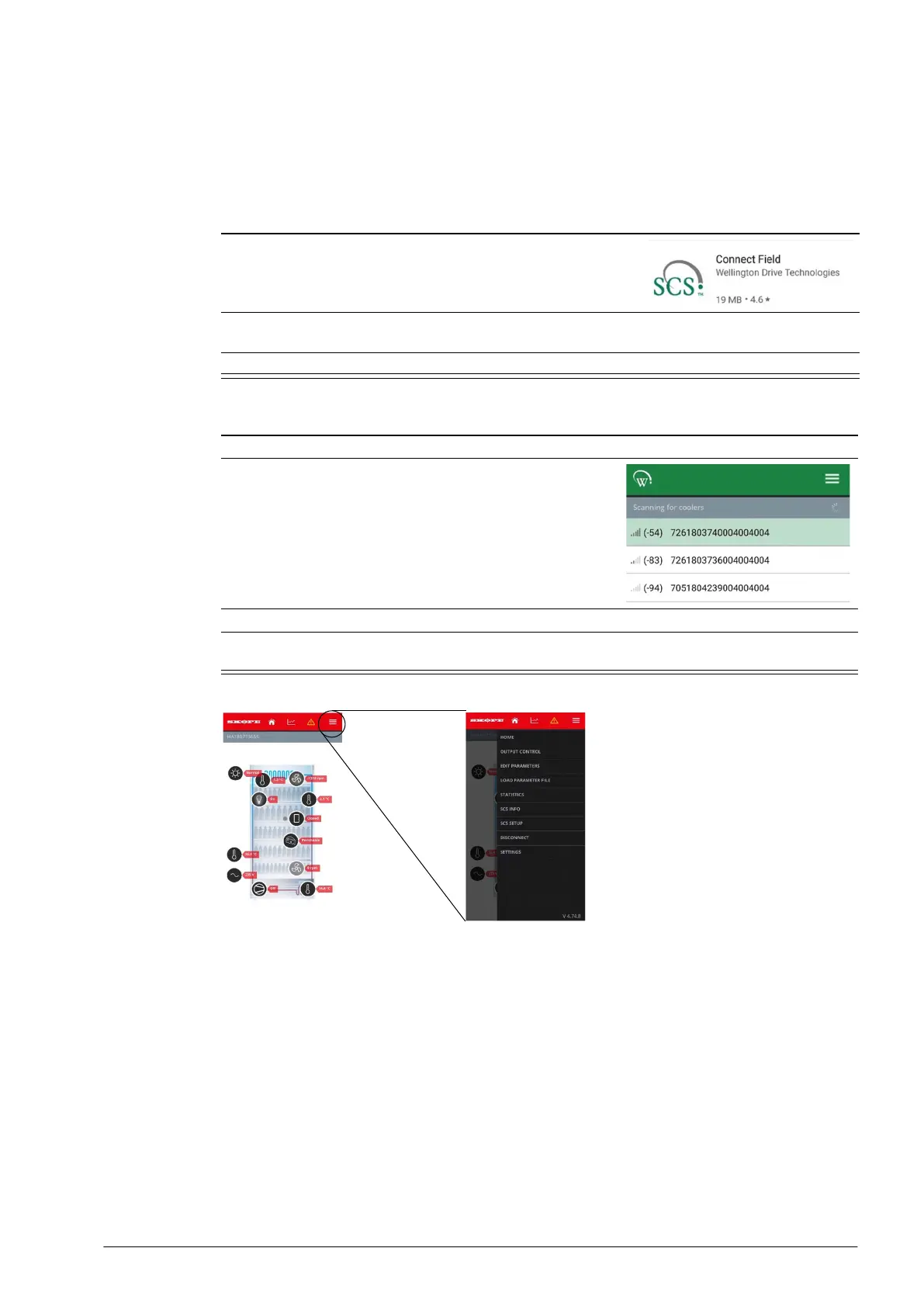
Procedure 10: Installing the SCS Connect Field app
1. Download the SCS Connect Field app from Google Play Store
or Apple App Store.
Note: The two app versions have minor differences in appearance.
2. Enter your unique activation code and press “Activate”. The code is provided to you by your
company’s User Manager or SKOPE Customer Services.
3. Enter a 4-digit PIN code, re-enter the code, and press “SET PIN CODE”.
Procedure 11: Connecting to a cabinet
1. Ensure Bluetooth is enabled on your mobile device.
2. The app shows a list of nearby SKOPE cabinets. The
signal bars and number in brackets indicate the proximity of
each cabinet.
3. Select the cabinet of interest and press ‘CONNECT’.
4. When successfully connected, a blue light flashes on the controller faceplate and the home
screen is displayed in the app.
Home screen
Menu screen
Note: Available
menu options will
differ depending on
user access levels


 To Next Page