28
Skydio X2D INTL - Operator Manual © 2023 Skydio, Inc. All rights reserved.
Pre-flight
Configure Controller settings
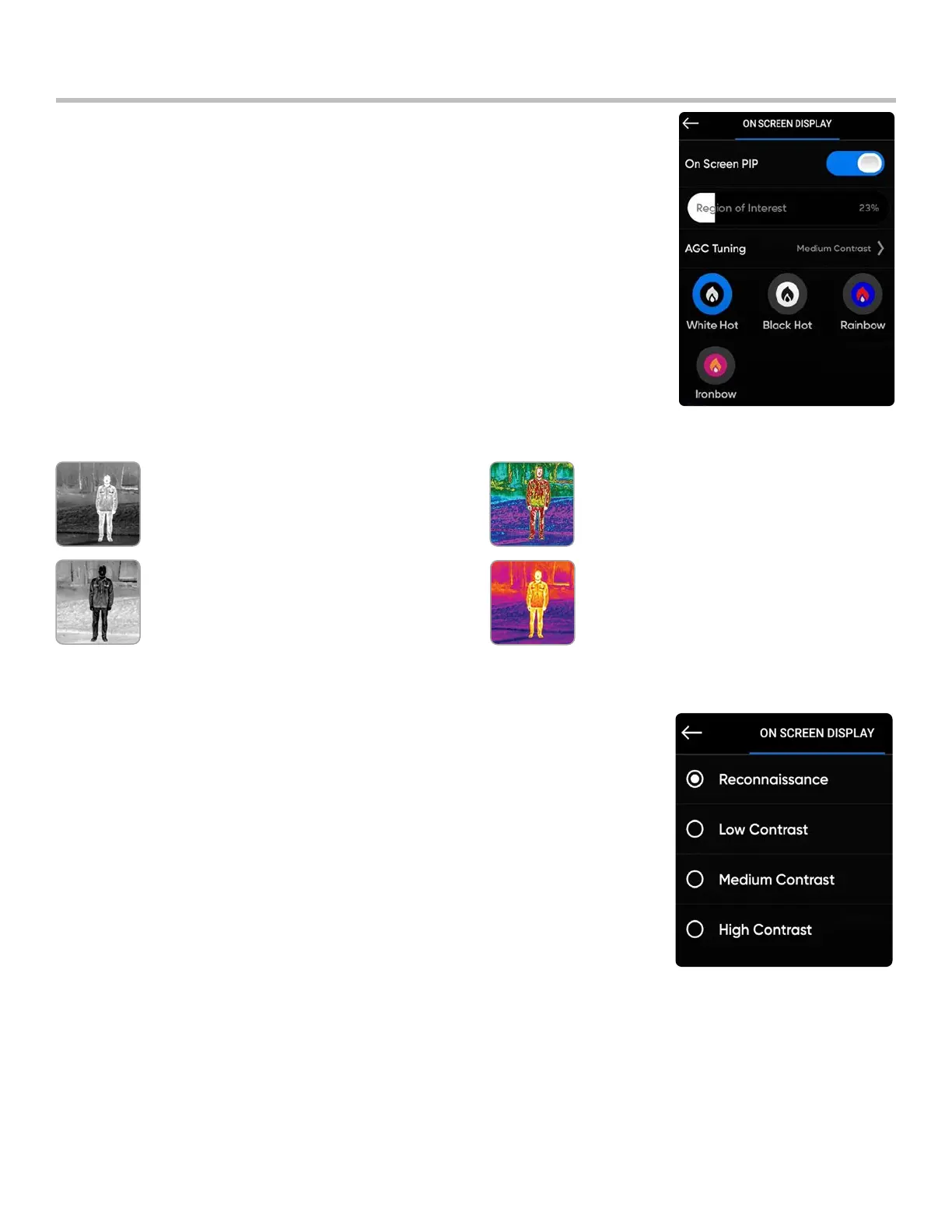
White Hot (default) - displays warmer
objects in white and cooler objects in
black to generate detailed images—well
suited for use in urban environments.
Black Hot - is an inverted White Hot,
displaying warmer objects as black and
cooler objects as white.
Rainbow - uses colors to display subtle
variations in scenes with low-contrast heat
dierentials.
Ironbow - uses color to display heat
distribution and thermal anomalies.
Warmer objects are presented in lighter
colors and colder objects in darker colors.
Thermal Palette (X2D Color/Thermal only) - the thermal camera assigns each pixel
a unique color or shade based on a specific temperature data point. Changing the
thermal palette can help highlight specific warm or cold people, objects, or points of
interest for better identification confidence and decision-making. Thermal palette
selection persists across flights and power cycles.
Step 1 - Select the Device settings menu icon
Step 2 - Select the Controller tab
Step 3 - Select On Screen Display
Step 4 - Select Thermal
• Toggle On Screen PIP on or o
• Select a thermal palette
Step 5 - Select the Region of Interest between 10% - 100%
Select a Region of Interest (ROI) on your thermal image and apply AGC to that
specific area. The area inside the ROI will be optimized with AGC, while the area
outside the region of interest can still be viewed.
Step 6 - Select the AGC Tuning
Tune the Automatic Gain Control (AGC) or signal noise in your thermal image to
automatically optimize for the contrast you have selected. Options include:
• Reconnaissance
• Low contrast
• Medium contrast (default)
• High contrast


 To Next Page