56
Skydio X2D INTL - Operator Manual © 2023 Skydio, Inc. All rights reserved.
Flight
NOTE: setting a Home Point is only available during the day, you cannot set a Home Point at night. Ensure that there are
no obstacles (e.g., people, animals, etc.) in the drone’s return pathway. Skydio X2 will retain its current obstacle avoidance
setting when returning.
Your return location options include, Launch Point, Home Point, or the controller (default). Your return flight will use
either GPS or the vision navigation system. Visual return will only work with the Launch Point. Setting a Home Point or
returning to your controller location will require GPS.
Return location
Step 1 - Select the Device settings menu
Step 2 - Select the Drone tab
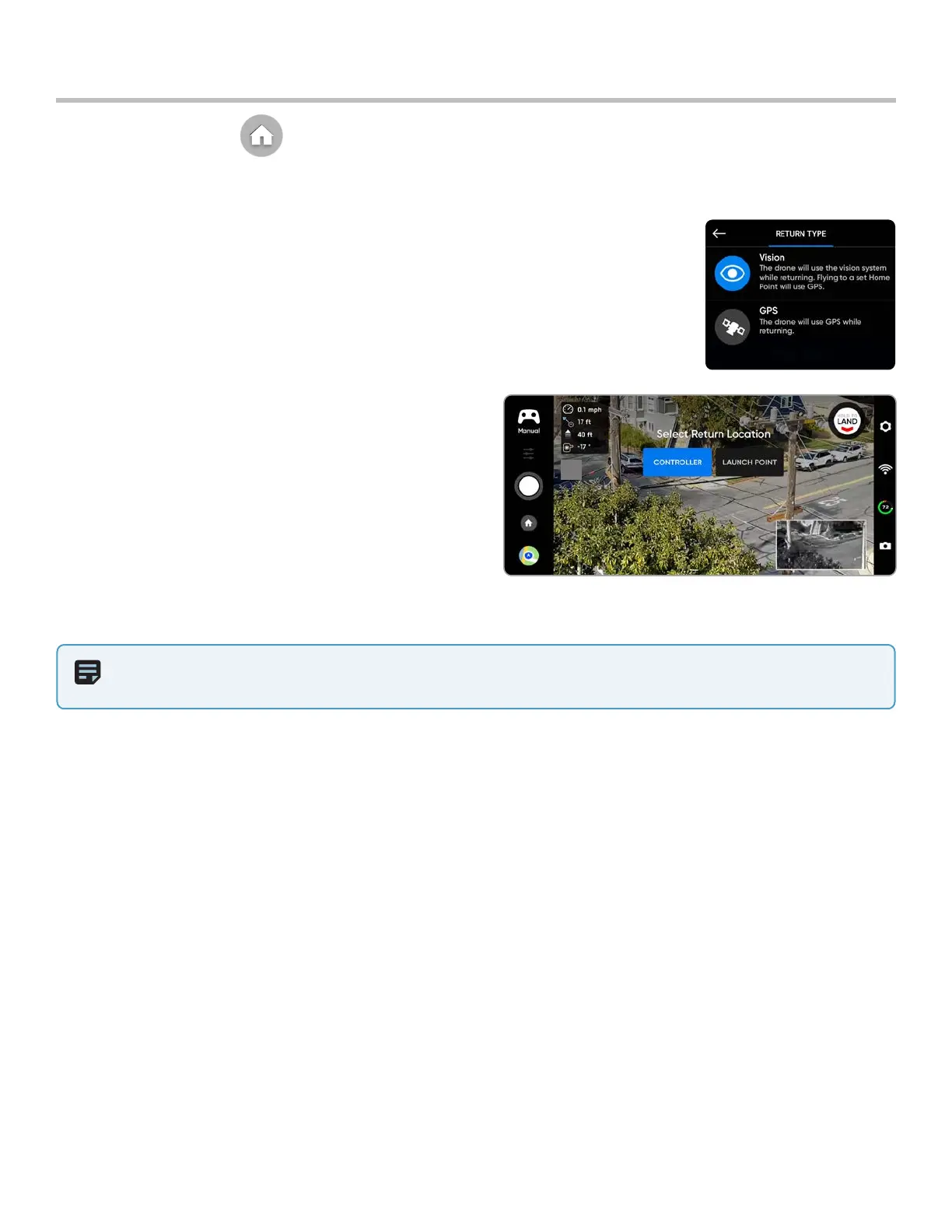
Step 3 - Select Return Behavior
Step 4 - Set Return Type to GPS
• GPS is required to return to the Controller or Home Point
Step 5 - Select the Map icon
Step 6 - Long-press a point on the map
• Tap to move and delete an existing Home Point
Step 7 - Return to the Fly screen and select the Home icon
• Set return to Home Point
• If a Home Point has been set for this flight,
Launch Point will be replaced with Home Point
To set a Home Point:


 To Next Page