46
Skydio X2D INTL - Operator Manual © 2023 Skydio, Inc. All rights reserved.
The Waypoints skill allows you to design and execute multi-waypoint GPS missions. Skydio X2D uses AI-enabled path
planning algorithms to avoid obstacles. To create a mission:
Flight
Waypoints
Step 1 - Select Waypoints from the skills menu
Step 2 - Select map view
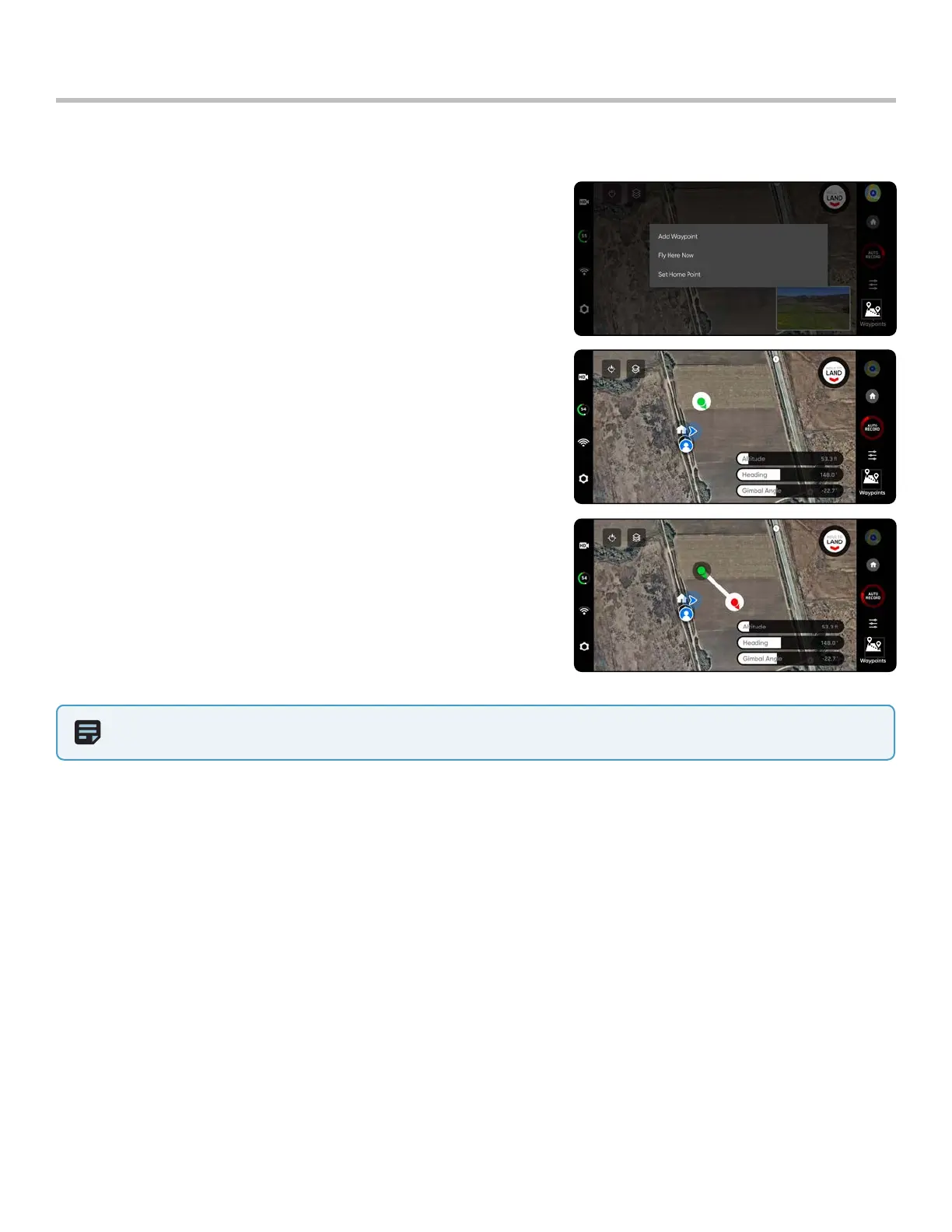
Step 3 - Long-press anywhere on the map
Step 4 - Select Add Waypoint to set the first waypoint
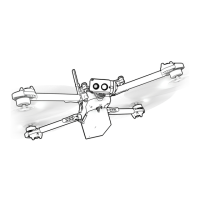
• The first waypoint will automatically be the current position of X2
Step 5 - Customize settings by selecting the newly created waypoint
• Set the altitude, heading, and camera angle for that waypoint
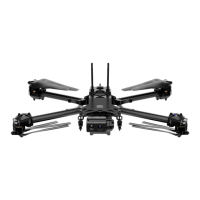
Step 6 - Long-press on the map to set your second waypoint
Step 7 - Continue to add waypoints until your path is complete
• Missions can support up to 256 waypoints.
• Waypoints that are added while a mission is in progress will be
included in the current mission
• If a waypoint is added after a mission is complete, the flight will
restart before including the newly added waypoint
NOTE: Waypoints are created using GPS coordinates. Skydio X2D must have a good GPS signal prior to executing a
waypoint mission.
Step 1 - Select Play to start the mission and Skydio X2D will autonomously move through each waypoint.
• Only one waypoint mission may be defined at a time
• You cannot save and load between multiple missions
• When the mission is complete X2D will hover in place
• Waypoint missions are stored on the controller and will persist across flights and reboots
Step 2 - Delete a waypoint
• Long-press and select Delete
Step 3 - Clear all waypoints
• Select the trash icon


 To Next Page