48
Skydio X2D INTL - Operator Manual © 2023 Skydio, Inc. All rights reserved.
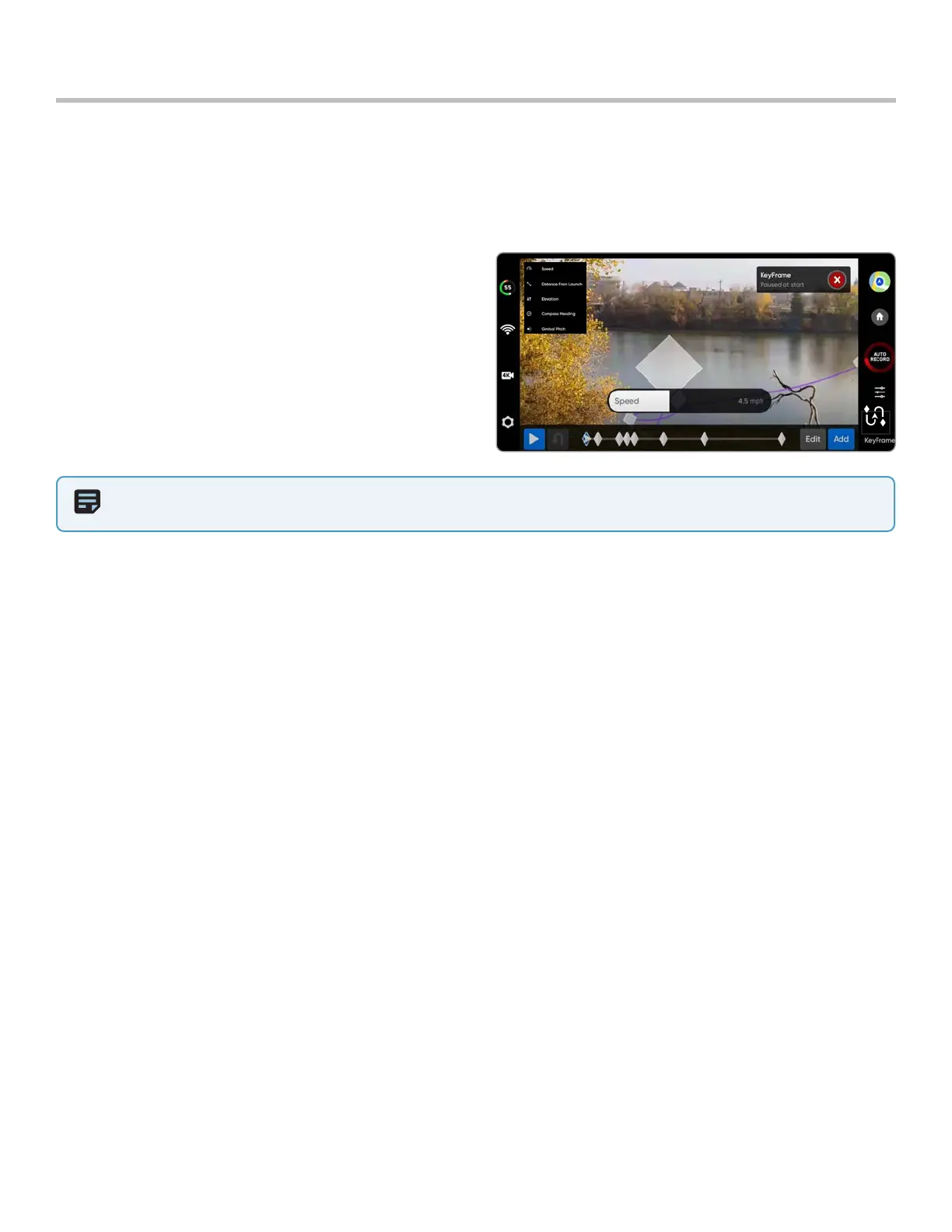
KeyFrame
Step 1 - Select the Cinematic tab from the skills menu
Step 2 - Select KeyFrame
Step 3 - Fly to your first keyFrame location
• Adjust the drone and camera position
Use the KeyFrame skill to create cinematic aerial shots by capturing continuous, complex video with smooth camera
motion. KeyFrame flights can be flown repeatedly, with varying degrees of complexity, subtle camera moves, speed
adjustments, and obstacle avoidance. Set up your sequence by adding up to 100 keyframes in 3D space. KeyFrame
uses the visual navigation system and does not rely on GPS. To use KeyFrame:
NOTE: Placing your initial keyframe close to your Launch Point will improve the accuracy of your flight path. KeyFrame
paths set far away from your launch point may be less accurate.
X2D will begin at the last KeyFrame added and fly through your sequence along the spline until it reaches the first
KeyFrame added.
• Edit or Add KeyFrames to your sequence along the spline at anytime
• Press the red X button in the top right to return to the Manual flight skill
• KeyFrames will automatically be saved
Flight
Step 4 - Select Add to lock in the keyframe location and position
• Add up to 100 keyframes
• KeyFrames are automatically saved
Step 5 - Select Done when you have completed your sequence
Step 6 - Select Play to fly
Step 7 - Adjust the speed at which the drone will fly to each keyframe
Adjust the KeyFrame settings by selecting the Skills setting icon
Playback Style - manually adjust the camera roll along the flight path while flying
Recorded - will playback the KeyFrame sequence using the gimbal roll you set up at each point
Free Look - allows for manual control of the gimbal roll using the Enterprise Controller right wheel
Speed - adjust speed X2 will not fly the exact same path at two dierent speeds
• The vehicle will dynamically slow down to 11 mph (5 m/s) around sharp turns, allowing you to increase the
maximum speed without sacrificing accuracy
On-Screen Controls - toggle On to display the slider to adjust the gimbal roll from -35° to 35°
Joystick Control -
• Absolute - roll joystick input directly maps to drone movements. X2 will stop when the joystick is centered
• Relative - roll joystick input increases or decreases speed. The current speed is maintained when the joystick is
centered


 To Next Page