22
Skydio X2D INTL - Operator Manual © 2023 Skydio, Inc. All rights reserved.
Pre-flight
Plan Waypoint Mission
Mission-level settings such as speed and lost communication behavior can be configured while in flight.
• Edit an existing waypoint - tap on the waypoint and adjust the settings.
• Drag to adjust the waypoint placement as desired
• Delete a single waypoint - tap and hold the waypoint
and select Delete
• Delete the entire mission and clear all waypoints -
select the trash can icon and OK
NOTE: Waypoint are created using GPS coordinates. A strong GPS signal (approximately 20 satellites) is required to
execute a waypoint mission.
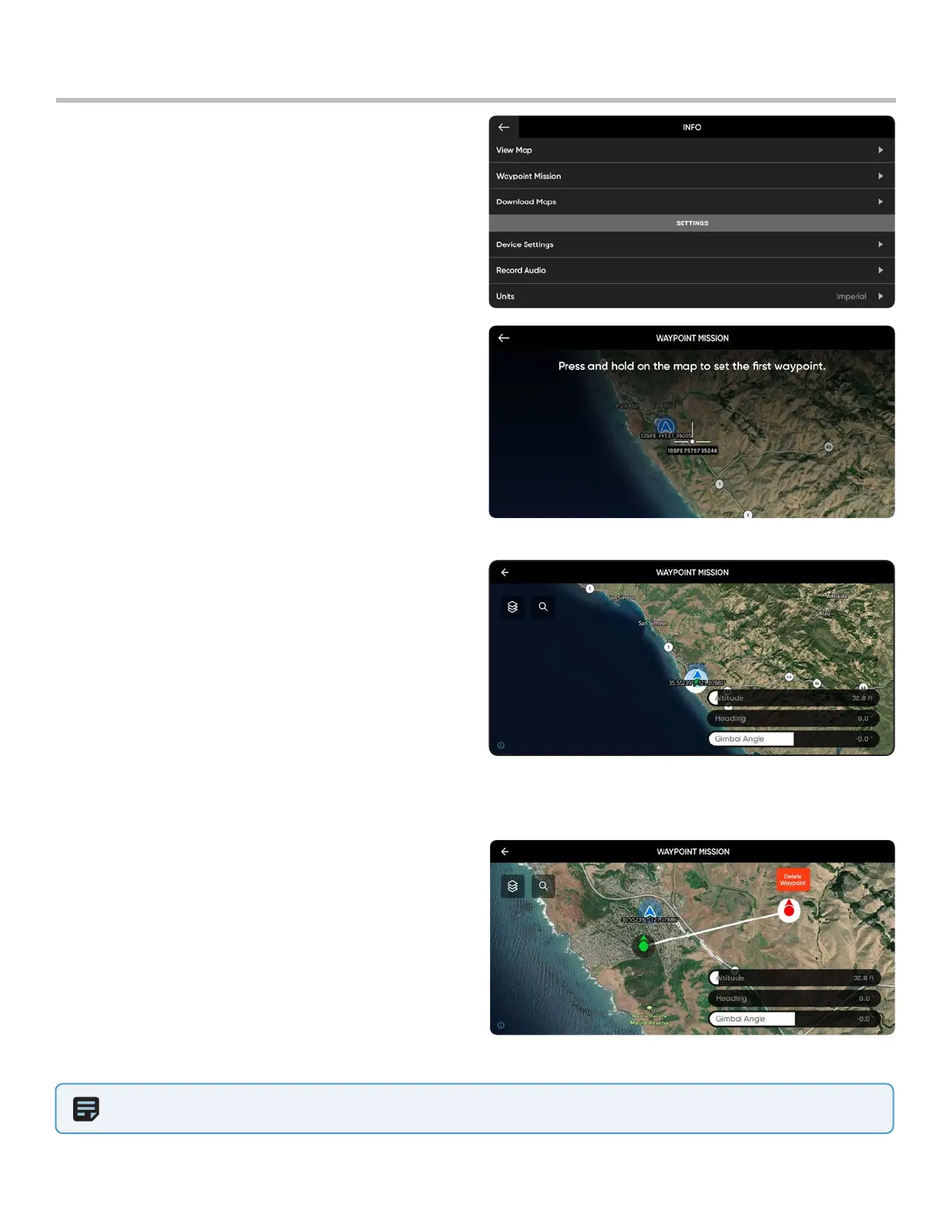
Step 1 - Select the INFO menu
Step 2 - Select Waypoint Mission
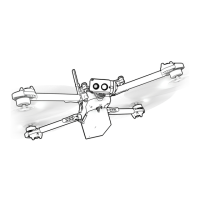
Step 3 - Pinch and drag on the map to set the starting
location of your waypoint mission
Step 4 - Press and hold on the map
Step 5 - Select Add Waypoint to set a waypoint
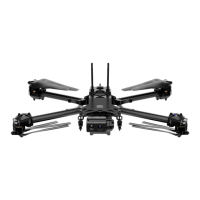
Step 6 - Press and hold on the map again to set your
second waypoint
• The vehicle pose setting will match previous
waypoint
Step 7 - Set the altitude, heading, and gimbal angle
for the selected waypoint
Step 8 - Continue adding waypoints until your mission
path is complete
• A mission can support up to 256 waypoints


 To Next Page