57
Skydio X2D INTL - Operator Manual © 2023 Skydio, Inc. All rights reserved.
Flight
Step 1 - Descend to 15 ft (4.6 m)
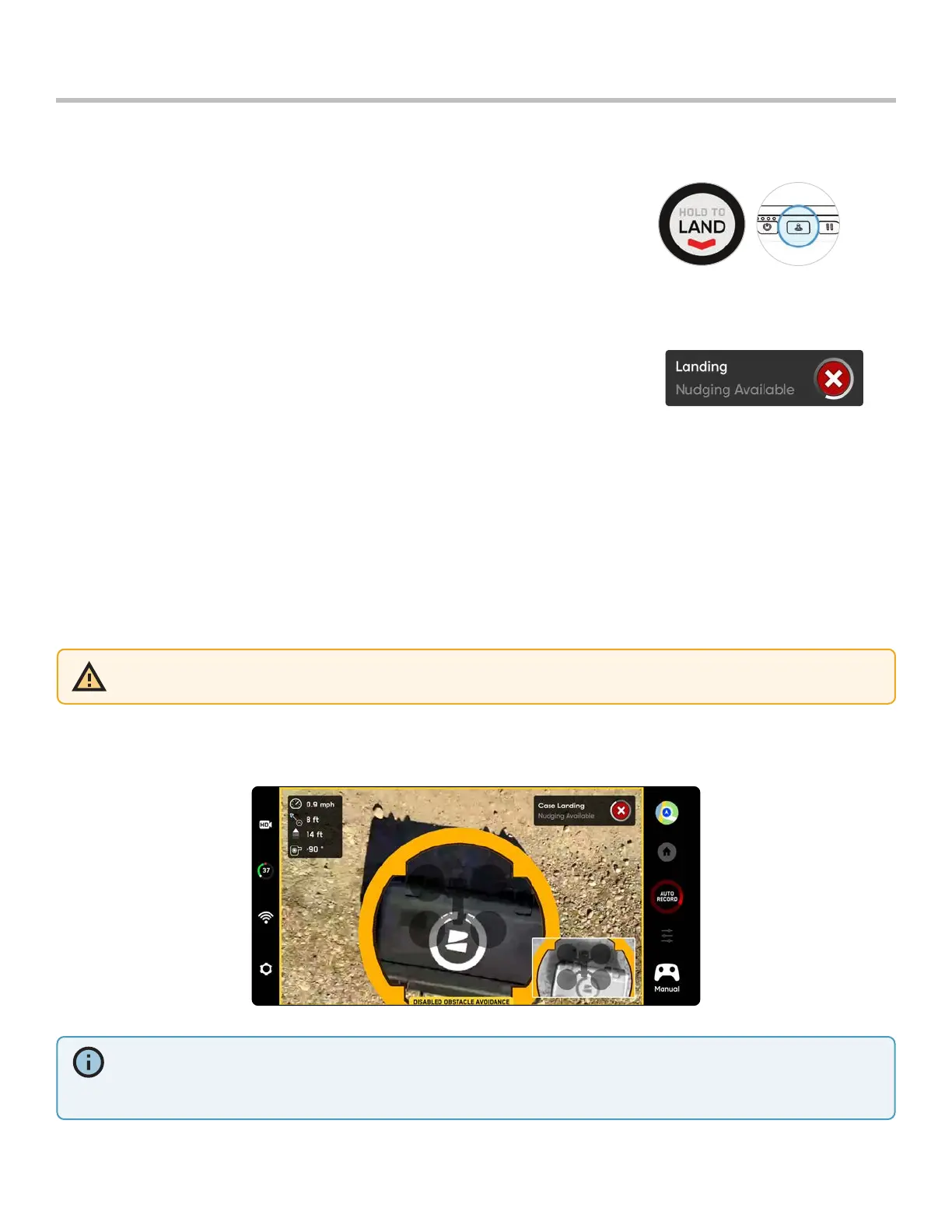
Step 2 - Select and hold Land
• Skydio X2D will descend
• Below 10 ft (3 m) obstacle avoidance will be disabled for the remainder of the landing
• During landing you may nudge the drone forward, backward, left, or right
• Yaw control is disabled during landing
• Cancel the landing by increasing altitude or selecting Cancel Landing
Land
Use the case for a landing pad to avoid disturbing dirt and debris:
Step 1 - Position the drone about 10 ft (3 m) above the case
Step 2 - Tilt the camera down so the case and Skydio logo are clearly in view
Step 3 - Select and hold Land
• a yellow ring will circle the Skydio logo
• if you do not see the yellow ring, cancel the landing and try again
Case landing
When you are ready to land your drone, stop any subject tracking or autonomous actions and manually fly the drone
to a stable landing spot that is clear of debris and people.
INFO: Skydio X2D may identify bushes, trees, and similar obstacles as potential surfaces. Pilot the drone to an open area
free of obstacles before initiating a landing. If a flight is initiated by taking o from a case (or a case is placed at exact
launch point), GPS positional accuracy cannot be relied upon to guarantee a case landing when using the Return to
Home function (or in the case of a Return To Home triggered by lost communication).
CAUTION: Piloting or nudging the vehicle during a case landing will cancel the case landing and continue with a normal
landing. Be careful not to accidentally touch the controller joysticks while X2 is performing a case landing.
To reduce the chances of canceling a Case Landing due to an accidental nudge, Skydio will require one second of
joystick inputs to unlock from the case. Re-initiate a Case Landing by tapping the blue case icon.


 To Next Page