50
Skydio X2D INTL - Operator Manual © 2023 Skydio, Inc. All rights reserved.
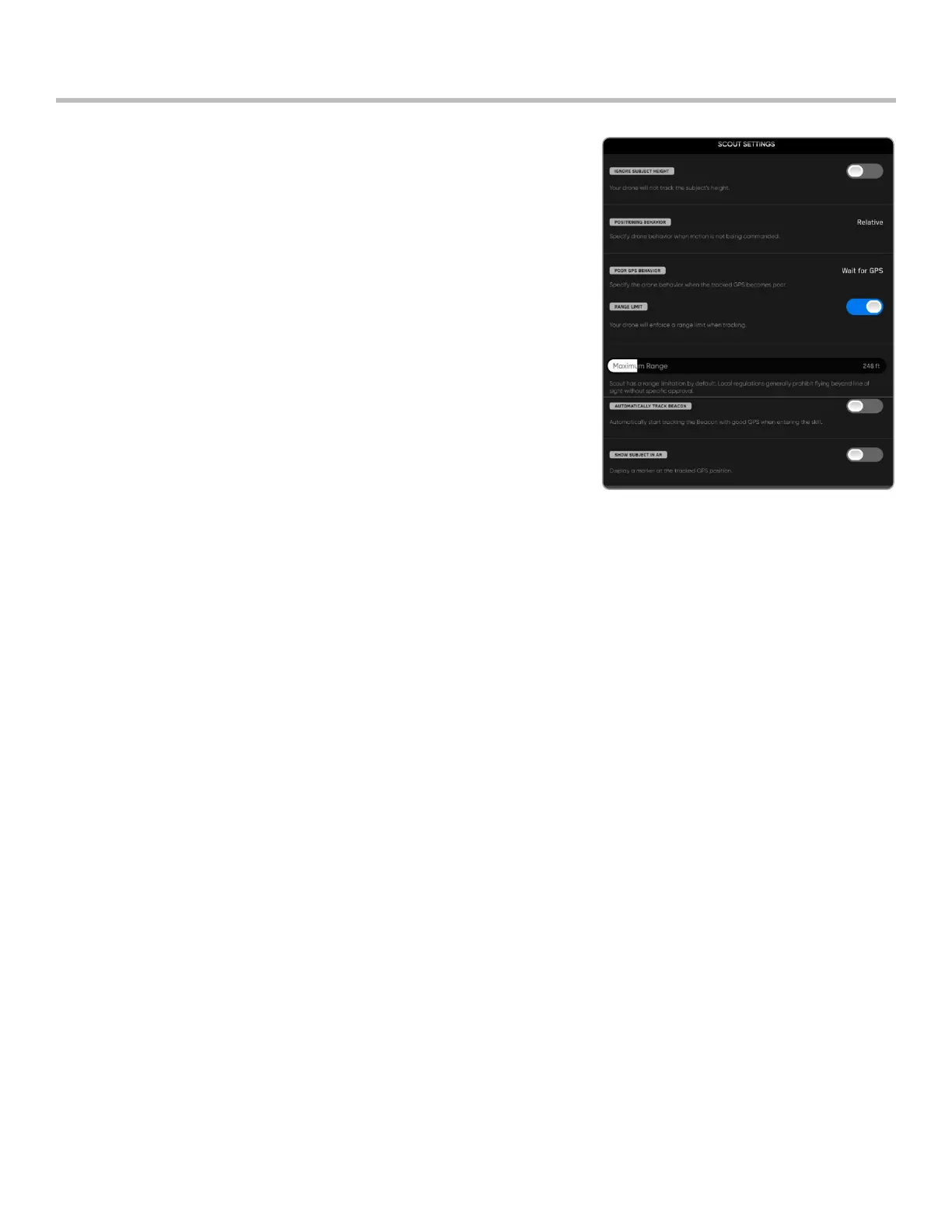
Adjust Skydio Scout setting by selecting the skills setting icon
Ignore Subject Height -
• Disabled (default) - the drone will incorporate the vertical changes in
altitude of the tracked GPS position
• Enabled - the drone will ignore the vertical changes in altitude of the
tracked GPS position and maintain the set altitude unless the pilot
commands the throttle
Positioning Behavior -
Set the drone’s behavior to automatically reposition itself to match
changes in the subject’s direction of motion, the drone will maintain its
position relative to the tracked Skydio Enterprise Controller or Beacon.
• Relative - X2 will stay at a constant angle relative to the direction of
motion of the tracked GPS
• Fixed - X2 will stay at a constant angle relative to the world
Poor GPS Behavior - select what your X2 will do if it encounters a weak
GPS signal:
• Cancel Tracking X2 will stop tracking
• Wait for GPS (default) X2 will hover until tracked GPS is regained
Range Limit - toggle on (default) or o, the slider allows you to choose a maximum range the drone can fly
Maximum Range -
• 33 ft (10 m) to 1969 feet (600 m)
• Default maximum range value is 246 ft (75 m)
• Skydio X2 can not manually fly or track past the maximum range
• If the inflight position is beyond the Maximum Range value, X2 will attempt to fly towards the tracked subject at
22 mph (10 m/s) until it is within 33 feet (10 meters) of the Maximum Range and slow until it is within range
Automatically track Beacon -
• Toggle on, and X2 will automatically start tracking Beacon when the Scout skill is selected and there is a strong
GPS signal
Show subject in AR - toggle on (default) and the AR marker will display over the tracked subject. This allows the
operator to more easily orient themselves to the tracked GPS subject while in flight.
• The AR Marker is red when the drone is close to the GPS subject and purple when it is furthest away
• The AR marker displays above the tracked subject at the height of the drone
Flight
Scout Settings


 To Next Page