2-7
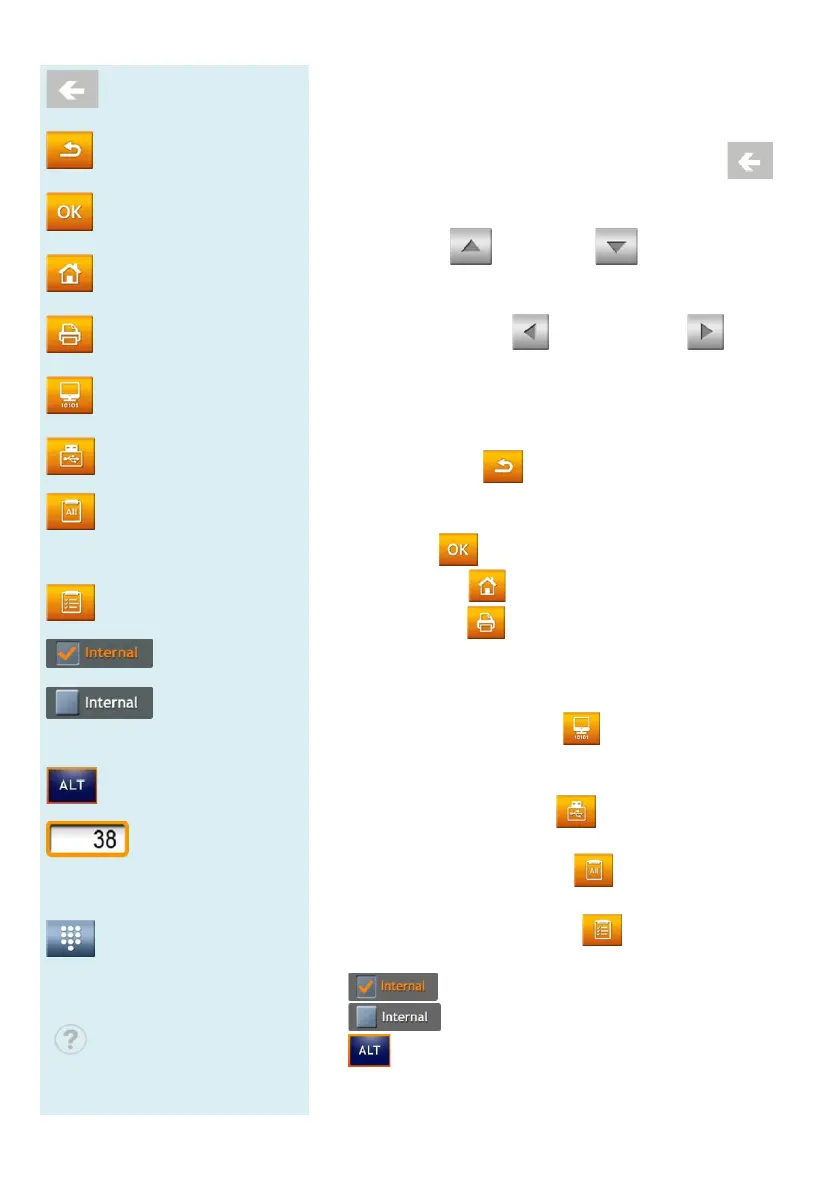
Backspace
Back
Confirm (Next step)
Home (Home menu)
Print
Export to RS232
Dump to USB
Show all test results
(regular reports)
Show custom report
option activated
option not
activated
Analyte selected
Selection is being
updated
Show numerical
keypad
On-Line help
explanation
Input the password or patient ID using the keypad
touchscreen (up to 12 digits).
To change typed
information, please use the
backspace or delete key on the touch screen
move the cursor on screen backwards
delete a typed character.
Use the up and down
arrow keys on the
touchscreen to browse the displayed list of items or
to increase or decrease a displayed value.
Use the page back and page next
touchscreen to navigate between pages.
All clinical chemistry analyzer functions are
operated
via various icons on touchscreen, as well as specific
keys that appear on screen.
Press the back
key on touchscreen to cancel a
choice and return to the previous step, or to move
backward through a series of screens/items.
Press OK to confirm the step.
Press HOME to return to the top layer (Home).
Press Printer to prin
t the test results shown on
screen. To print results with the built-
printer or external printer, select this option under the
system settings menu.
Press Export to RS232
to export the test data
shown on screen to an external information device via
the RS232 interface.
Press Dump to USB
historical test data in the system via USB.
Press Show all test results
all test items on the reagent disc (regular report).
Press Show custom report
report on screen.
means an option has been activated.
means an option has not been activated.
means an analyte
has been selected for display
in the Custom Report function.


 To Next Page