2-6
Connecting an External Barcode Scanner
If you purchase an external b
1500H) for p
atient ID scanning, please connect it to the
USB port on the clinical chemistry analyzer
The clinical chemistry analyzer
automatically detect and launch the scanner
connected.
Connecting Other External USB Devices
Using a USB
flash drive, you can export test results or
historical data to the USB drive for data backup.
Connecting an External Device via the RS232 Serial
Port
The clinical chemistry analyzer
can be connected to
external equipment or personal computers via the RS232
serial port. The administrator can set different transfer
baud rates for the RS232 serial port according to needs.
Connecting to a personal computer
by using a RS232-to-USB
connection cord (optional
purchase).
Connect to LAN Network (RJ45)
If you need to link the clinical chemical analyzer
laboratory’s LAN via RJ45, please contact
authorized technical support personnel.
Icons for touchscreen
interface:
Page Up, Increase
Page Down, Decrease
Page Back/Next
2.4 Touchscreen Interface
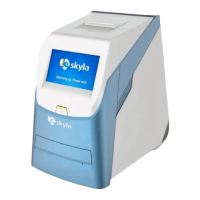
The clinical chemistry analyzer
touchscreen which is easy to operate and facilitates
interaction between the user and the
system software
interface during function selection and test execution.
The user can utilize the touchscreen for procedural
instructions on completing a test. The interface provides
information about function
settings, and other messages.


 To Next Page