5-11
Warning:
The clinical chemistry
analyzer must remain
powered on throughout the
system upgrade process.
Note:
We recommend having a
skyla
TM
authorized
technician assist with the
clinical chemistry analyzer
system upgrades. If the
system upgrade software
was not correctly installed,
the error message “No
Softwarw Found!” will be
shown on screen.
The System Upgrade procedures are as follows:
Go online (URL: www.skyla.com ) and download the
system upgrade software. Copy the system upgrade
software or system parameter file to the USB drive,
then insert the USB drive into the USB port at the back
of the chemistry analyzer.
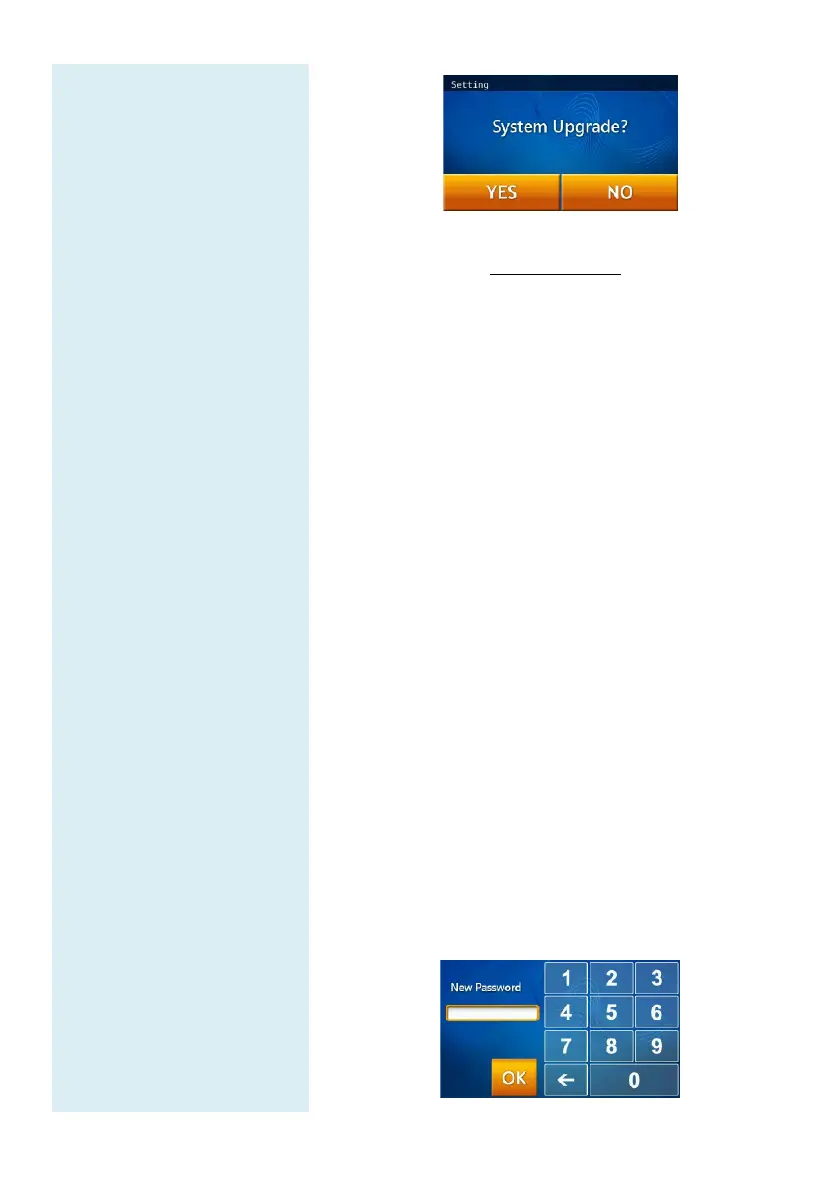
Under Administrator Settings (see page 5-4), select
the “System Upgrade” icon then select “YES” to
start system upgrade.
Once the system software has been updated, the
chemistry analyzer will automatically reboot. The
chemistry analyzer will not reboot if it is only a
system parameter update and the user can continue to
use the system normally.
5.2.7 Password Change
A system password should be set when the analyzer is
started for the
first time. We recommend entering an
easy-to-remember password.
The change password procedures are as follows:
Under Administrator Settings (see page 5-4), select
the “Password” icon.
Please use the keypad to enter a new password. The
system will ask you to re-enter the new password for
confirmation. When it’s done, select "OK" to save
the changed setting.


 To Next Page