Sirius 800 www.snellgroup.com Nucleus Advanced Functions and Upgrades
Issue 1 Rev 1 Page 110 © 2014 Snell Limited
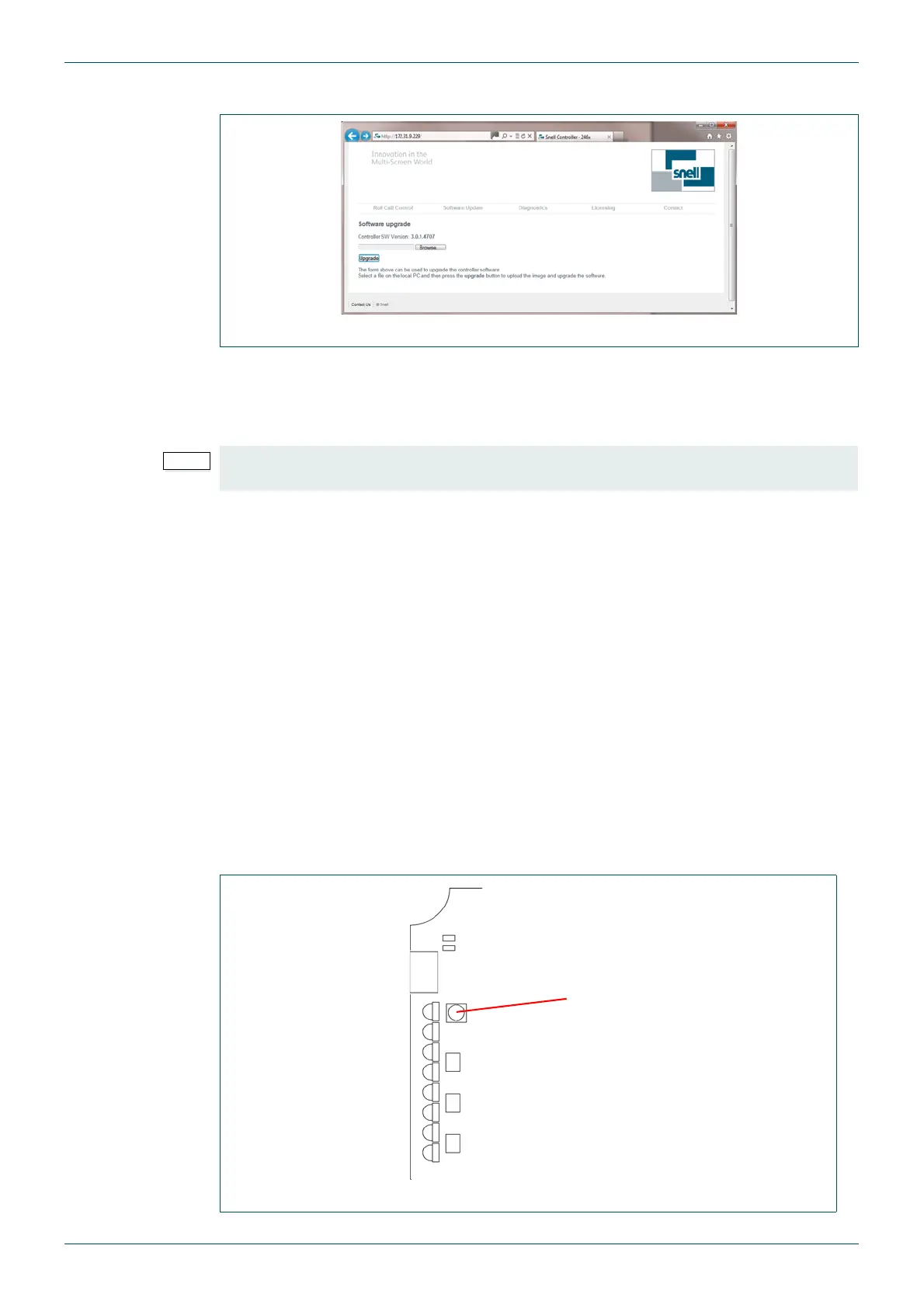
4. The Software Update page opens.
5. Click on the Browse button and browse to
C:\Program Files\Snell\MCM\Controllers\Centra\
and select the CentraController.RTB file (assuming Workbench was installed in the
default directory).
6. Click on the Open button to return to the web page.
7. Click on the Upgrade button to upload the RTB file to the Inactive Nucleus2 controller.
8. Once the RTB file has been uploaded to the controller it will automatically reboot. You
can follow the progress from Workbench (see Fig 69.).
9. When the updated Nucleus2 controller has finished rebooting it’s status will be shown
as green in Workbench and the update is complete.
If the router is fitted with a single Nucleus2 controller go to step 11.
10. Make the updated Nucleus2 controller the Active controller by using one of the
following methods:
• Either reset the Active Nucleus2 controller from the Workbench Controller
Configuration interface software.
or
• Press the Reset button on the front of the Active Nucleus2 controller,
see Fig 72. for the location of the Reset button.
Fig 71. Software Update Page
• If Workbench is installed in the default location on a 64 bit Windows computer then
it will be located in the “Program Files (x86)” directory.
Fig 72. Nucleus2 Router Controller Reset Button Location (Front Edge of Module Shown)


 To Next Page
 Loading...