Sirius 800 www.snellgroup.com Module Maintenance
Issue 1 Rev 1 Page 52 © 2014 Snell Limited
If the Module slot(s) were Grey in step 1 of the upgrade procedure then the following
extra steps are required:
8. Start Workbench with administrative privileges. By default these are:
Username: admin
Password: admin
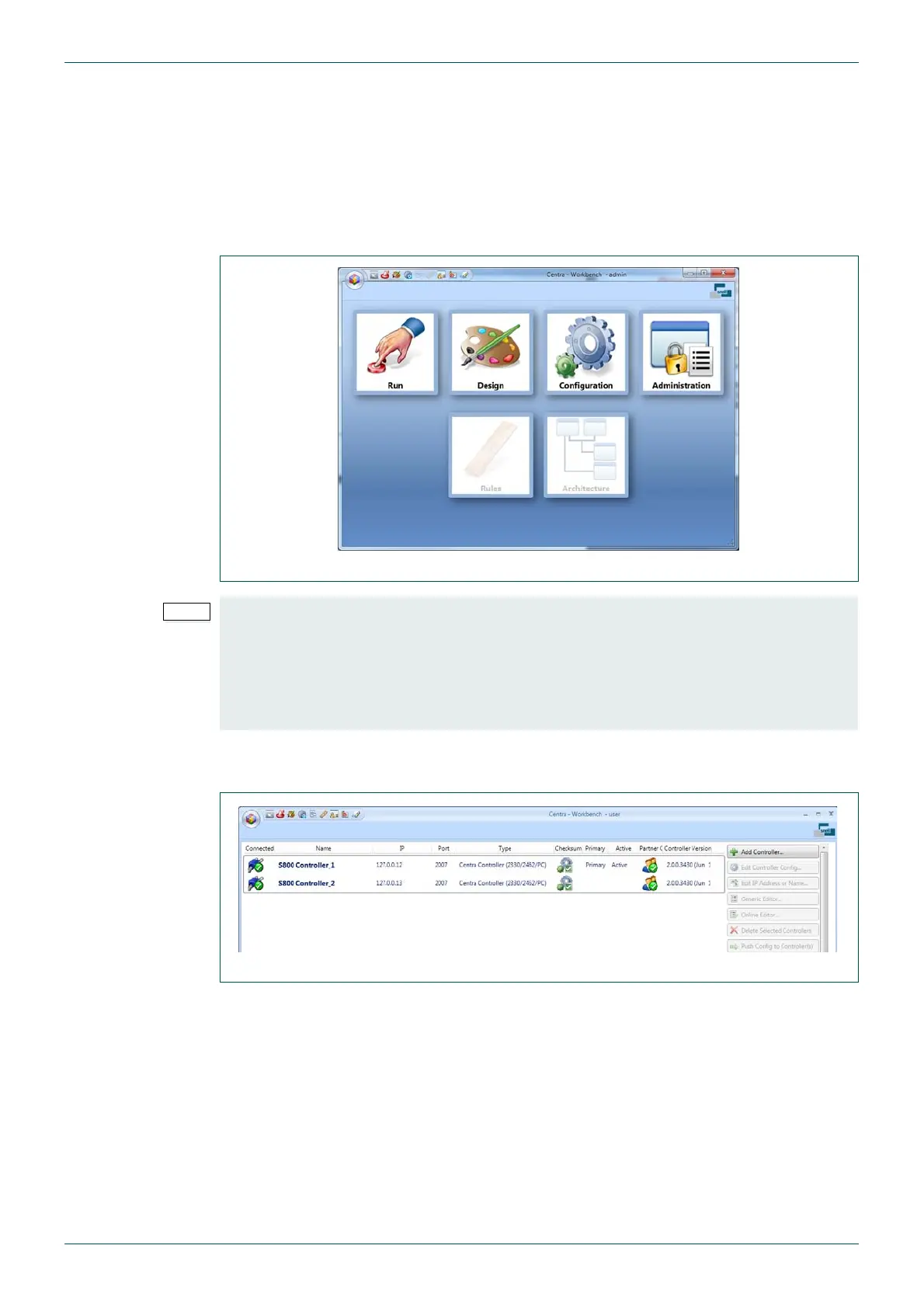
9. Click on the Configuration button (green and grey gears, see Fig 19.) to open the
Controller Configuration screen shown in Fig 20.
10. Double click on the Inactive Nucleus controller to open the configuration screen. If the
router is only fitted with a single controller double click on it even though it is Active.
11. Click on the Auto Configure button in the Hardware Config tab (see Fig 21.). This
will take a few minutes to update.
Fig 19. Workbench
• When using dual Nucleus controllers, the Active status column (Fig 20.) shows
whether the controller status is Active, Inactive or Unknown.
• It is normal to initially push a new configuration to the Inactive Nucleus controller,
test the changes and then either revert to a previous state or update the other
Nucleus controller once you are satisfied. This is the method described in this
section of the procedure.
Fig 20. Workbench Controller Screen


 To Next Page