Sirius 800 www.snellgroup.com Module Maintenance
Issue 1 Rev 1 Page 53 © 2014 Snell Limited
12. When the update is complete restart the updated Nucleus controller and wait for it to
display as connected (Green) in Workbench and indicate that it is Inactive (Active for
single controller systems).
13. If the Checksum for the updated controller is displayed as a White Tick in a green box
(see Fig 22.) then move on to step 15.
14. If the Checksum for the updated controller is displayed as a Red Exclamation
Mark (!):
a select only the updated controller and click on the Push Config to Controller(s)
button.
b Once the configuration has been pushed to the updated Nucleus controller
restart it and wait for it to display as connected (Green) in Workbench and
indicate that it is Inactive (Active for single controller systems).
c Verify that the Checksum is displayed as a Green Tick.
15. Make the updated Inactive Nucleus controller the Active controller by using one of the
following methods (not applicable to a single controller router):
• Either reset the Active (non updated) Nucleus controller from the Workbench
Controller Configuration interface software.
or
• Press the Reset button on the front of the Active (non updated) Nucleus
controller.
16. Check Live Runner on the Door PC and verify that the newly installed modules are all
Green (OK - Configured & Present, see Fig 18.).
17. Test the signal path using one of your control devices such as; Snell Hard Panels,
Automation or the Door PC Dial Up Router screen.
18. If the new configuration is working correctly and you have router with a single
controller go to step 21.
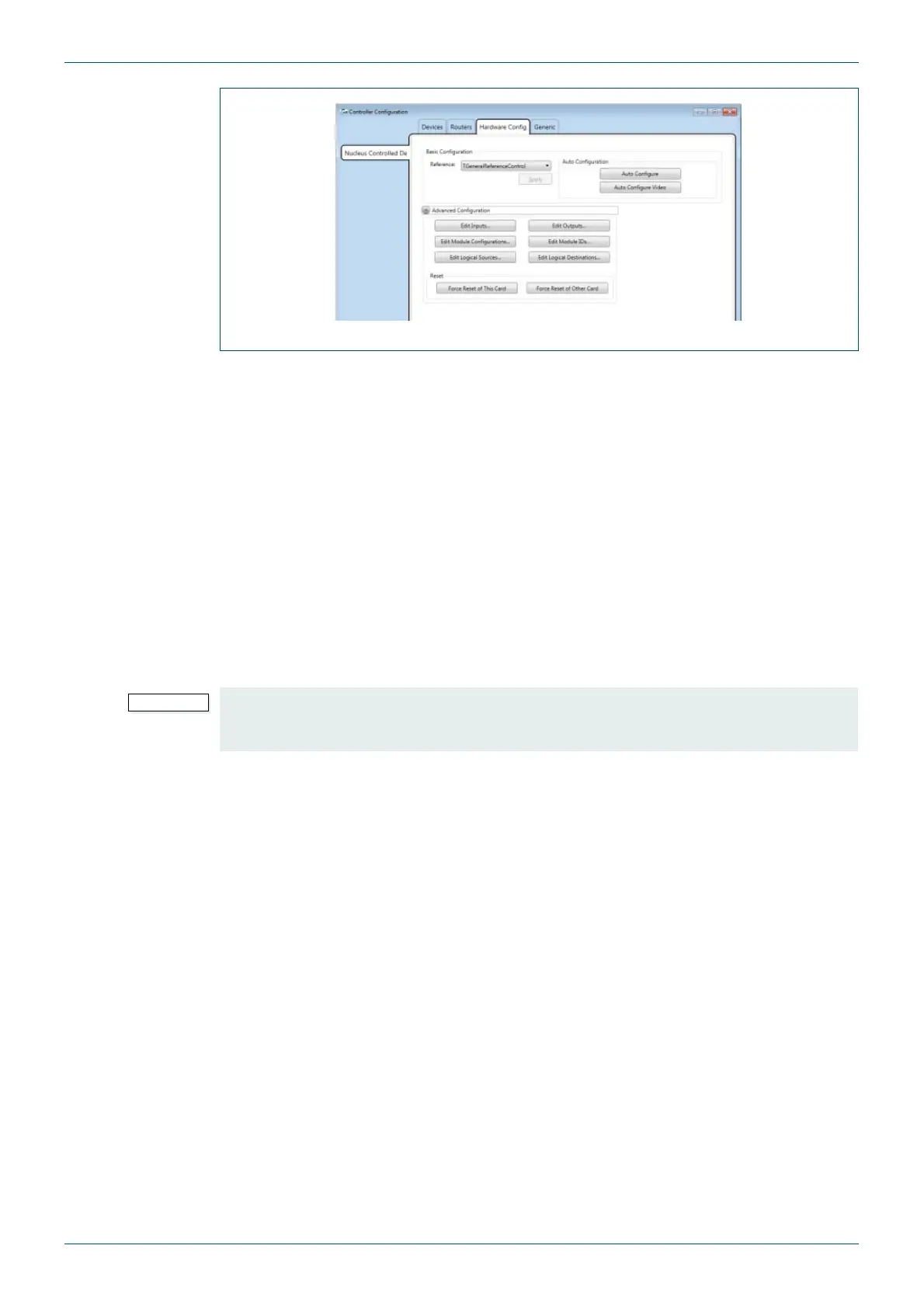
Fig 21. Workbench Hardware Config Tab
Always wait for a controller to come up green and report its state in Workbench before you
swap between controllers. Doing this ensures that you get clean and un-interrupted
operation of the router with no disturbance to video or external control systems.


 To Next Page