Sets an interval for checking for updates. After selecting Interval, enter the
interval in minutes between update checks.
Select to enable weekly checking for updates on one or more days. After
selecting Days of the Week, select the day(s) on which the HD10X checks for
updates.
Enables an AES-encrypted configuration file to be decrypted before being
applied to the HD10X. Select if the configuration file has been secured using
AES encryption.
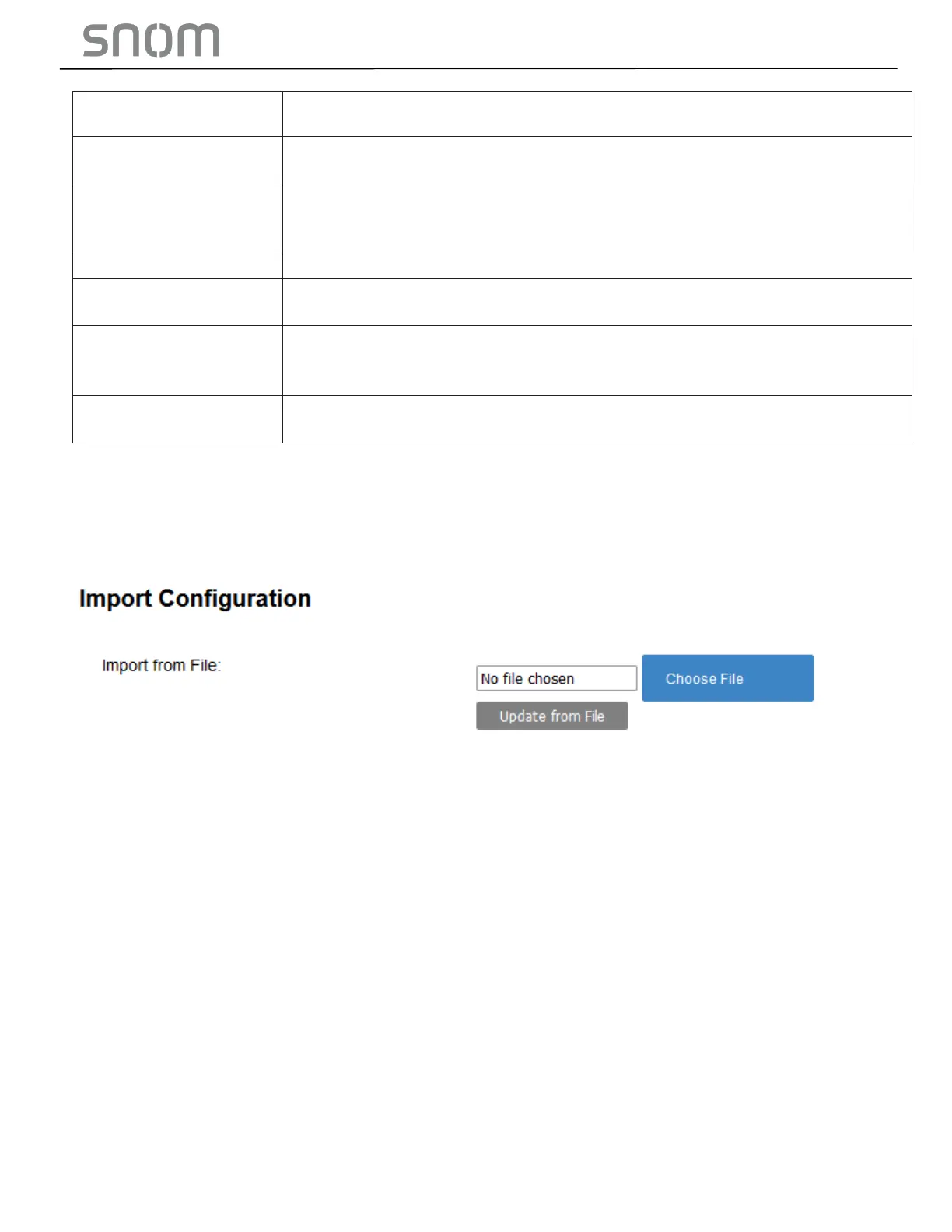
3.4.4.5 Import Configuration
You can configure the HD10X by importing a configuration file from your computer or your local network.
For more information about configuration file types and configuration file formatting, see Chapter 6
Provisioning Using Configuration Files.
To import a configuration file:
1. Click CHOOSE FILE to locate and open the configuration file.
2. Click UPDATE FROM FILE.
The HD10X will update its configuration.
Manually importing a configuration file differs from the auto-provisioning process in that:
• The HD10X does not check whether the file has been loaded before. The configuration file is
processed whether or not it is different from the current version.
• The HD10X will restart immediately after importing the configuration file, without waiting for one
minute of inactivity.
3.4.4.6 Export Configuration
You can export all the settings you have configured on the Web Portal and save them as a
configuration file on your computer. You can then use this configuration file as a backup, or use it to
update other phones.
Under Export Configuration, you can also reset the phone to its default configuration.


 To Next Page