Chapter 2: Installation and Setup
Procedure 10: Update Firmware Version (optional)
SmartBits 600x/6000x Installation Guide | 57
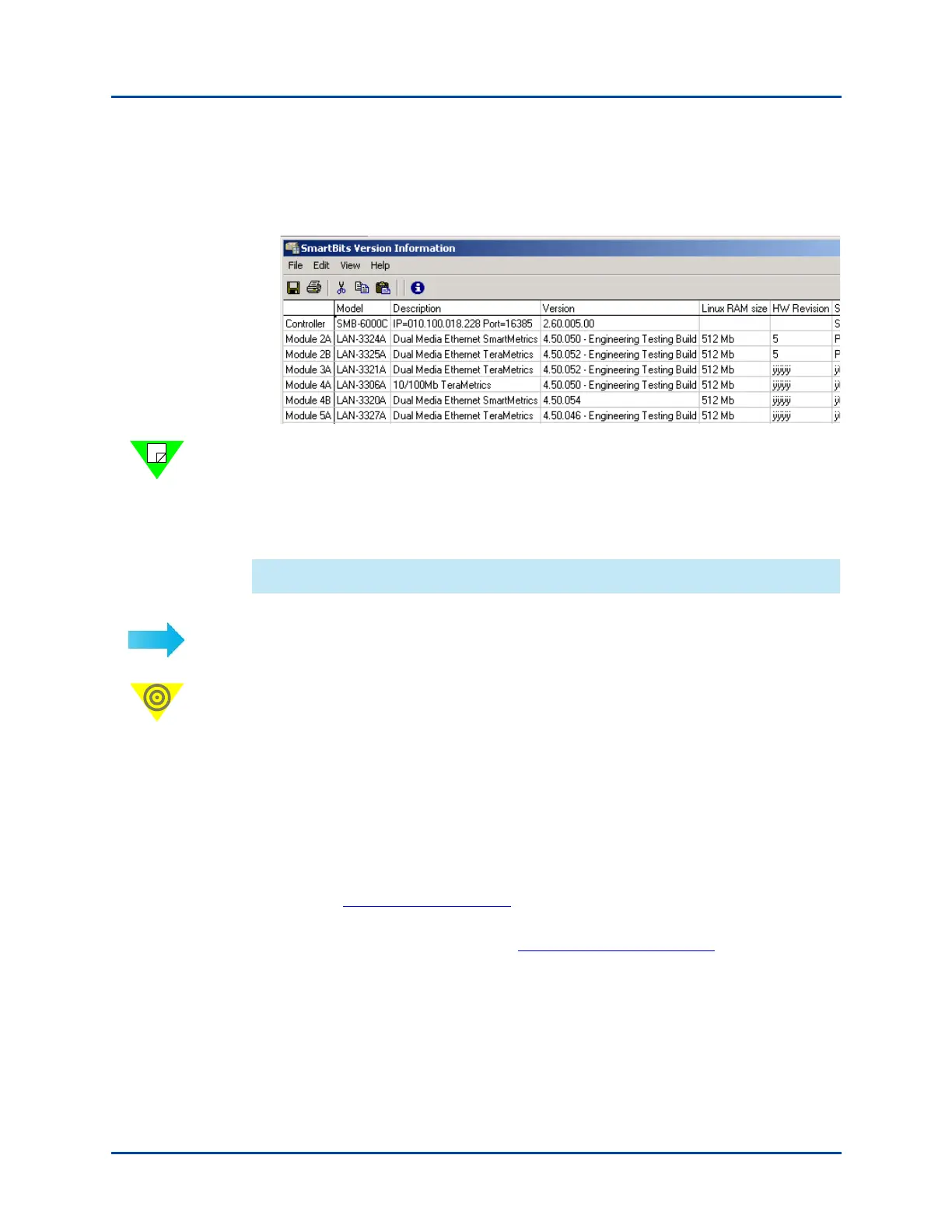
2 Click Show Card Versions to display version information for the SmartBits chassis
and installed cards. Below is an example of the window you will see. The window will
vary depending on the modules you are using:
Note: In the multi-user interface, SmartWindow does not display card information unless
the chassis is connected and the specified card is reserved. Only the component firmware
version numbers are displayed in the SmartWindow Help About window, not the overall
firmware release number. For information on reserving SmartCards/modules, refer to the
documentation for the application that you are using.
Downloading Firmware from the Spirent Website or Email
To download firmware updates from the Spirent website or an email message:
Important: • Close all SmartBits applications such as SmartWindow and
SmartApplications. If you keep an application open, the chassis
connection will not be available.
• All other users must be disconnected from the SmartBits chassis in order
for files to be download to the chassis.
• Firmware updates from the website are contained in .exe files that
require a password obtained from Spirent Communications’ Technical
Support department.
1 Contact Spirent Communications for one or more firmware passwords, by phone, fax,
or email: support@spirentcom.com
2 Download the desired firmware .exe file(s) from the Spirent Communications’
Customer Service Center website at http://support.spirentcom.com
into the desired
directory on your PC. Allow a minimum of 500 MB of free space on your local hard
drive.
3 Select Start > Run. The Browse window appears.
4 In the Browse window, select the CD-ROM drive, select the Setup.exe file, and click
Open.
Artisan Technology Group - Quality Instrumentation ... Guaranteed | (888) 88-SOURCE | www.artisantg.com



 To Next Page