User defined (manual input)
During a measuring round, a reference value
of preferred quantity can be saved in rela-
tion to the other measuring values. Leonova
Emerald is missing the option for analog
signals, but there is a possibility to manually
input a user defined measuring value such as
current, flow, pressure, etc.
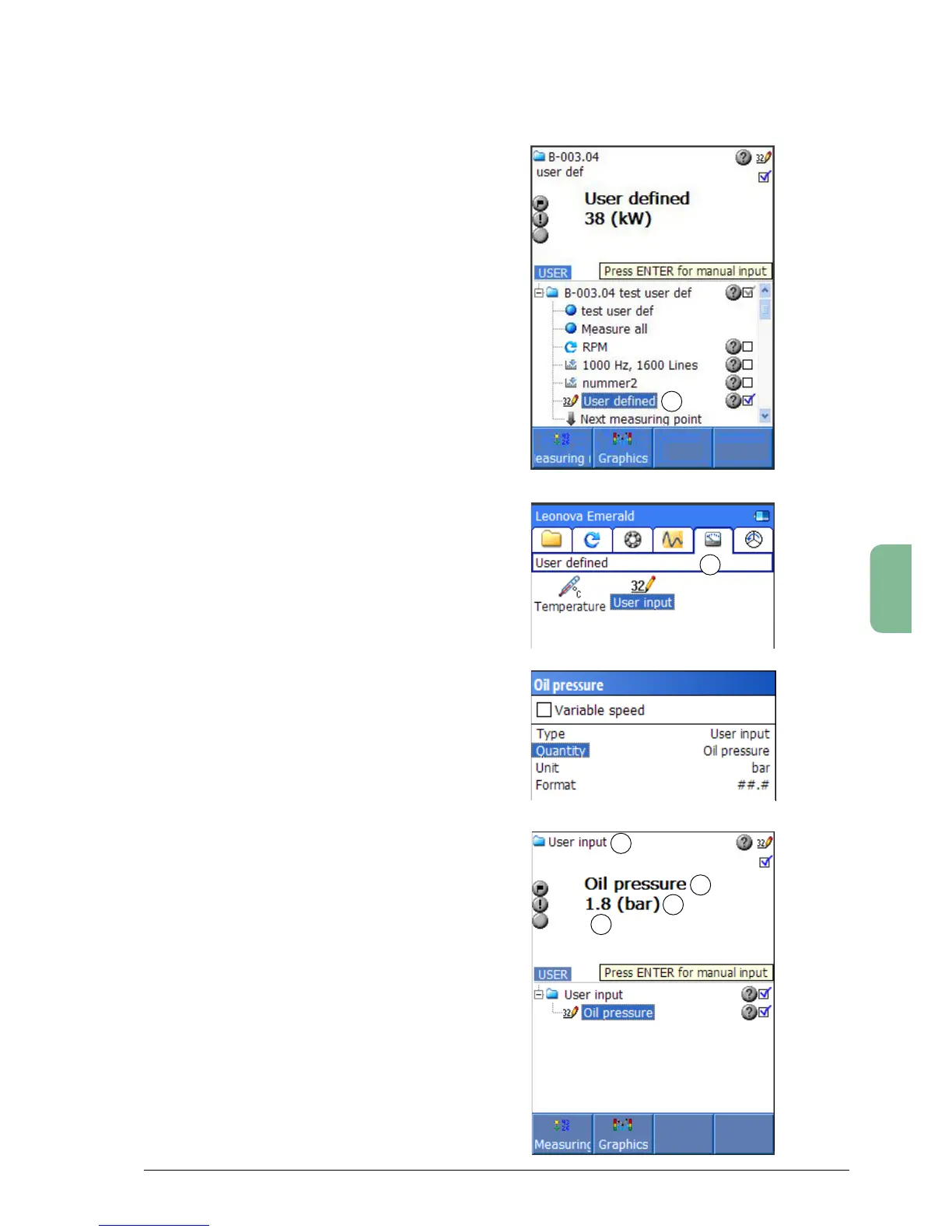
While in a measuring round with ‘User de-
fined’ values (1), press ENTER and input the
value manually via the keyboard window.
Usually, user defined units for manual input
issetupwithinaroundinCondmaster.If
you want to manually input values outside
a measuring round, an icon for user input is
located in the ‘User defined’ window (2). (See
below for more information.)
User defined (manual input)
with default file
Formanualinputofvaluesoutsideameasur-
ing round, an icon for user input is located in
the ‘User defined’ window (2). Press ENTER
to open the measuring window (bottom
picture).Configurefilesformanualinput
measurementsbypressingSHIFT+F3toopen
‘Measuring point data’.
‘Type’ is always set to User input and can not
be changed. ‘Type’ is shown as the measuring
point name in the measurement window (3).
‘Quantity’ is what the manual input rep-
resents, e. g. power, flow, pressure. Mark
thislineandpress‘Edit’(F1).Writethenew
name in the keyboard window and save with
ENTER. It will be displayed above the result
in the measurement window (4).
‘Unit’ is the measurement unit for the new
quantity, here ‘bar’ for oil pressure. It is
displayed in brackets above the result field (5).
‘Format’definesthenumberofdigitsandthe
position of the decimal point in the result (6).
Write a ‘#’ for each digit.
To save the result, press MENU and select
‘Save as’. Select ‘Save a file’ and input a
name via the keyboard window. Press ENTER
to save.
1
2
3
4
5
6



 To Next Page