P340 flexiprobe Operation Manual 21
5.6.2 Entering text with the keyboard
The keyboard is fully featured; you can enter any available character and use navigation keys such as
Home, End and the arrow keys to position the cursor. Press the Text button on the controller to enter this
area.
To delete all text to left of the cursor, press DEL<.
To delete all text to the right of the cursor, press DEL >.
Press Esc to undo your changes and exit
Press Enter to save your changes
5.6.3 Entering text with the keypad
You can enter text with the keypad arrows.
Use the ▲ or ▼ keys to cycle through the list of available characters.
Use the ◄ and ► keys to move the cursor backwards and forwards along the line.
To toggle between upper and lower case press CAPS.
To delete all text to left of the cursor, select DEL<.
To delete all text to the right of the cursor, select DEL>.
Press CANCL to undo your changes and exit.
Press OK to save your changes.
5.7 Setup menu
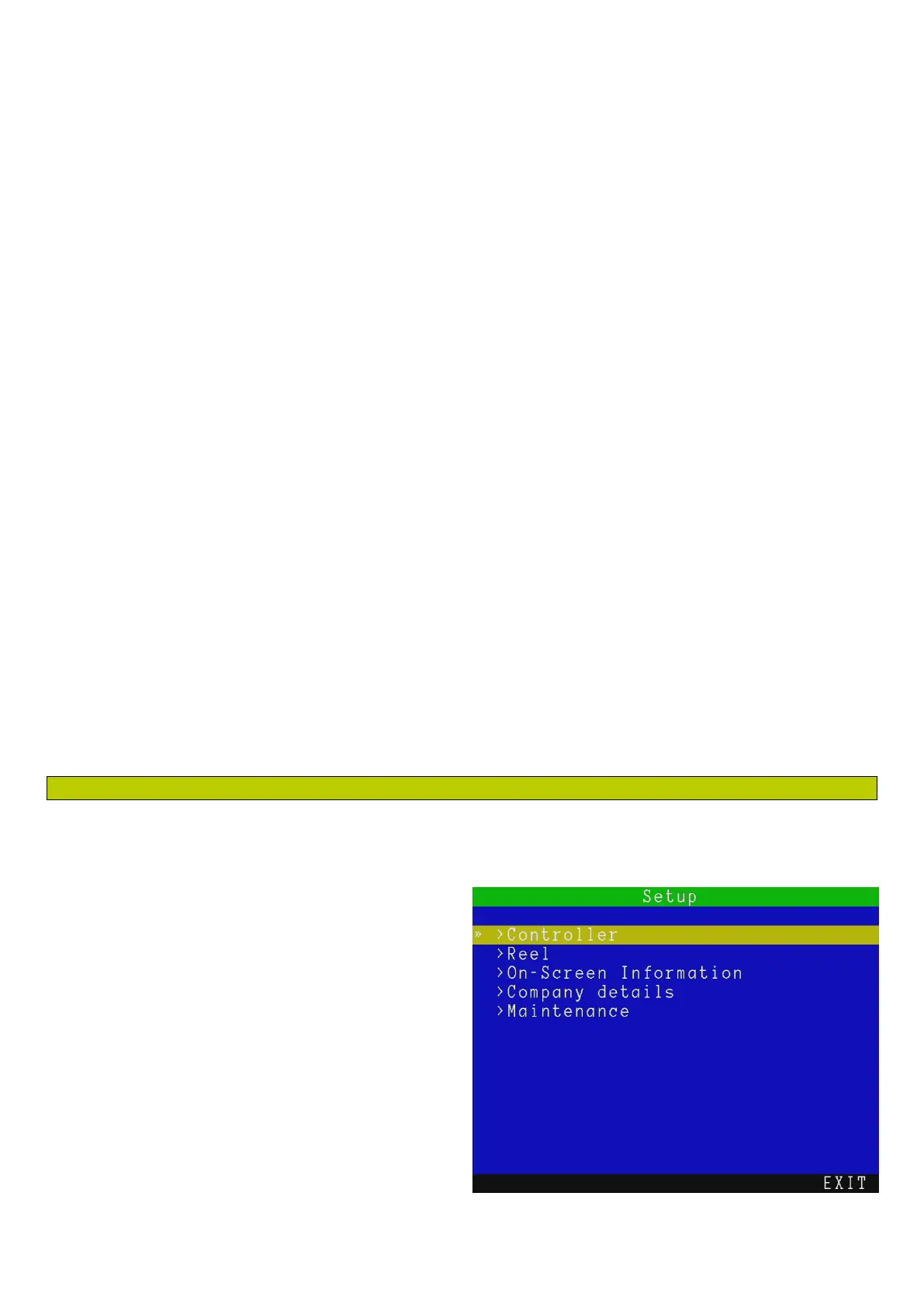
The Setup menu, see Figure 5.4, provides access to all configuration settings of your system.
There are 5 menus available:
Controller: gives access to all the controller
settings. See Section 5.8.
Reel: allows you to select the correct reel
type/length. See Section 5.9.
On-Screen Information: edit the on-screen
text information, including text appearance
and color. See Section 5.10.
Company details: enter your company logo
and information that can appear on your
reports. See Section 5.11.


 To Next Page