P340 flexiprobe Operation Manual 27
5.10 On-Screen Information Settings
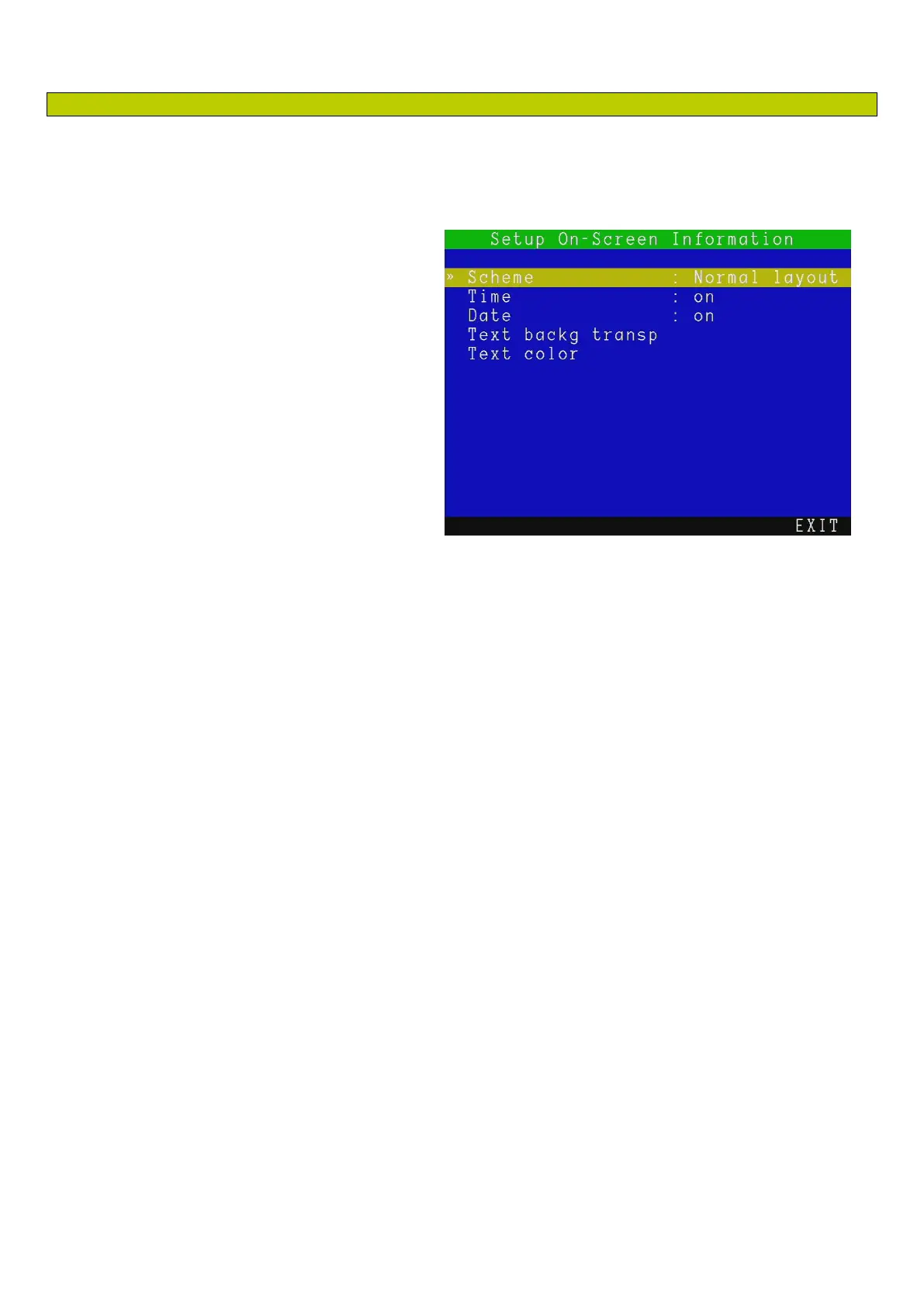
From the Setup screen enter the On-Screen Information menu, see Figure 5.10, to personalize the On-
Screen Information fields by changing the screen layout, varying the text background transparency and text
color and hiding the date or time.
There are 5 options:
Scheme: chose your preferred layout
option. See below.
Time: show (“on”) or hide (“off”) the time
from the screen.
Date: show (“on”) or hide (“off”) the date
from the screen.
Text backg transp: select the desired
transparency level from solid to
transparent for the On-Screen text
background.
Text color: select the desired On-Screen
text color.
NOTE: Hiding the time and date will result in these fields not been recorded in your video and photos.
Choosing an On-Screen Information layout
The P340 controller offers a choice of 3 different layouts for the position of the date, time and counter fields
and the position and size of any text page you may decide to show on the screen.
Deciding what layout to use is critical before starting your recordings as layouts cannot be modified after
the recording is created.
To set your preferred layout navigate to Scheme and choose between three layouts: Normal, TV and
Custom.
Figure 5.10: On-Screen Information


 To Next Page