P340 flexiprobe Operation Manual 47
TRANS: Select the desired text background transparency from invisible to solid.
Overlaying a text page
You can browse, edit and overlay text pages at any time when in the main menu or during a recording by
using the keyboard’s Pg Up and Pg Dn keys:
NOTE: If you are recording a video, this will automatically pause and resume when you have made your
selection.
1. Select the page to overlay or edit using the Pg Up and Pg Dn keys.
2. Make your changes as required. See Section 8.2.2
3. Press OK or Enter to overlay the page on the video.
Or:
4. Press CANCL to cancel the operation.
From the Text menu:
1. Use ▲ and ▼ arrows, or Pg Up and Pg Dn to select a text page; each page is numbered 0 to 19.
2. Press OK or Enter to overlay the page or press F1 to edit the text.
Creating or editing text pages
NOTE: Take care when editing text pages so that the resulting video recordings display all the information
required when converted to DVD. See Section 10.4 for more info.
NOTE: Text pages can also be created on a PC using FlexiSight Manager and exported to the P340
controller using the memory storage device. Text pages can also be exported to the memory device for
editing on the PC or just for storage. Refer to the
FlexiSight Manager manual for more detailed..
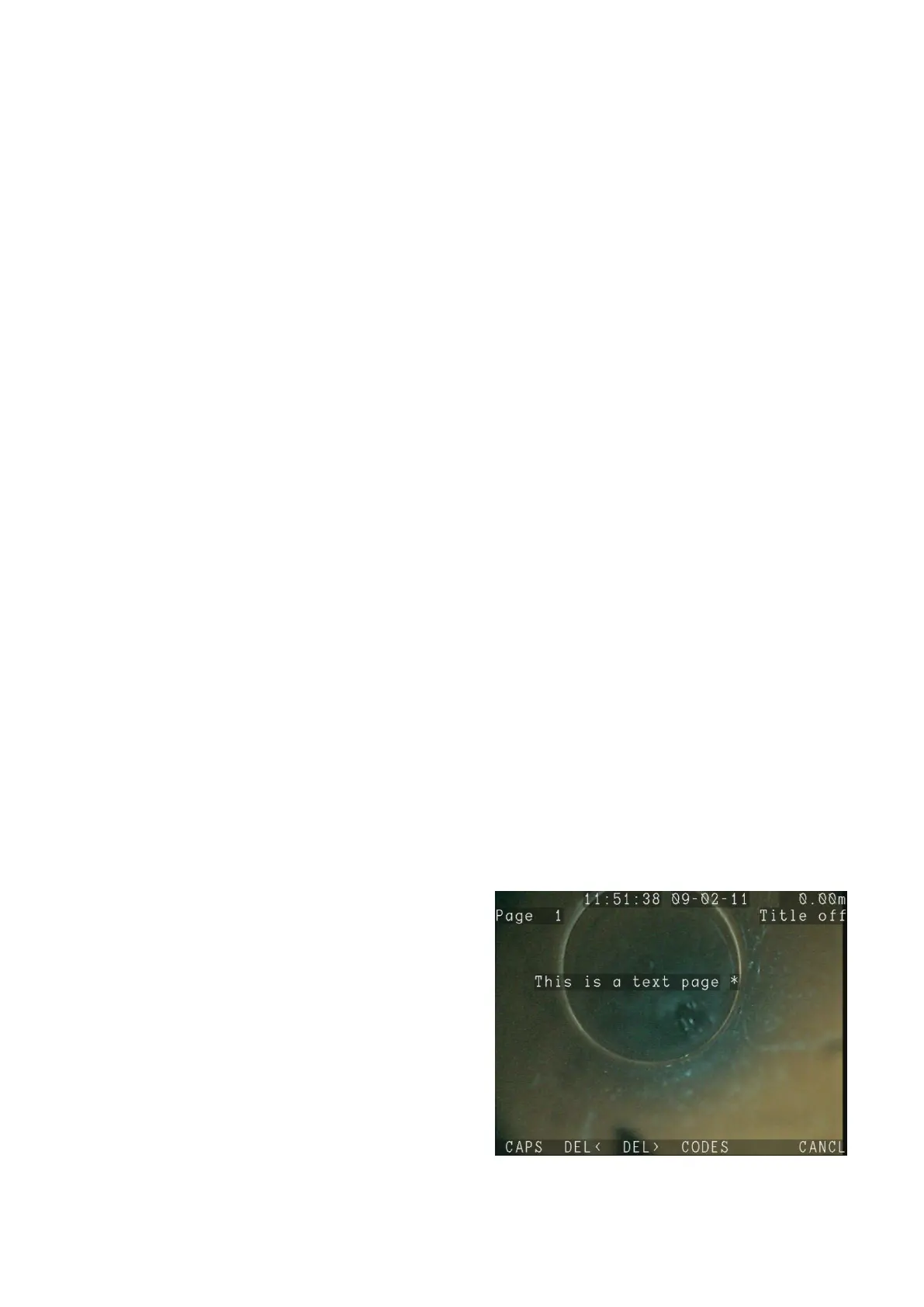
You can edit a text page from the Text menu. As
already described you can also edit and overlay text
pages at any time from the main screen or whilst
recording by using the Pg Up and Pg Dn keys.
1. Press EDIT to modify the page currently
displayed or select the page by using the Pg Up
and Pg Dn keys.
2. You will enter the text editing screen, see Figure
8.2.
Figure 8.2 Text editing screen


 To Next Page