Stonex R20 – User Manual 21
Workspace: Displays current measurement data, options, input areas, menus, lists, dialogs, and other work content.
Guides the operator to read, record, select, confirm, input, and so on.
Softkey bar: Displays the softkeys for the current interface, which can be activated by the corresponding function
keys [F1-F4]. If there are more than four options, the rightmost softkey will usually be the page down function. The
actual functionality represented by each of the soft keys will vary from different interfaces and procedures.
NOTE: The workspace content, status icons and softkeys may vary slightly depending on the firmware version of
the instrument.
The measurement interface is the basic interface of the instrument, and the display will enter the measurement
interface after power on. Pressing [ESC] several times in most of the working interfaces will also eventually return
to the measurement interface.
For more instrument operation, you need to go to {Main Menu} to make a selection.
4.7. Quick Functions
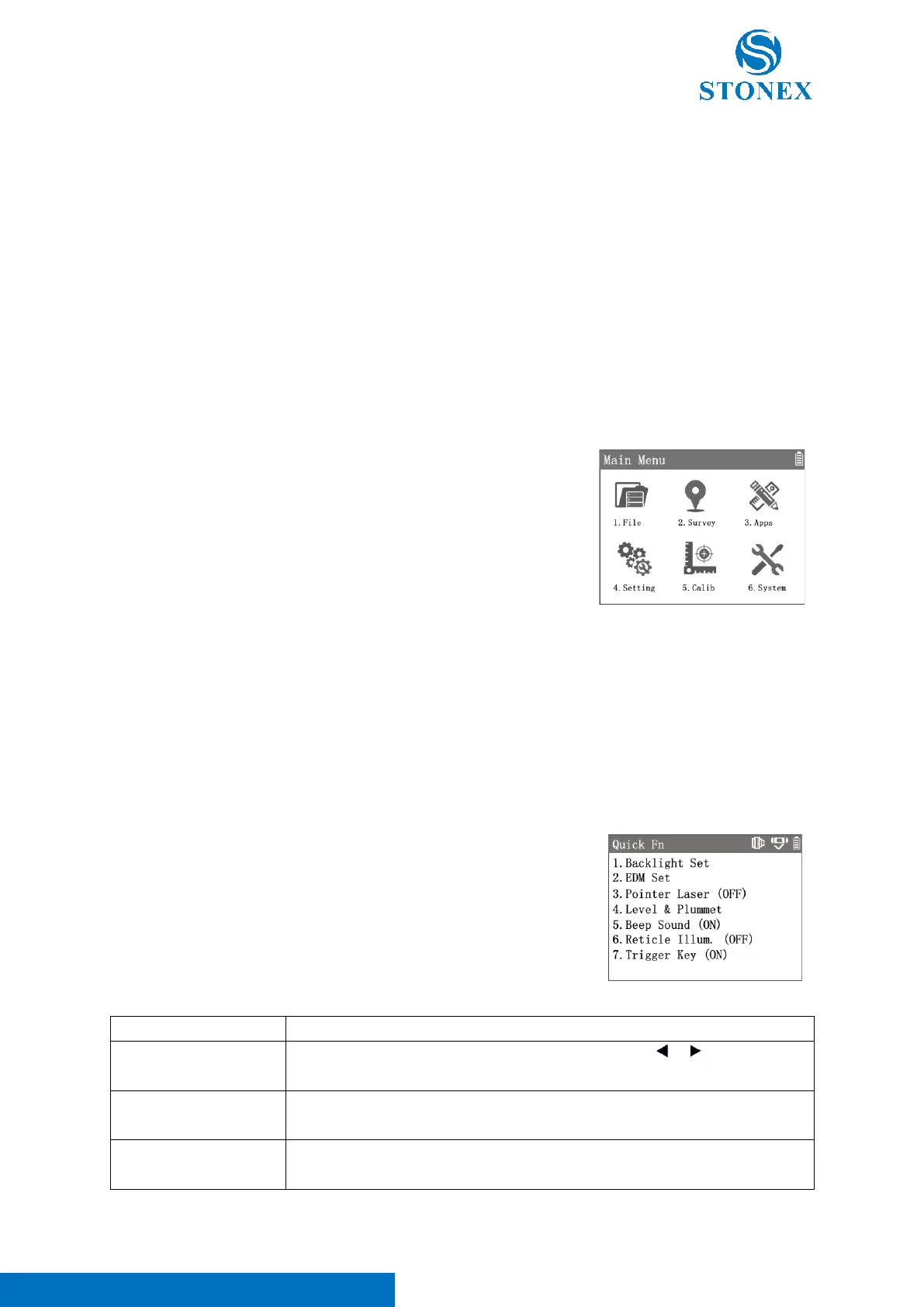
Some common functions an be called directly from the measurement related interface by pressing [★] .
In the measurement interface, press [M] to enter {Main Menu}. There are
six icons to choose from. Use the navigation keys to select an icon and press
[ENT] to enter or press the numeric key corresponding to the icon's serial
number to enter directly.
〈1.File〉: Enter {File Manager}.
〈2.Survey〉: Enter {Surveying&Stake Out}.
〈3.Apps〉: Enter {Applications}.
〈4.Set〉: Enter {Setting}.
〈5.Calib〉: Enter {Calibration}.
〈6.System〉: Enter {System Infrormaton}.
Press [★] in the measurement related interfaces to enter {Quick Fn}.
Use [▲] [▼] to highlight an option and press [ENT] to execute or press the
numeric key corresponding to the option's serial number to execute directly.



 To Next Page