Stonex R20 – User Manual 54
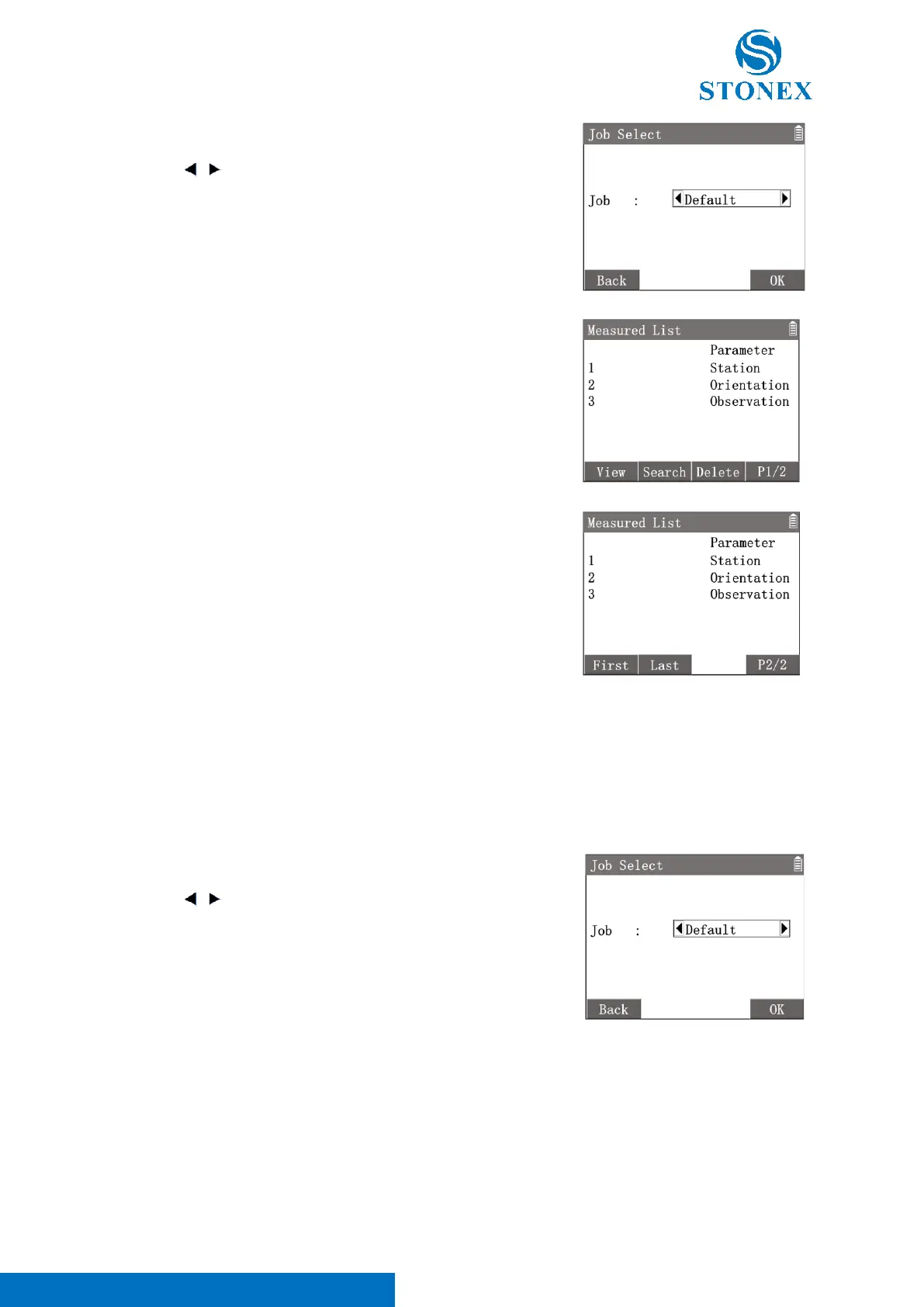
1. In {File Manager}press [2]〈2.Measurement Data〉to enter
{Job Select}.
2. Use [ ] [ ] to toggle the jobs available. Then press [ENT] or [F4]
【OK】to select one and enter {Measured List}.
3. Use [▲] [▼] to highlight a record and press [ENT] or [F1]
【View】to display the detail information.
[F1]【view】: Display the drtail of the highlighted record.
[F2]【Search】: Enter {Search} to input a 〈PointID〉then press [F4]
【OK】to find the related records.
[F3]【Delete】: Delete the highlighted record.
Press [F4]【P1/2】to 2
nd
page of softkeys,
[F1]【First】: Turn to the first page of the list and highlight the first record.
[F2]【Last】: Turn to the last page of the list and highlight the last record.
[F4]【P2/2】: Turn to the 1
st
page of softkeys.
The record in {Measured List} list its name and type.
8.3. Fixed Points
All the points created by importing or inputing are fixed points.
1. In {File Manager}press [3]〈3.Fixed Points〉to enter {Job
Select}.
2. Use [ ] [ ] to toggle the jobs available. Then press [ENT] or [F4]
【OK】to select one and enter {Fixed Point List}.
3. Use [▲] [▼] to highlight a point record and press [ENT] or [F1]
【View】to display the detail information.
4. When checking the drtail of the fixed point record, press [F4]
【Edit】to enter {New Point} then can modify it.
[F2]【New】: Enter {New Point} to create a new fixed point.
[F3]【Delete】: Delete the highlighted point record.
Press [F4]【P1/2】to 2
nd
page of softkeys,
[F1]【First】: Turn to the first page of the list and highlight the first point
record.



 To Next Page