Stonex R20 – User Manual 56
Data Export:
Copy the data from the instrument internal memory to the USB stick.
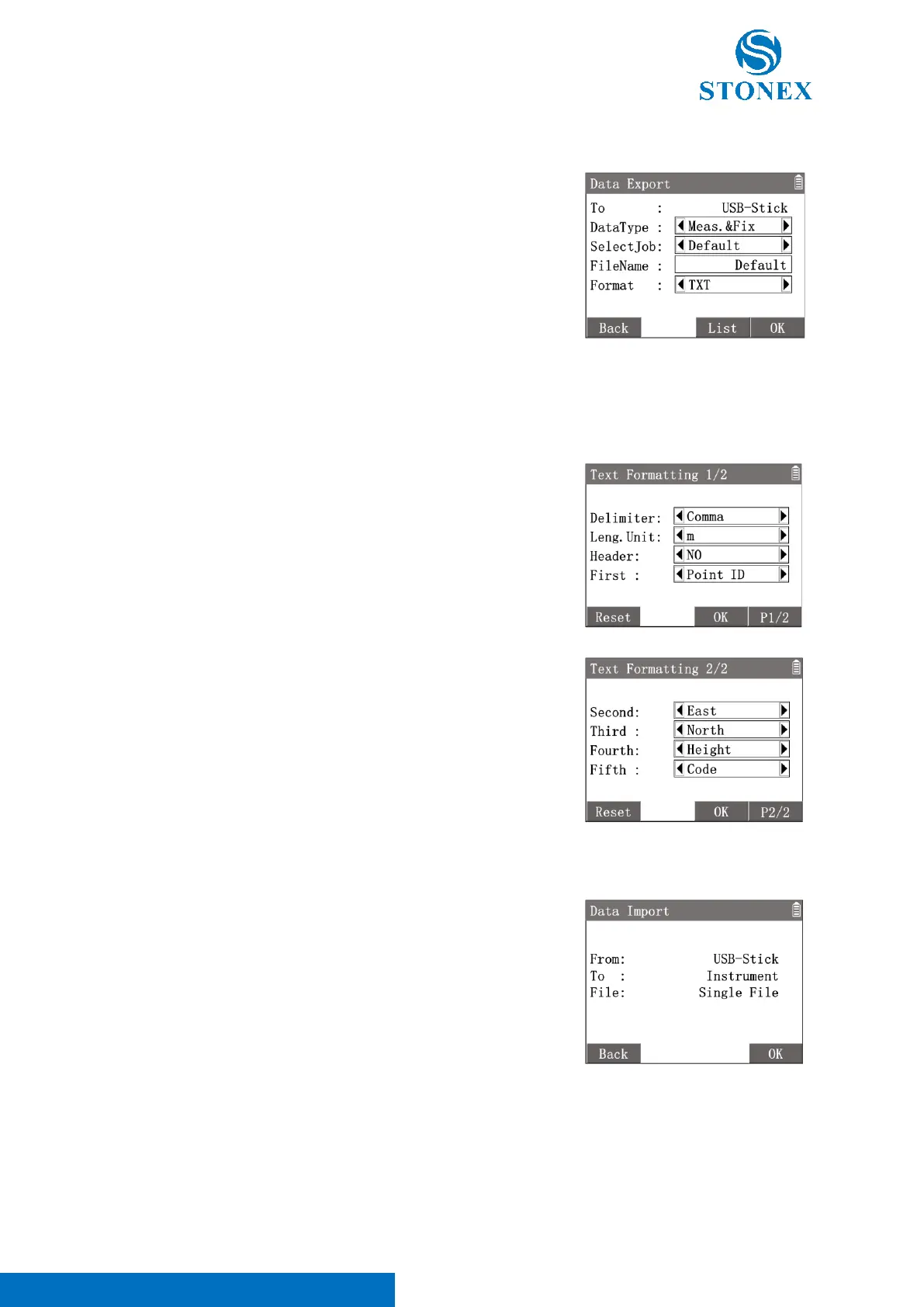
In {Data Transfer}press [1]〈1.Data Export〉to enter {Data Export}.
〈To〉: Copy to USB stick
〈DataType〉: The data type to be copied, Measurement, Fixed Point
or both.
〈SelectJob〉: Select a job to be transfered.
〈FileName〉: Input a file name which will be create.
〈Format〉: Select a file format which will be create.
[F3]【List】: Enter {Job Manager} to select a job.
[F4]【OK】: Perform the transfer. The data file will create and copy to the
default folder named Jobs in the USB stick.
The system support four types data file format, TXT, R20, CASS. R20 format is the specialized format for the
data conversion software Cube-link or Cube-manager. Data conversion
When the 〈Format〉 is 〈TXT〉, Press [F4]【OK】will enter in {Text
Formatting 1/2} to set the text formatting.
〈Delimiter〉: Choose how to separate the numbers within each row of
point data, the options are Comma, Spacing, Tab and Semicolon.
〈Leng.Unit〉: Select the unit of length for the point coordinates,
options include m, feet etc.
〈Header〉: Whether to add a file header in the first row, i.e., a description
of the meaning of each column of data.
〈First…Fifth〉: Defines the meaning of the text in each column, i.e., the
sequence text meaning of a row of point data, optionally Point ID, East,
North, Height, Code, None.
[F1]【Reset】: Reset all options to default format.
[F3]【OK】: Perform the transfer. The TXT file will create and copy to the
default folder named Jobs in the USB stick.
Data Import:
Copy the data from the USB stick to the instrument internal memory.
①In {Data Transfer}press [2]〈2.Data Import〉to enter {Data Import}.
②Press [F4]【OK】to enter{Select File}.
③Use [▲] [▼] to highlight a file and press [ENT] or [F4]【OK】to enter
{Define Job Name}.
④The default job name is same as the file name. Job name can be re-
defined manually. After defining the job name, Press [F4]【OK】 to
enter{Text Formatting}.
⑤The setting of formatting is same as the setting in TXT export. Set the
sequence of point data following the file’s text formatting. Then press
[F3]【OK】to perform the transfer. The file data will copy to the defined
job and all records will be created as fixed points.



 To Next Page