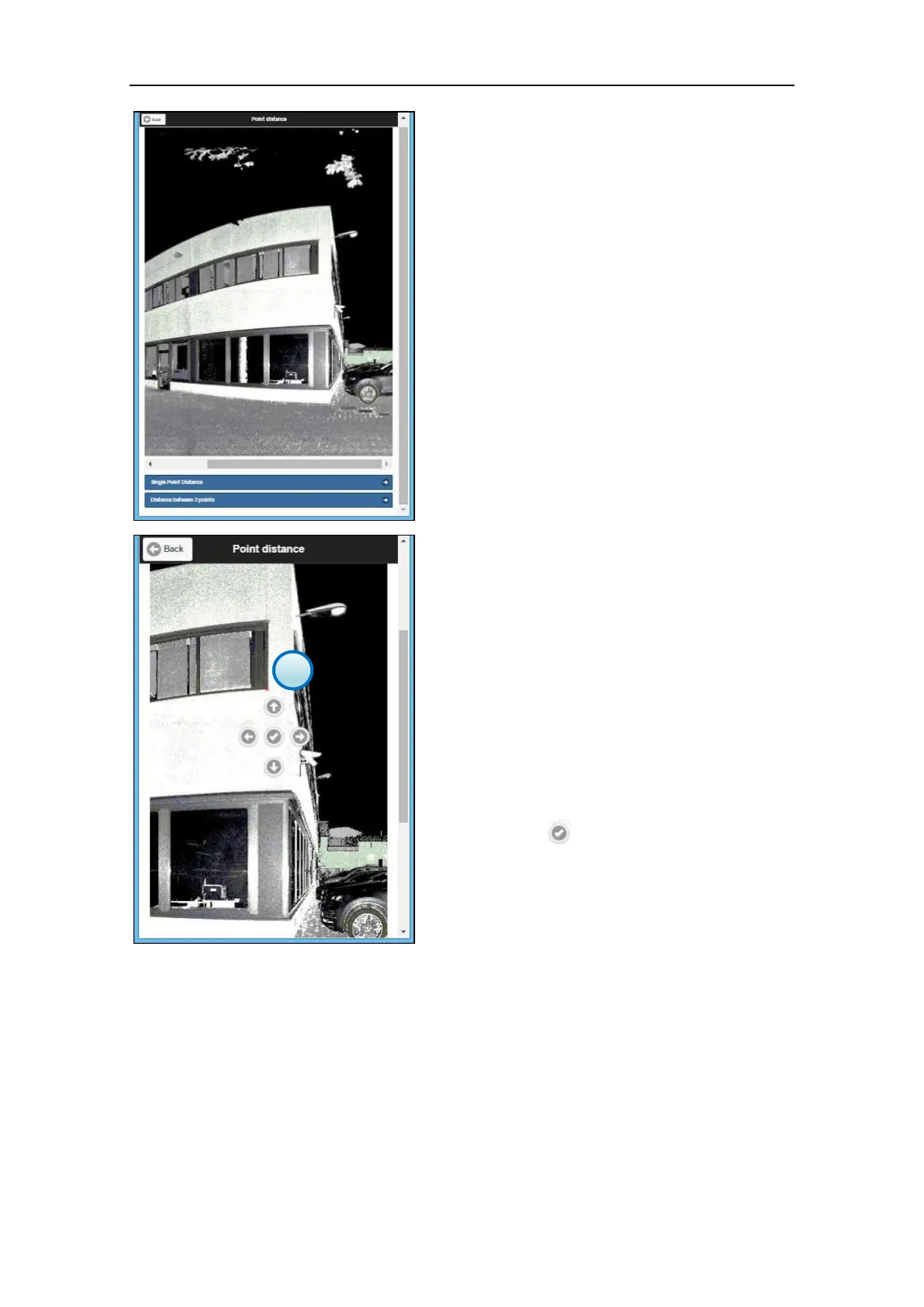
When the high-quality preview is displayed, it
is possible to slide the image from right to left
and vice versa using the cursor (pc) or fingers
(touchscreen)
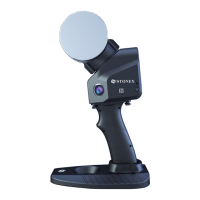
2. Select the point to measure
Select the point on the preview using the finger
(touchscreen) or the mouse (pc).
The point will be marked with a red spot
(visible in the bottom-right corner of the
window).
An arrow pad is visible on top of the image,
allowing to increase the accuracy of the
selection. Use the arrow to move the red spot
along X and Y direction until the position is
correct, then confirm the point using the
Confirm icon


 To Next Page