70
NOTE
The program automatically creates a subfolder named “Imports” inside the project folder. The
user can choose whether to use this subfolder to store the raw data or not (it is not mandatory).
When you select the X3S
file, the LINE UP Wizard will guide you through the import steps.
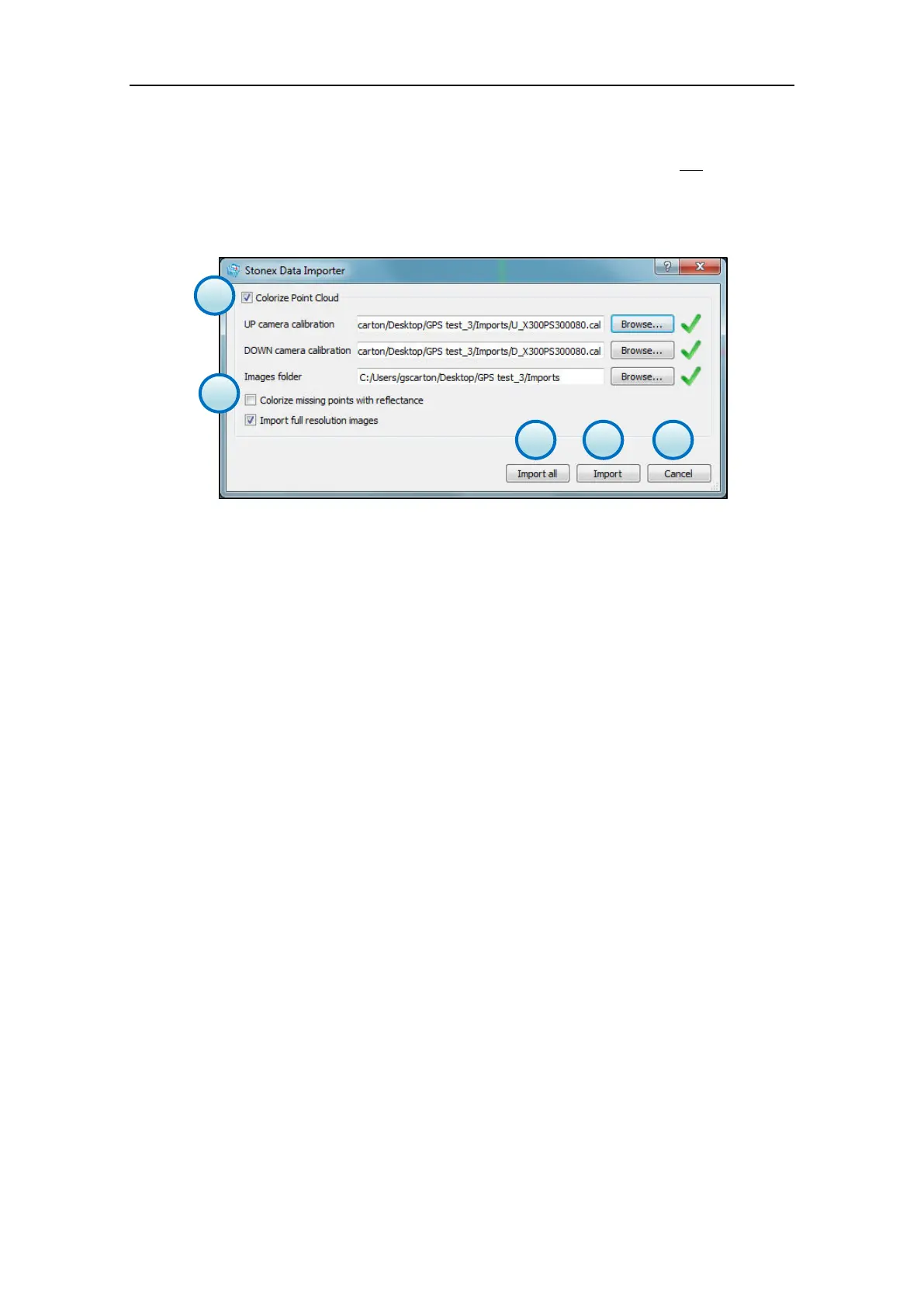
A dialog will guide you also through the point clouds colouring (color blending).
a. Colorize Point Cloud
Activating this checkbox, the coloring of the point clouds with pictures will be enabled.
The calibration files (cal) as well as the pictures are automatically loaded (if stored in the same
folder of the x3s files).
b. Colorize missing point with reflectance
(enabled):
points not covered by images are displayed with the original reflectance values.
(disabled): points not covered by images are converted to “black points” (points without
reflectance value) that can be filtered out and deleted using the automatic filtering functions.
c. Import All
Press Import all to import all the selected scan in sequence.
d. Import
Press the Import button to import each scan separately.
e. Cancel
Press the Cancel button to abort the import process.


 To Next Page